All guide chapters
Start here
Everyday running
- Residents
- Rent and payments
- Dues and reminders
- Deposits and advances
- Expenses and profit
- Mess and meals
- Reports and dashboard
- Laundry and food for residents
- Importing residents safely
- Room changes, checkout and resident requests
- Payment approvals
- Billing periods, installments and rent reviews
- Room electricity and resident charges
- Utility connections and bills
- Inventory and room assets
- Bank accounts and wallets
Filling your beds
Your team and residents
Staff accounts and who can see what
Give your warden and manager their own logins instead of sharing yours. You decide what each of them can open, and you can see who did what.
Step by step
Where to go: More → Hostel Staff
Who can use it: Only the hostel owner can add staff or change their access. Staff may view the roster if their permissions allow it.
-
Add a separate account
Choose Add staff member and assign the role and branches this person actually works in. Verify the contact details before sending a welcome message.
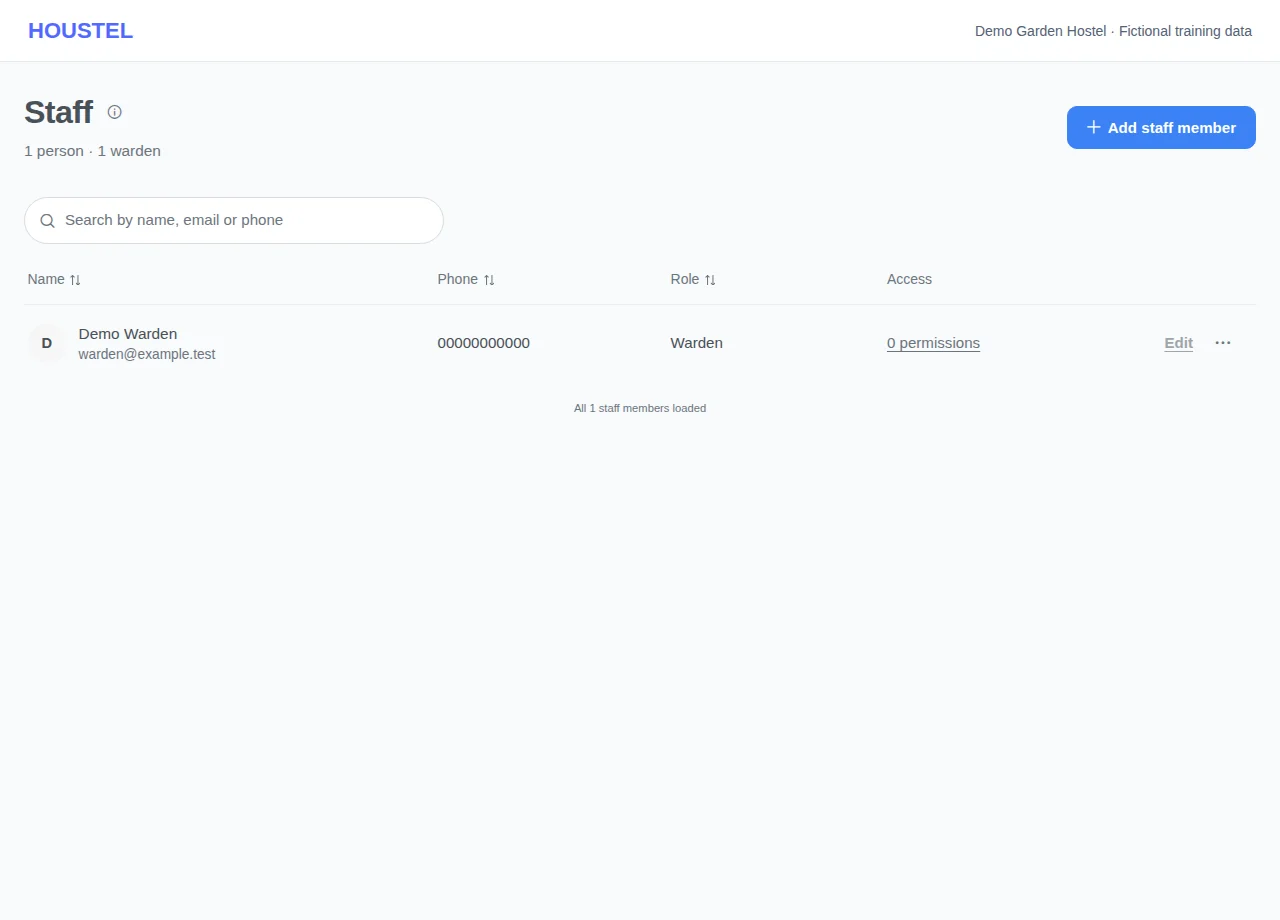
Add a separate account · Example with dummy data. Select the image to enlarge. -
Choose the alerts this person receives
Review Send them alerts. This controls operational notifications for the sections the person is allowed to open. It is separate from their permissions.
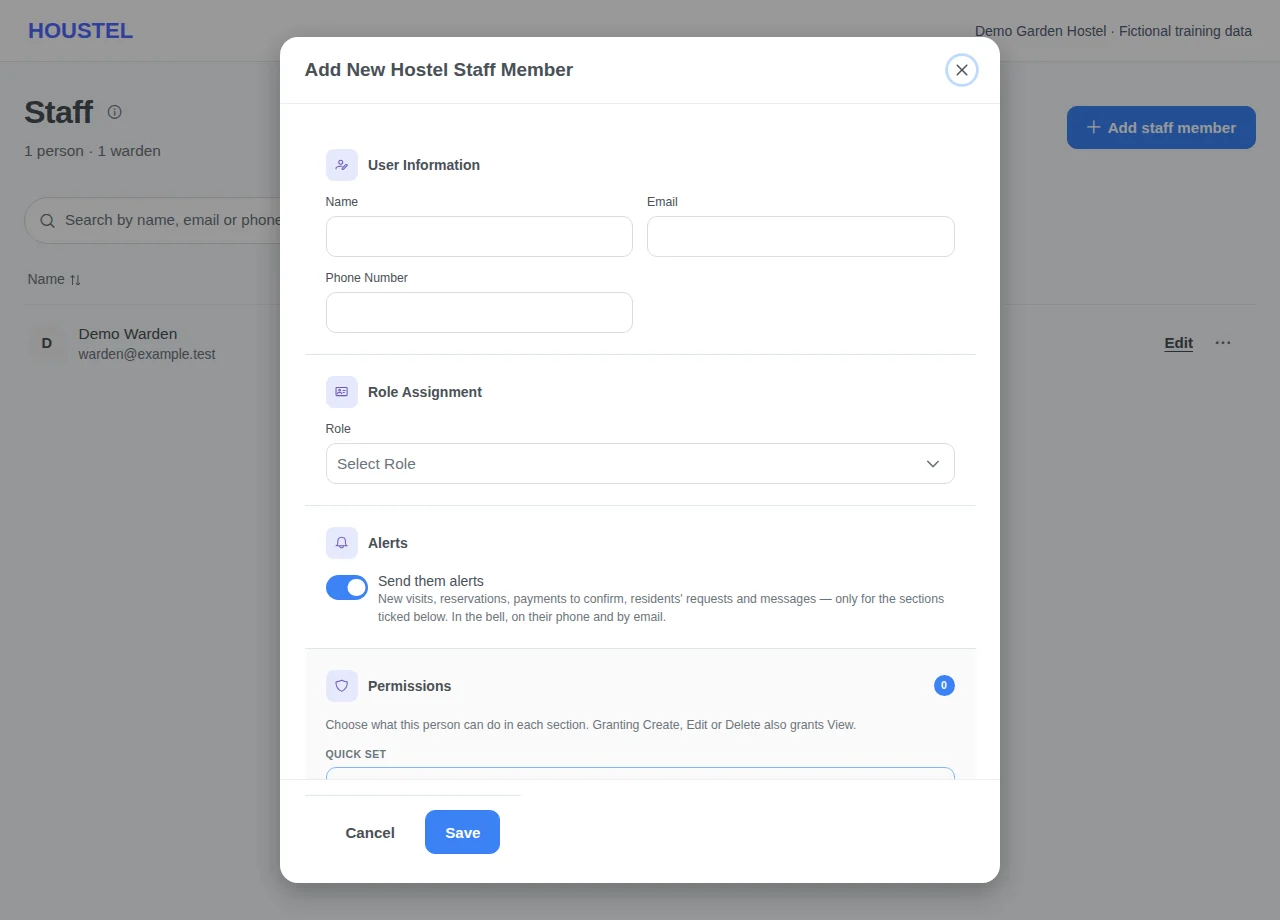
Choose the alerts this person receives · Example with dummy data. Select the image to enlarge. -
Grant only the permissions needed
Review View, Create, Edit and Delete for each section. Approve on Payments is a separate, explicit choice: selecting all ordinary permissions does not select it. Review branch assignments, then save and check the staff record.
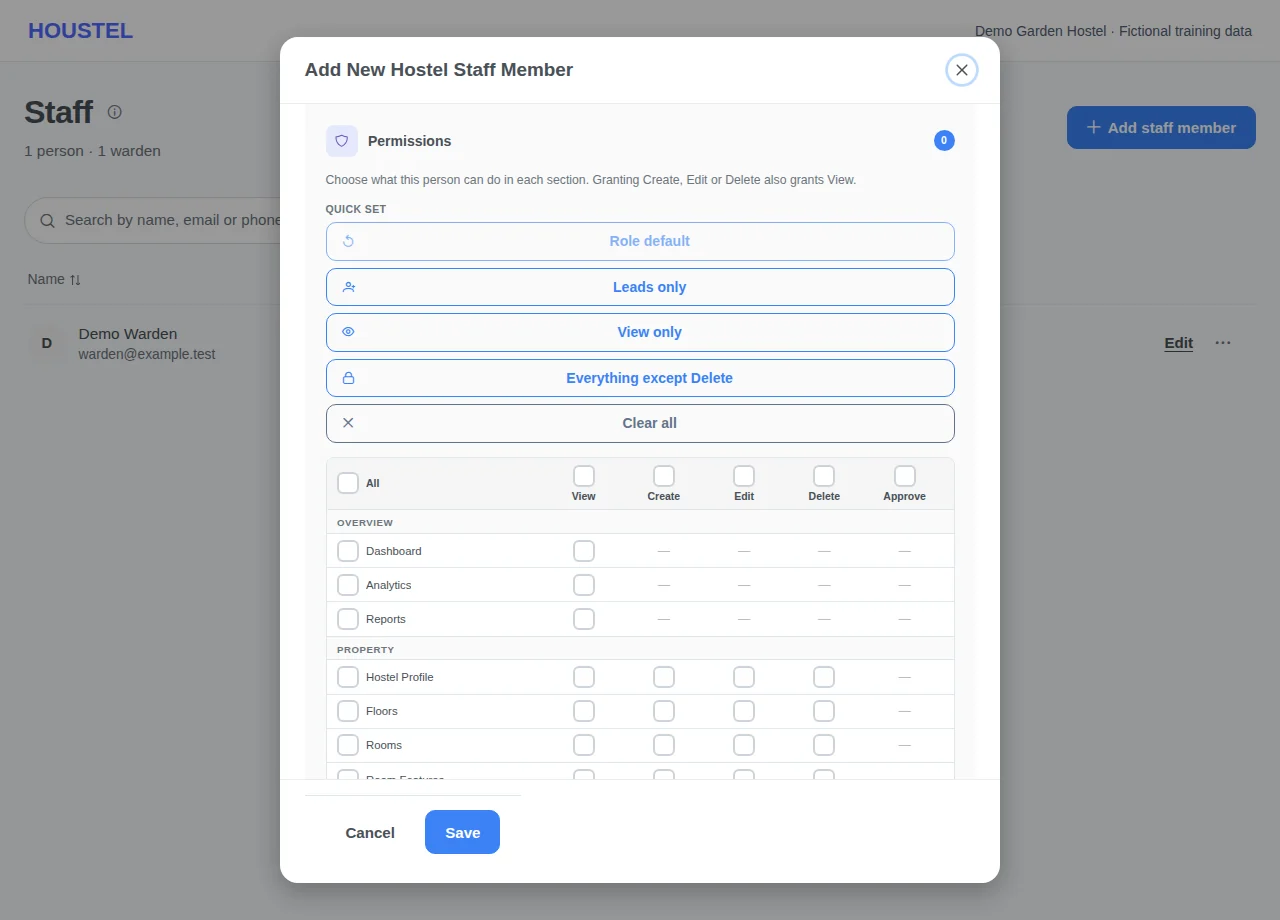
Grant only the permissions needed · Example with dummy data. Select the image to enlarge. -
Give someone the leads only
Under Quick set, press Leads only. It ticks View, Create and Edit on Visits, Reservations, Customers nearby, Facebook leads and the Lead Tracker, and nothing else. They can see and work leads and share them with your other branches; registering residents and confirming rooms need Residents and Bookings as well. Their sidebar shows only those pages, and without the Dashboard they open on the Leads page.
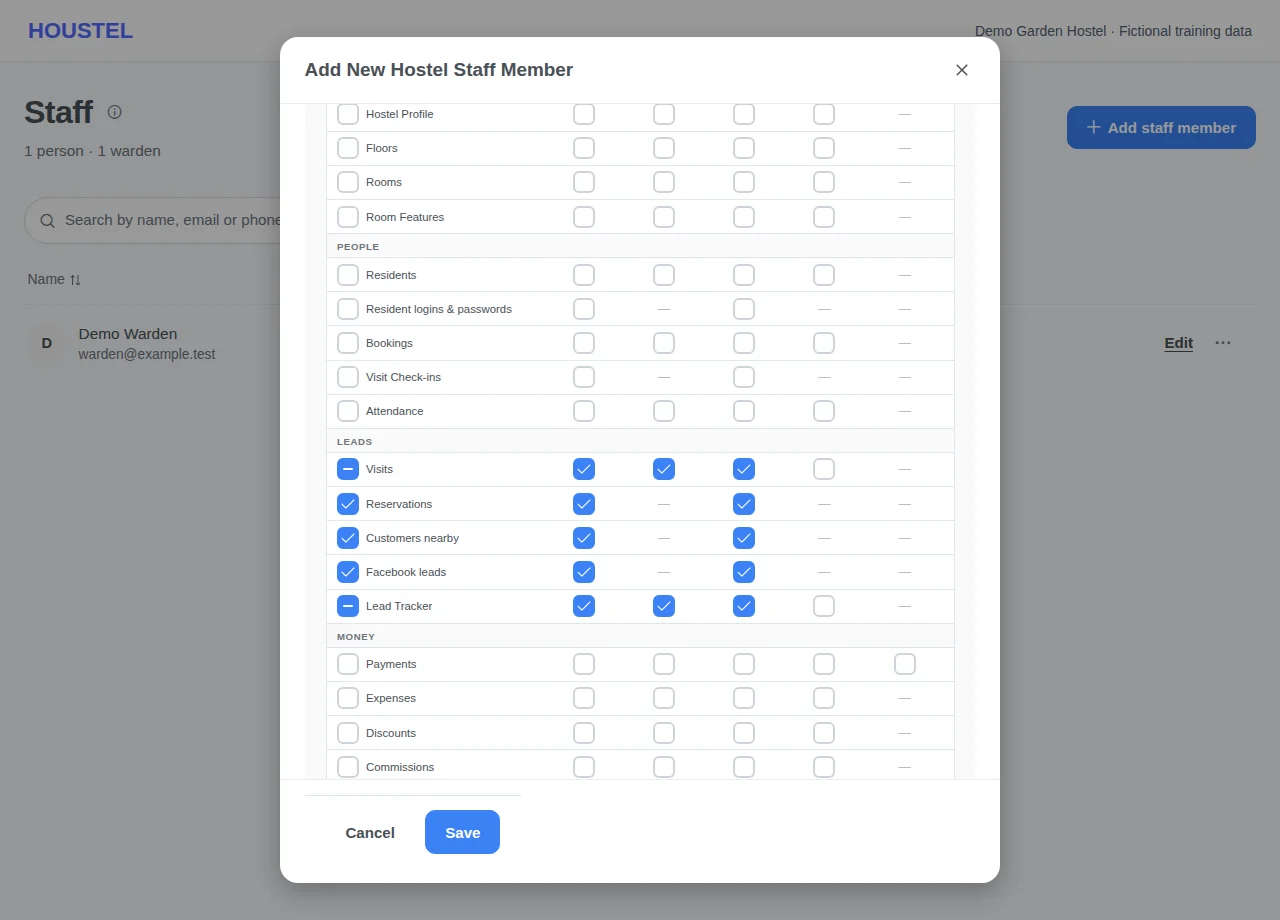
Give someone the leads only · Example with dummy data. Select the image to enlarge. -
Talk to your staff in Staff chat
Press Chat at the top of any page, then My Staff, to see every member of staff at your branches with their role, branch and when they were last active, and to message one person or a group you make with New group. Only the owner and the Houstel.pk team have My Staff; staff answer from the alert they get.
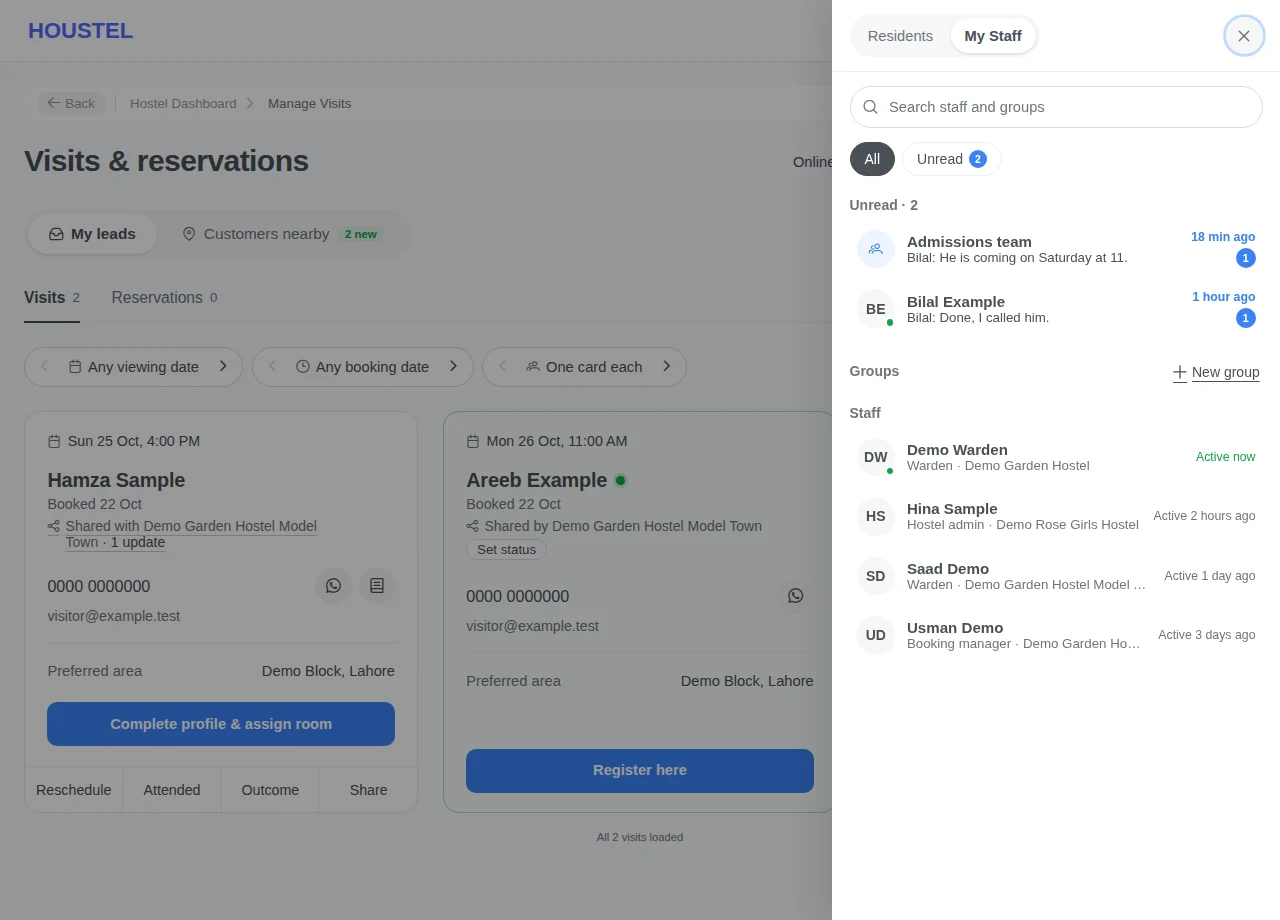
Talk to your staff in Staff chat · Example with dummy data. Select the image to enlarge. -
Remove access when work ends
Remove unneeded hostel assignments and review any remaining branches. If an account may be compromised, review its devices and password recovery.
Before you finish, and when something goes wrong
- Granting Create, Edit or Delete also requires View. A job applicant or payroll record does not automatically create a dashboard staff account.
- Send them alerts controls hostel operational alerts separately from permissions. Review the staff member’s other assigned branches when changing it. Personal account/security messages and feedback about their own actions can still be sent.
- Reservations, Customers nearby and Facebook leads are separate permissions from Bookings and Visits. Staff who had Bookings keep Reservations, and those who had Visits keep Customers nearby and Facebook leads. A staff sidebar shows only the pages that person was given; the permission, not the sidebar, decides access.
If a save times out, check the record before repeating it. If access is denied, ask the owner to review your hostel assignment and permissions. Never share your login to work around an access restriction.
Related help
The most common mistake owners make is giving the warden their own password. It works right up until the day it does not, and then you cannot tell who recorded a payment, and you cannot take access away without locking yourself out too. Staff logins fix both.
Adding a staff member
Hostel Staff, under your account menu. Add their name, phone and email, pick a role, and they get their own login. They only ever see the hostel you added them to.
| Role | Typically used for |
|---|---|
| Hostel Admin | A partner or family member who runs the hostel with you and needs nearly everything. |
| Manager | Day-to-day running: residents, rooms, and usually payments. |
| Warden | On-site work: who is in which room, arrivals, departures, notices. Often no access to money. |
| Booking Manager | Someone who only handles enquiries, visits and new bookings. |
The role is only a starting point. What actually decides what somebody can open is the permissions you set for them.
Setting permissions
Permissions are set section by section: residents, bookings, payments, expenses, rooms, mess, reviews, staff, reports and the rest. For each section you choose what the person can do:
- View. They can see it, and change nothing.
- Create. They can add new records.
- Edit. They can change existing ones.
- Delete. They can remove them. Give this to almost nobody.
Anything you allow somebody to create or edit, they can obviously also see, so you never have to tick both.
A staff member's sidebar shows only the pages you gave them. Somebody without the Dashboard permission opens the hostel on the first page they do have, for a lead handler the Leads page, instead of a dashboard they cannot read.
Someone who only handles leads
The Leads group in the permissions has one row for each tab of the Leads page: Visits, Reservations, Customers nearby and Facebook leads, then the Lead Tracker. Under Quick set, Leads only ticks View, Create and Edit on all of them and nothing else. Change single ticks afterwards if you like.
- View lets them see a tab and its leads.
- Edit lets them work the leads: unlock a contact (it uses your free unlocks), record what came of a lead, reschedule or mark a visit attended, reject a reservation, answer Facebook comments and messages, share a lead with your other branches, and set what came of a lead another branch shared with theirs.
- Turning a lead into a resident is not part of Leads. Registering them needs Residents (Create or Edit), giving them a room needs Bookings (Create), and confirming a reservation or opening its booking needs Bookings (Edit). Without those, the card says the lead is ready and somebody else takes the next step.
Reservations used to need the Bookings permission, which also opens every resident's booking, and Customers nearby and Facebook used to follow Visits. Staff who had those keep the same tabs.
Three sensible setups
| Person | Give them | Keep from them |
|---|---|---|
| Warden | Residents and bookings (view, create, edit), rooms (view), notice board | Payments, expenses, reports, staff |
| Manager | The above, plus payments (view, create) and expenses | Delete anywhere, staff, settings |
| Accounts person | Payments, expenses and reports (view, create), export | Residents beyond viewing, rooms, staff |
Three permissions worth thinking about
- Export. Whether they can download your resident and payment lists as a file. A file that leaves the building is a file you no longer control.
- Import. Bulk-adding residents. Useful once, rarely needed after.
- See all data. Whether they see records other staff created, or only their own. Leaving this off is a simple way to keep two branch managers out of each other's work.
Alerts for your staff
Your staff are told when something arrives in a section they can open, at the same moment you are. A new visit reaches the warden who will meet the visitor; a payment a resident sends in reaches whoever confirms payments. Nobody is told about a section you have not given them.
| If they can open | They are told about |
|---|---|
| Visits | New visit bookings, visits cancelled or moved, and visit reminders. |
| Reservations | New reservations. |
| Customers nearby | Customers looking near your hostel, and "find me a hostel" requests. |
| Facebook leads | Facebook and Instagram leads, their messages, and new comments under your ad. |
| Bookings | Bookings customers make themselves, a reservation somebody else confirmed, and each morning who is planned to leave that day. |
| Residents | Room-change and check-out requests, new self-registrations, messages from residents and new enquiries, and residents going out or coming back. |
| Payments | Payments residents send in for you to confirm, token money waiting for somebody who just registered, and rent reviews that are due. |
| Support Tickets | New tickets and residents' replies. |
| Complaints | New complaints and follow-ups. A complaint filed about staff behaviour goes to you alone. |
Other sections work the same way: expenses and utility bills, attendance, emails to residents and hiring each tell the staff who can open them. A lead another of your branches sends over reaches whoever can open the tab it lands on.
Where the alerts arrive
- The bell, in their own dashboard, for everything above.
- Their phone or browser, if they allowed notifications on that device. On a shared desk computer, signing out stops that browser receiving their alerts, and whoever signs in next gets their own.
- Email, for the ones that need action: a new visit, reservation or self-made booking, a resident's request, a payment to confirm, a new registration, a support ticket, a complaint, and the first message of a new enquiry. They can switch these emails off for themselves from their profile; the bell and phone alerts carry on.
- WhatsApp alerts go to you, the owner, and not to your staff.
Like yours, the visit and reservation emails your staff get never include the visitor's phone number or email address. For a new self-registration, the staff copy names the person and leaves the phone number on the dashboard, behind their login, because an email cannot be taken back when somebody leaves.
Switching alerts off for one person
Open the person on the staff page, choose Edit and turn off Send them alerts. Their access stays exactly as it is; they just stop being told. Use it for someone who looks in once a week, such as an accountant, rather than taking away a section they still need. The staff page shows Alerts off beside them.
- The switch covers every branch the person works at, and a branch you add later starts the same way.
- Off means none of this hostel's alerts, in the bell, on their phone or by email. What is about them personally still arrives: a payment they recorded being approved or rejected, payments waiting for them if you made them an approver, and their own sign-in and security messages.
- The Lead Tracker follows its own rules: leads reach the people who work leads at that branch, and a lead assigned to someone reaches them. To stop those, take away their Lead Tracker access.
- Only you can change the switch. A staff member cannot turn alerts back on for themselves or anyone else.
Who did what
Records show who created them and who last changed them. That is not about mistrust. It is about being able to answer “who took this payment?” without an argument, and about the person who did the work getting the credit for it.
Three people sharing one account makes every record look like the same person did it. Separate logins cost nothing within your plan's staff limit.
When somebody leaves
Remove their access from the staff page, the same day. Everything they recorded stays exactly where it is: you are removing a login, not history. If they had a hostel phone or a shared device, sign out of it too.
Deactivating or removing a login also stops their alerts straight away, including on their phone and browser. Taking someone off one branch stops that branch's alerts, and its older alerts disappear from their bell.
How many staff you can have
The free plan allows a couple of staff logins; Basic allows 5, Standard 10, and Premium has no limit. If you need more, that is usually the honest signal that the hostel has outgrown its plan.
Several branches
Staff are added per hostel, so a warden at your second branch cannot see the first. If somebody genuinely works across both, add them to both. That is deliberate, so that access to two hostels is always something you did on purpose.
Someone who works at two branches gets the alerts of both, each marked with its hostel's name. Opening one takes them to the branch it is about.
Leads can still reach other branches: anyone who may work a kind of lead can share it with your other branches, even ones they are not staff at, and those branches' people are told. The lead stays at their own branch. They cannot open the other branches unless you added them there.
Talking to your staff
My Staff, in the panel the Chat button at the top of every page opens, and the Staff tab in Chat → Customer Chat, let you message anyone on your staff at any branch, one to one or in groups you keep, see who is active now, and pass them a lead, a payment to collect, a resident or a complaint. Only you and the Houstel.pk team have them; staff answer from the alert they get, and open what you passed only where their own permissions allow. See Staff chat.
In short
- Never share your own login. Staff logins are free within your plan.
- Roles are a starting point; permissions per section are what actually decide access, and the sidebar shows each person only their sections.
- Leads only gives someone the Leads page and the Lead Tracker and nothing else. Registering residents and confirming rooms stay with Residents and Bookings.
- Give View, Create and Edit freely. Give Delete to almost nobody.
- Watch the export permission. That is data leaving the building.
- Staff are told about what arrives in the sections they can open. Turn off Send them alerts for anyone who should not be.
- Remove access the day someone leaves; their records stay.
- Staff are per hostel, so branches stay separate unless you say otherwise.
- Staff chat reaches all your staff from one place; only you have My Staff under the Chat button.
Common questions
Can I stop staff from seeing money?
Yes. Permissions are set section by section, so a warden can manage residents and rooms while payments, expenses and reports stay closed to them.
Can a staff member handle only the enquiries?
Yes. In their permissions, press Leads only. They get Visits, Reservations, Customers nearby, Facebook leads and the Lead Tracker, and their sidebar shows only those. Registering a resident or confirming a room still needs Residents and Bookings.
Somebody has left. What do I do?
Remove their access from the staff page. Everything they recorded stays exactly where it is. You lose the login, not the history.
Still stuck?
Tell us the screen name, what you tried and what happened. Remove personal details, passwords and private links from any screenshot.