All guide chapters
Start here
Everyday running
- Residents
- Rent and payments
- Dues and reminders
- Deposits and advances
- Expenses and profit
- Mess and meals
- Reports and dashboard
- Laundry and food for residents
- Importing residents safely
- Room changes, checkout and resident requests
- Payment approvals
- Billing periods, installments and rent reviews
- Room electricity and resident charges
- Utility connections and bills
- Inventory and room assets
- Bank accounts and wallets
Filling your beds
Your team and residents
Your dashboard and reports
The dashboard answers “how is the hostel doing right now”. The reports answer “what happened, and is it getting better or worse”.
Step by step
Where to go: Dashboard; Payments → Daily Report (Download for a printable report), Hostel report or Page views
Who can use it: The hostel owner, or staff with access to this feature. Some actions need additional permission.
-
Choose the report and period
Use Daily for the day’s activity, Analytics for trends, and Page views for public listing traffic. Check the selected hostel and date range.
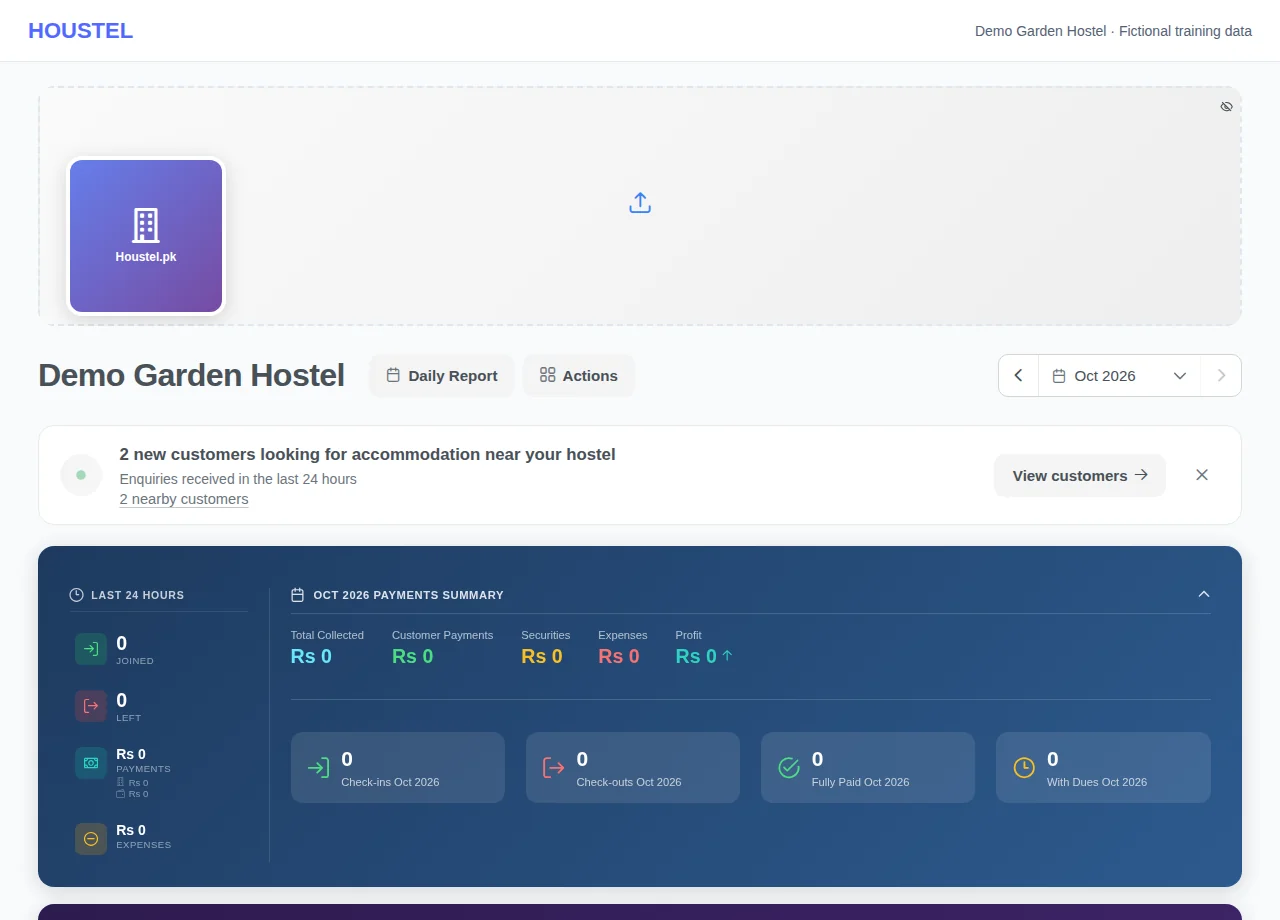
Choose the report and period · Example with dummy data. Select the image to enlarge. -
Reconcile the underlying records
Open the supporting bookings, payments or expenses when totals disagree. Export only to authorised people and keep the file private.
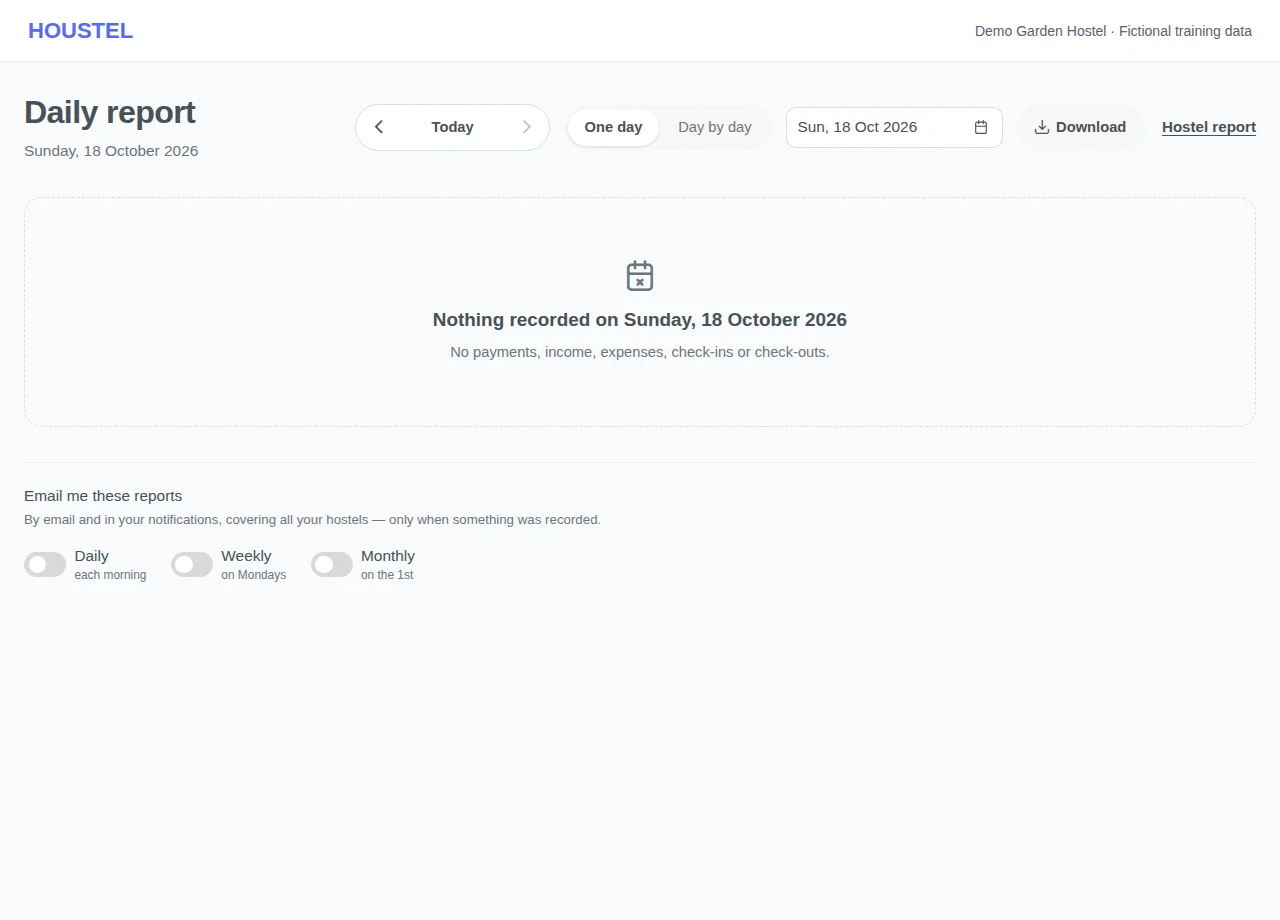
Reconcile the underlying records · Example with dummy data. Select the image to enlarge. -
Download or print a report
On the Daily Report, choose Download. Pick the days (up to a year), PDF or Image, and leave out any section you do not need. Check the preview, then download or print. Every record is a row and the totals at the end always cover everything in those days.
Before you finish, and when something goes wrong
- Different reports can use different dates and definitions. A page view, a booked bed, a billed amount and cash collected measure different things.
- A downloaded report shows the figures from when you opened the window. Money still waiting for payment approval is not in it; a line at its end says how much is waiting.
If a save times out, check the record before repeating it. If access is denied, ask the owner to review your hostel assignment and permissions. Never share your login to work around an access restriction.
Related help
You do not need to read every screen every day. The dashboard is for the morning, the daily report is for the evening, and the monthly figures are for the last day of the month. This chapter says what each one answers so you can stop looking at the other two.
The dashboard: “how are we doing right now?”
Open it in the morning. It is arranged in three bands.
Last 24 hours
Who joined, who left, what was collected and what was spent since yesterday. This is your check that yesterday was recorded properly. If you took Rs 20,000 and the panel says Rs 12,000, something has not been entered.
This month
Total collected, split into rent, deposits, other income and electricity. Beside it, how many residents have paid in full, how many partly, and how many not at all. Cash and bank are shown separately, and so is your profit for the month so far.
All time
The same picture for the life of the hostel. Useful once a quarter rather than daily, and the fastest way to see whether the business is growing.
The dashboard answers “how much money came in this month?” The payments page answers “how much was this month billed for?” A resident paying January's rent in December makes those two numbers differ, correctly. Neither is wrong; they are answers to different questions.
The daily report: “what happened today?”
Payments → Daily Report. One page you can read in a minute at closing time: today's payments, today's expenses, arrivals and departures.
It is the natural end-of-day habit, and it is also what you send an owner who is not on site. Reading it daily means mistakes are found while people still remember the transaction.
Download or print a report
Payments → Daily Report → Download. One file for any run of days: a single day, a week, a month, or dates you pick, up to one year at a time. Every record is a row and the totals come at the end, so you can print it, keep it, or send it to a partner or your accountant.
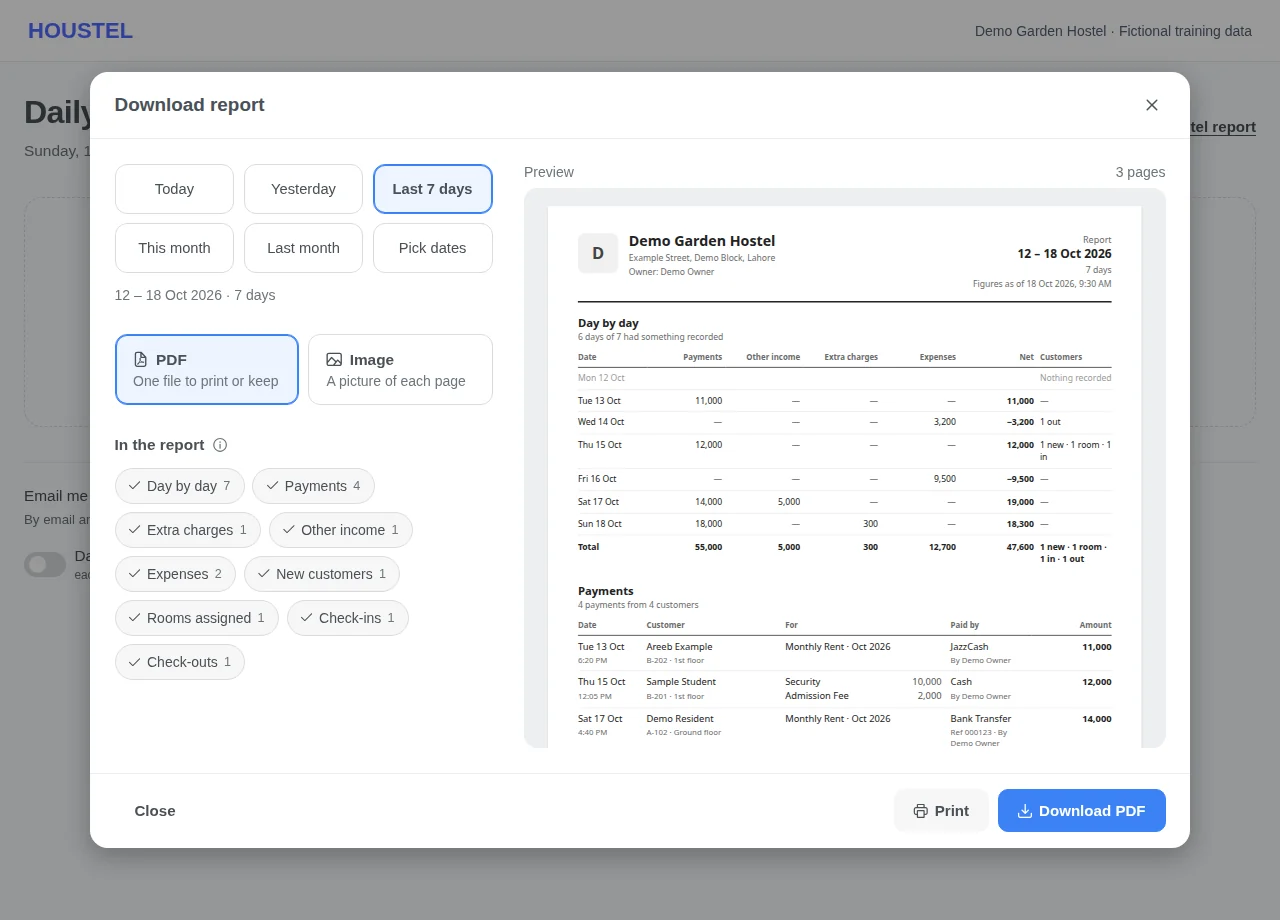
- Pick the days. Today, Yesterday, Last 7 days, This month, Last month, or Pick dates for any start and end date. The window opens on the day or the days the page is showing.
- Pick PDF or Image. PDF is one file to print or keep. Image saves a picture of each page, which is handy on WhatsApp. A report longer than 20 pages is always saved as a PDF.
- Leave out what you do not need. Under In the report, tap a section to leave it out. The totals at the end still cover everything.
- Check the preview, then Download or Print. Print opens the pages in a new window with your printer settings. To keep the sharpest copy of a long report, choose Save as PDF there.
What is in it
- For more than one day, a day by day table: payments, other income, old dues, extra charges, expenses and net for each day. A run of quiet days takes one line.
- Payments, one row per payment: who paid, their room, what it was for and for which month, cash or bank with any reference number, who recorded it, and the amount.
- Meter electricity, old dues, extra charges, other income, advances and tokens, and expenses, each with its own rows and total.
- New customers, rooms assigned, check-ins and check-outs.
- The totals at the end: money in split into cash and bank, expenses, and the net; payments by charge and expenses by category; what was recorded but is not in the totals (advances and tokens held for customers, extra charges kept separate or still owed, old dues added, meter electricity); and the customer counts. Two lines for signatures close the report.
The totals are the day by day figures added up, so they match the Daily Report for the same days. A report shows the figures as they were when you opened the window. One that includes today keeps changing until the day ends, so download it again later for the final figures.
If you use payment approval, money still waiting for approval is not in the report, and a line at the end says how much is waiting. Entries counted before approval are marked Not approved. Phone numbers are never printed. The report is in English, even when the dashboard is in Urdu. Anyone who can open the Daily Report can download it: you, and staff you have given access to reports.
If something goes wrong
- Print does nothing: your browser may be blocking pop-ups for the dashboard. Allow them, or download the PDF and print that.
- The browser asks to allow several downloads: that is the Image choice saving one picture per page. Allow it once.
- “Pick up to one year at a time”: download a long period in parts, for example a year at a time.
- “Too many tries”: wait a minute and try again.
- The report did not load: check your connection and press Try again. Downloading a report never changes your records.
Hostel analytics: “is it getting better?”
Performance → Hostel Analytics is about trends rather than today: collection month by month, occupancy over time, income against expenses.
The questions worth asking it:
- Are my beds fuller or emptier than this time last year?
- Is the share of residents paying late growing?
- Are expenses rising faster than rent?
- Which months are consistently quiet, and am I advertising before them or during them?
The charge boxes under Payment Collections (Monthly Rent, Mess, Security, Admission Fee and other charges) open the payments behind them. Choose Pending at the top of that window to see who still owes that charge instead: the bill, what they have paid and what is left, marked Not paid or Part paid. For a monthly charge it covers each month of the period you picked, up to this month. For a security deposit or admission fee it is everyone living in the hostel who has not paid it, whenever they joined. Residents who have checked out are not listed. These are the same amounts the Payments page shows when you filter it by that charge.
Ad page views: “is my listing working?”
Performance → Ad Page Views shows how many people actually looked at your hostel's public page.
The number counts real visitors only; automated crawlers are filtered out. That makes it smaller than a raw hit count and far more honest. When it says 300 people looked at your hostel last month, 300 people looked at your hostel.
Read it together with your enquiries, because the two together tell you where the problem is:
| What you see | What it usually means |
|---|---|
| Few views | People are not finding you. Check your photos, your map pin, and that nearby landmarks are listed. |
| Many views, few enquiries | They are finding you and not liking what they see. Usually photos, or a price out of step with the area. |
| Many enquiries, few move-ins | The problem is after first contact: response time, the visit, or the rules being a surprise. |
Monthly balances
Payments → Monthly Balances is the month-end view: what each resident was billed, what they paid, and what carried forward. It is the screen to open on the last day of the month, and the one to check before you have a conversation about arrears.
Taking figures out
Most lists can be exported so you can hand a spreadsheet to an accountant or keep an offline copy. Whether staff can export is something you control per person in their permissions. For a printable report of any run of days, use Download on the Daily Report.
A routine that works
- Every morning: dashboard, thirty seconds.
- Every evening: daily report, one minute. Check it against the drawer.
- Once a month: monthly balances and the overdue list, on a fixed day.
- Once a quarter: analytics and page views, to decide what to change.
In short
- Dashboard for now, daily report for today, analytics for the trend.
- Money-in and money-billed are different questions, which is why two screens can differ correctly.
- Page views count real people, not crawlers, so the number can be trusted.
- Views versus enquiries versus move-ins tells you exactly where you are losing people.
- Check the daily report against your cash drawer while the day is still fresh.
- Download any run of days, up to a year, as a PDF or images from the Daily Report: every record in rows, the totals at the end.
Common questions
The dashboard total and the payments page show different numbers.
They answer different questions. The dashboard shows money received in a month, which is your cash. The payments page shows what each month was billed for. A resident who pays January's rent in December makes the two differ, correctly.
Can I see how many people looked at my listing?
Yes, under Performance. It counts real visitors only. Automated crawlers are filtered out, so the number is smaller than a raw hit count and far more useful.
Still stuck?
Tell us the screen name, what you tried and what happened. Remove personal details, passwords and private links from any screenshot.