All guide chapters
Start here
Everyday running
- Residents
- Rent and payments
- Dues and reminders
- Deposits and advances
- Expenses and profit
- Mess and meals
- Reports and dashboard
- Laundry and food for residents
- Importing residents safely
- Room changes, checkout and resident requests
- Payment approvals
- Billing periods, installments and rent reviews
- Room electricity and resident charges
- Utility connections and bills
- Inventory and room assets
- Bank accounts and wallets
Filling your beds
Your team and residents
Payment approvals on Houstel.pk
Review payments submitted for approval and understand when they enter the hostel’s books.
Step by step
Where to go: Payments → Approvals
Who can use it: The hostel owner, or staff with access to this feature. Some actions need additional permission.
-
Open the correct queue
Open Approvals and select the pending or historical status you need. Check the resident, booking, month, amount, payment method and submitting staff member. Read whether this hostel uses “wait before counting” or “count now, approve later”.
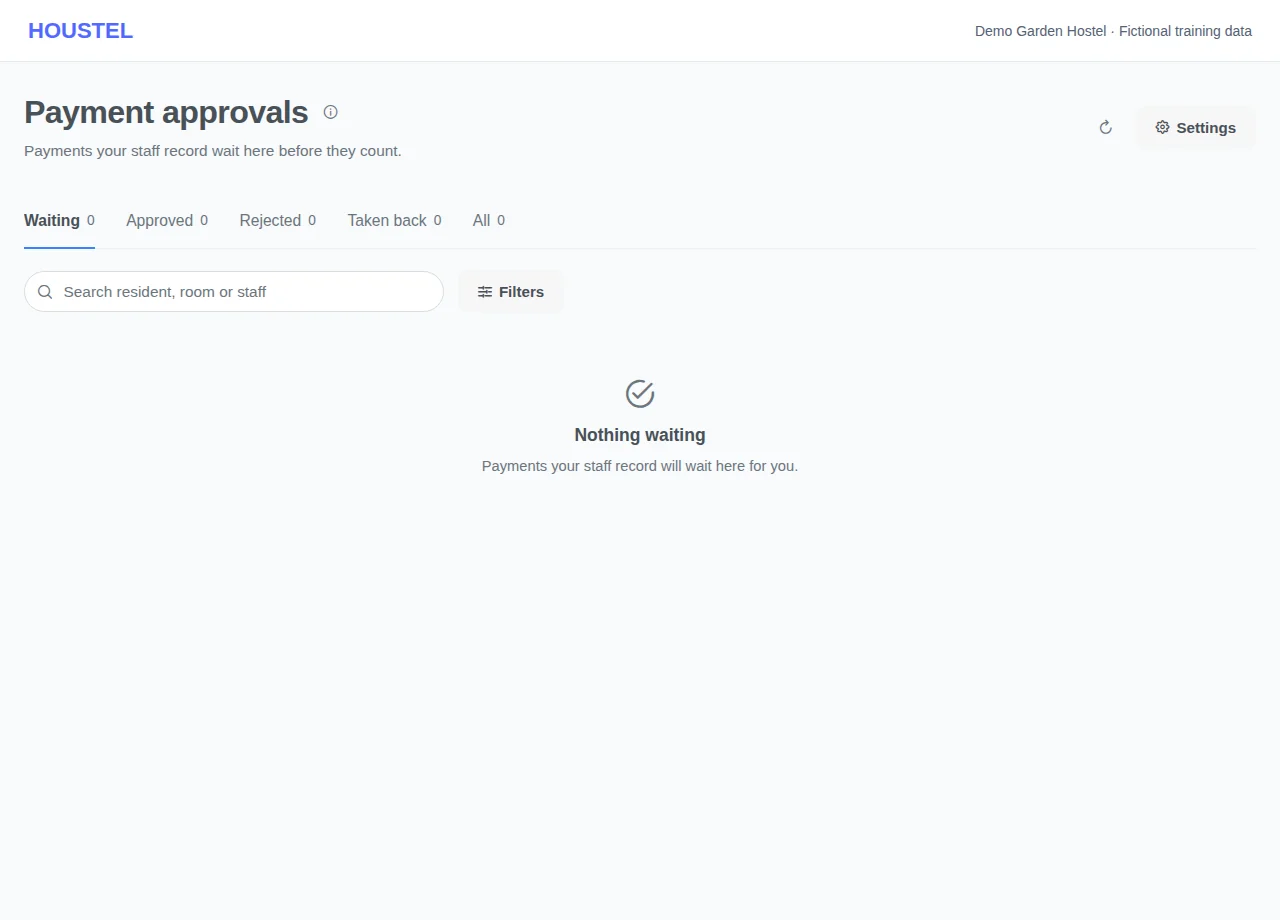
Open the correct queue · Example with dummy data. Select the image to enlarge. -
Check the whole payment, then decide
Press Approve or Reject on a row. A window opens with the whole payment: what it is for line by line, how and when it was paid, which account it went into, who recorded it and the receipt photo, with one line at the top saying what the button will do to your books. Match it to the cash in hand or the bank transaction, then press Approve, or Cancel to leave it waiting. Reject asks for a reason, which the person who recorded it sees. Where a payment already counts, the button says Reject and delete because it takes the money out of your books. To approve several, tick them and press Approve: the window lists each one with its lines, and the × beside one leaves it out.
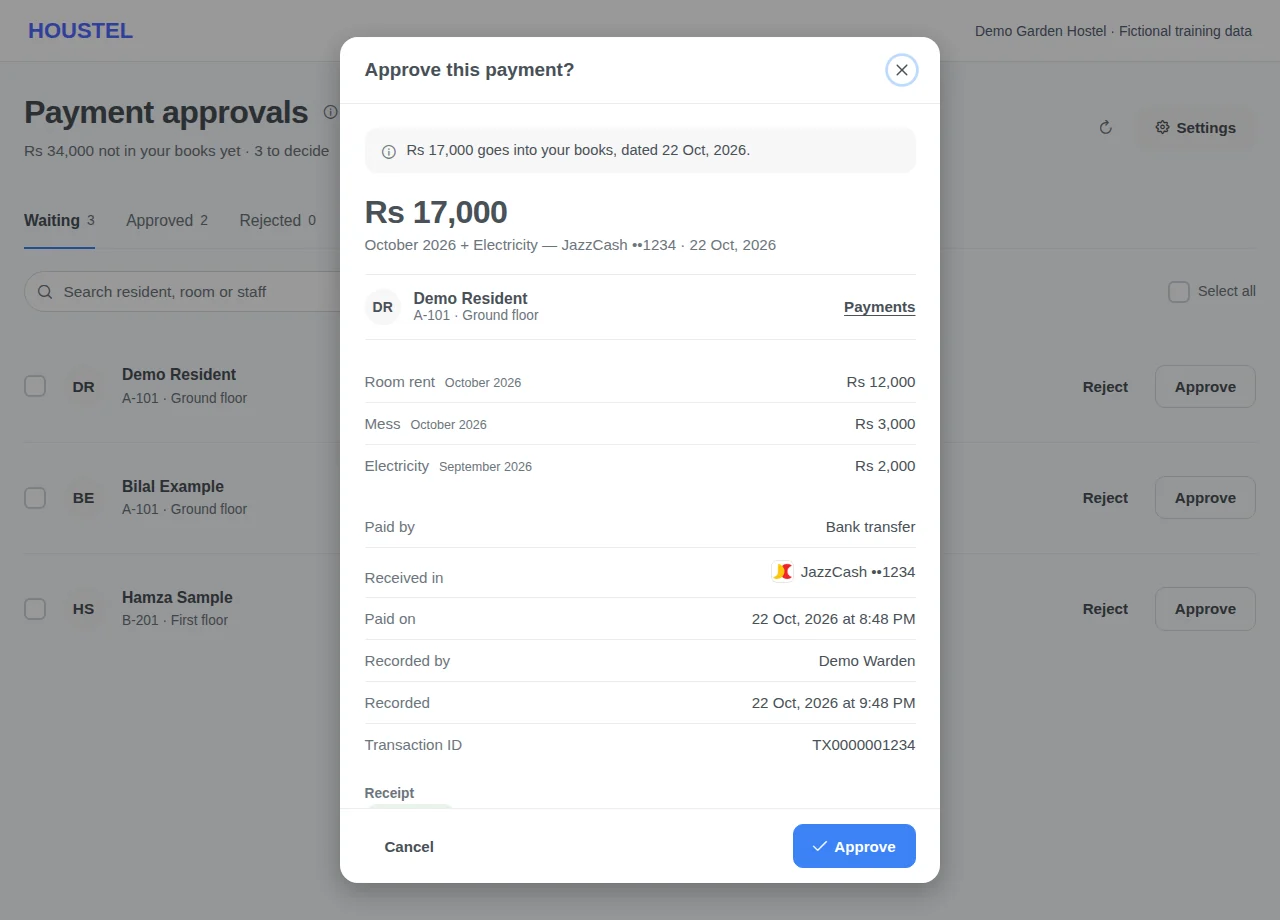
Check the whole payment, then decide · Example with dummy data. Select the image to enlarge. -
Undo an approval made by mistake
Open the Approved tab and press Undo on the row, or Undo approval in its window. The window shows the payment again and says what will happen. Where payments wait for approval, the money comes back out of your books (payments, dues and reports) and the payment returns to Waiting. Where payments count straight away, it stays in your books and returns to Waiting marked Not approved. Approve or reject it again from Waiting. The person who recorded it gets a notification, and so does the owner when a staff member undid it.
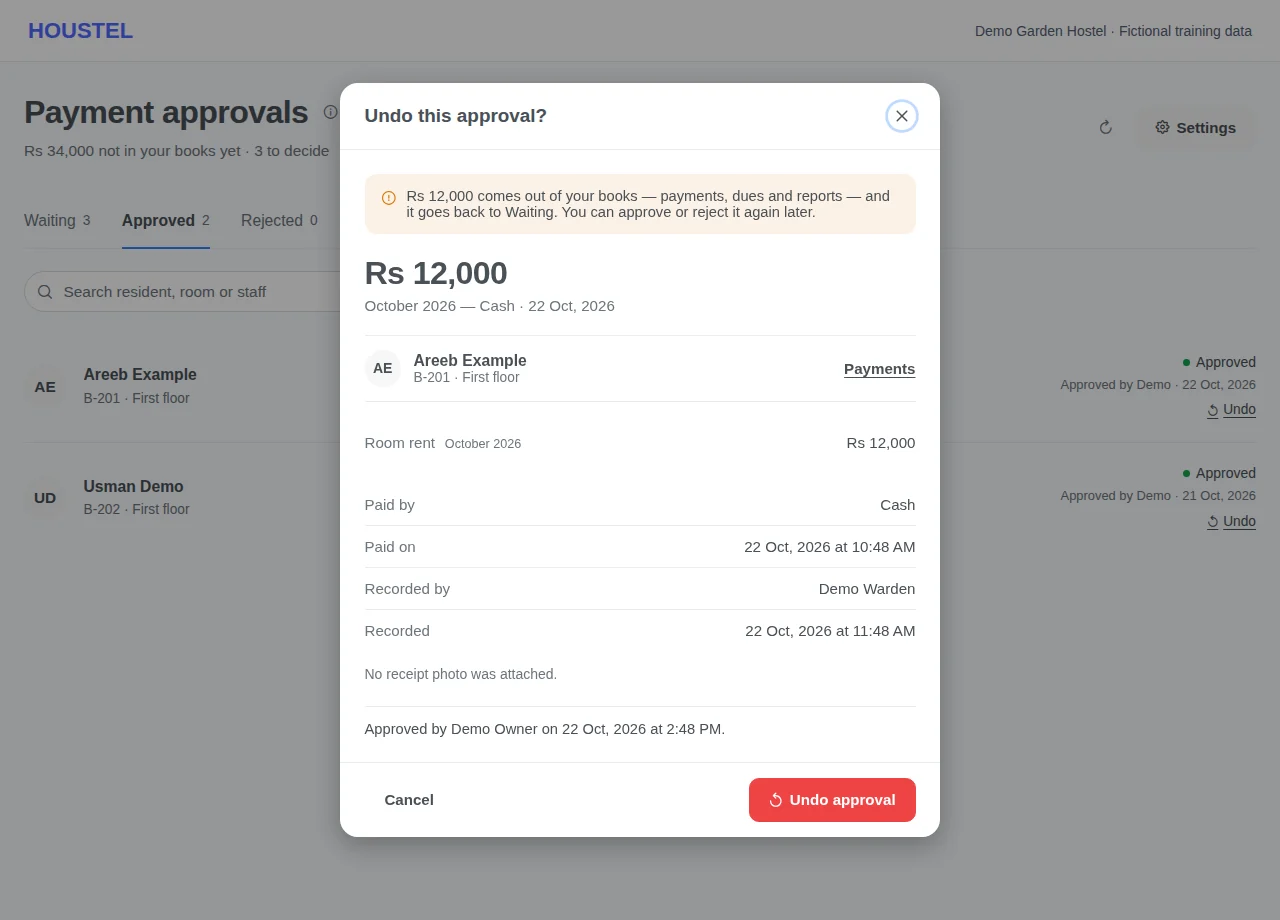
Undo an approval made by mistake · Example with dummy data. Select the image to enlarge. -
Check the final record
After a decision, open the payment and resident ledger to verify its effect. A rejected proposal and a rejected payment that was already counted can have different accounting consequences; read the confirmation. If a bulk action partly fails, handle only the failed rows.
Before you finish, and when something goes wrong
- In hold mode, new payments wait outside the books until approved. In count mode, new payments count immediately and carry a Not approved mark. Changes and deletes wait in both modes. Check the mode and each item’s status before interpreting totals.
- Who needs approval and who can approve depends on the account’s permissions. Having access to the list does not mean every action is available.
- A submitter can take back a pending submission where that option is offered. Only money coming in can be undone from the Approved tab. An approved change, delete or check-out is not undone here: correct the payment from the resident’s payments, or undo the check-out from the resident’s page.
- The owner can undo any approval; a staff member who approves payments can undo only the ones they approved. Undo is refused when the payment has since been deleted, or when its money can no longer come out of the books (for example an advance that has already paid for a month). The window says why.
- After a timeout or double click, refresh the status before trying again. Verify a bank transfer independently of an uploaded image.
If a save times out, check the record before repeating it. If access is denied, ask the owner to review your hostel assignment and permissions. Never share your login to work around an access restriction.
Related help
Still stuck?
Tell us the screen name, what you tried and what happened. Remove personal details, passwords and private links from any screenshot.