All guide chapters
Start here
Everyday running
- Residents
- Rent and payments
- Dues and reminders
- Deposits and advances
- Expenses and profit
- Mess and meals
- Reports and dashboard
- Laundry and food for residents
- Importing residents safely
- Room changes, checkout and resident requests
- Payment approvals
- Billing periods, installments and rent reviews
- Room electricity and resident charges
- Utility connections and bills
- Inventory and room assets
- Bank accounts and wallets
Filling your beds
Your team and residents
Connect your biometric attendance machine
Connect the fingerprint or face machine at your door to Houstel and see who is inside, who is out, and who came back late. It takes about ten minutes and needs no computer in the office.
Step by step
Where to go: More → Attendance
Who can use it: The hostel owner, or staff with access to this feature. Some actions need additional permission.
-
Review attendance
Open Today or History and choose the date, person and filters. Match unfamiliar entries to the correct resident through People.
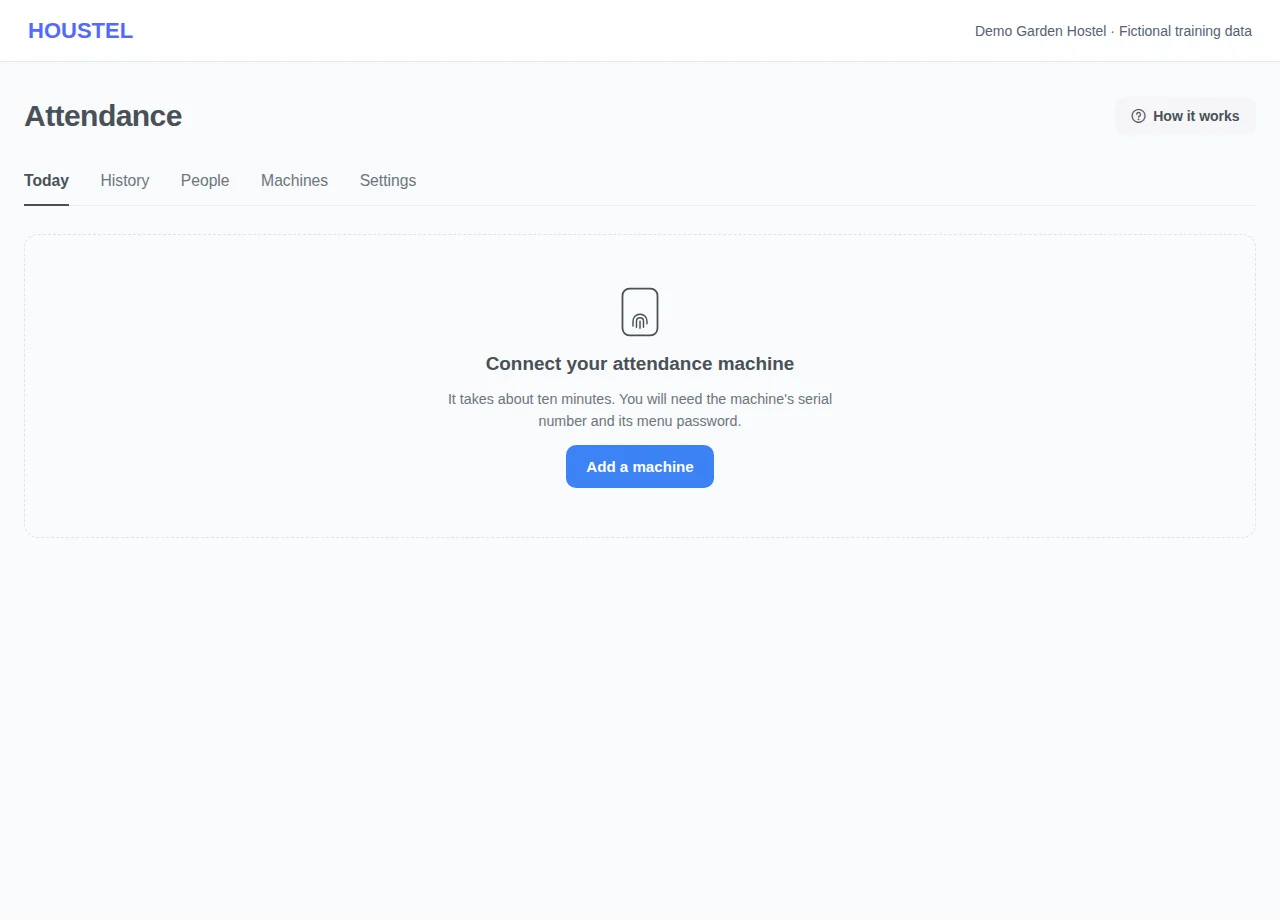
Review attendance · Example with dummy data. Select the image to enlarge. -
Manage authorised equipment
Use Machines and Settings for the supported device setup and attendance rules. Follow the detailed instructions below and keep device credentials private.
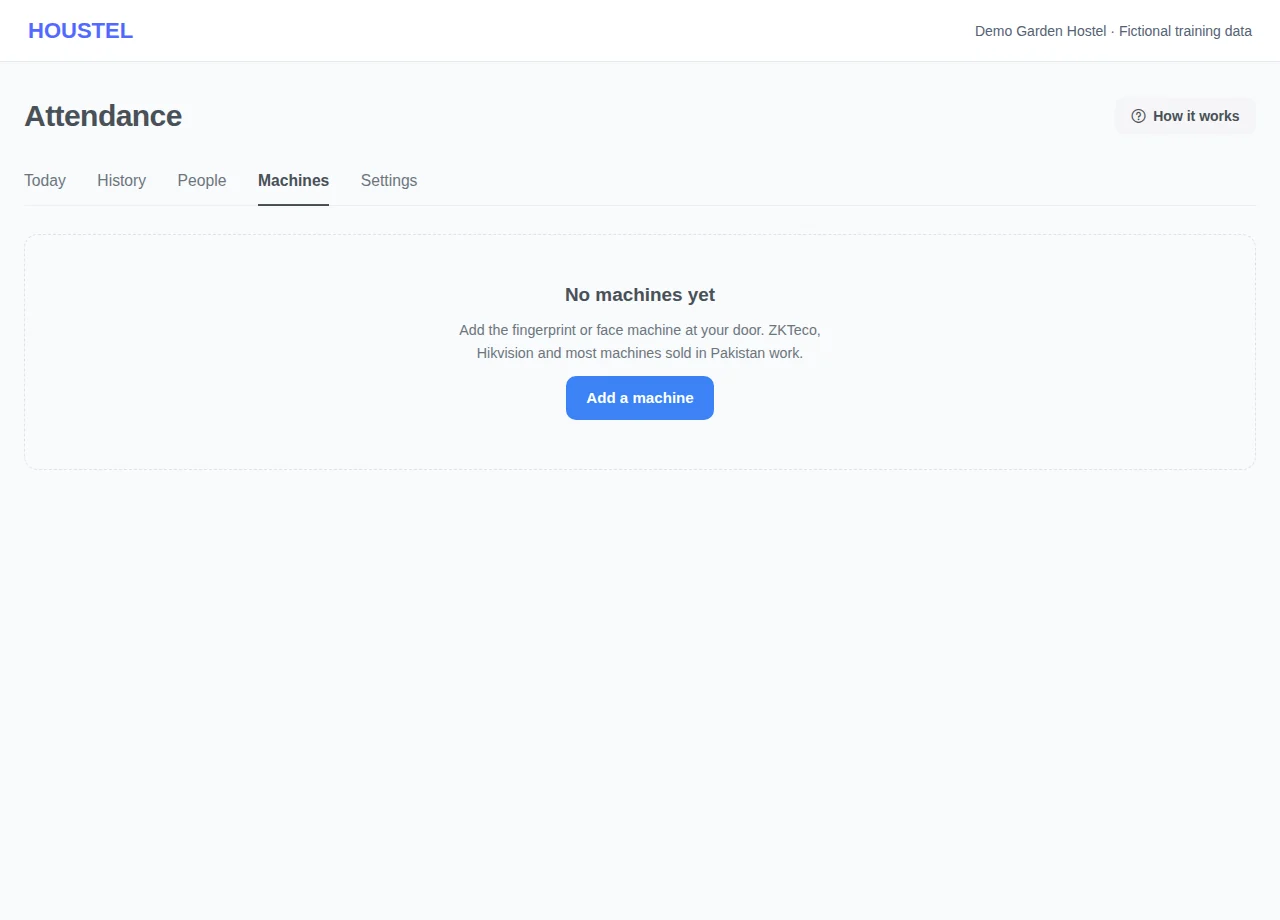
Manage authorised equipment · Example with dummy data. Select the image to enlarge.
Before you finish, and when something goes wrong
- Missing or delayed scans do not prove a person is absent or unsafe. Verify on-site when it matters. Do not publish raw logs, device credentials or biometric information.
If a save times out, check the record before repeating it. If access is denied, ask the owner to review your hostel assignment and permissions. Never share your login to work around an access restriction.
Related help
Most hostels already have a fingerprint or face machine at the gate. On its own it keeps a list of scans that nobody reads. Connected to Houstel, the same machine tells you who is inside right now, who is out, who came back after the gate closed, and who has not been seen for days. You keep using the machine you have.
Attendance is an add-on to your subscription. If you do not see Attendance under Residents in your dashboard, open My Hostel → Subscription and press Get it next to Biometric attendance, or message us on WhatsApp. The first 30 days are free, and nothing is charged until a machine is connected.
Which machines work
| Machine | How it connects | What Houstel can do |
|---|---|---|
| ZKTeco, and eSSL, Granding and most machines sold as "ADMS" or "Cloud" (K40, K50, MB160, MB360, SpeedFace, uFace, iClock and similar) | The machine calls Houstel over the internet. You type our address into it once. | Everything: scans arrive live, residents are added and removed for you, fingerprints are copied to your other machines. |
| Hikvision face and fingerprint terminals (DS-K1T series) | The terminal sends every scan to a private address Houstel gives you. | Scans arrive live. You enrol people on the terminal yourself, using the ID Houstel shows. |
| Other brands that can send data to a web address | The machine, or a small program next to it, posts each scan to a private address. | Scans arrive live. |
| Any machine with a USB port, even with no internet | Copy the attendance log to a USB stick and upload the file. | Scans arrive whenever you upload. Uploading the same file twice is fine. |
Very old machines that only talk to a computer on the same network (the kind that needed a PC running the maker's software all day) are not supported. If yours has a Cloud Server or ADMS item in its Comm. menu, it works.
Add your machine
- Open Residents → Attendance → Machines and press Add a machine.
- Choose the kind of machine you have.
- Give it a name, such as Main gate. For a ZKTeco machine, type its serial number: on the machine it is under Menu → System Info → Device Info, and it is printed on the sticker at the back after "S/N".
- Say where it stands at the door (more on this below), then press Add machine.
Houstel then shows exactly what to type into the machine, with the values ready to copy.
On a ZKTeco machine
- Press M/OK and open Comm. → Cloud Server Setting. On some models it is called ADMS.
- Set Server mode to ADMS, Enable domain name to ON, Server address to
api.houstel.pk, Server port to80, and Proxy to OFF. Save. - Make sure the machine is on the internet: Comm. → Ethernet (or Wi-Fi) with DHCP on. A network cable to your router is the most reliable.
- Set the time zone to GMT+5 under System → Date Time.
- Restart the machine. Within a minute the Machines page shows it as Online.
Check the serial number you typed matches the machine exactly, that the machine can reach
the internet (try the router's cable in a laptop), and that the server address has no
http:// or spaces in front of it. If your machine has an HTTPS switch, you
can turn it on and use port 443 instead.
On a Hikvision terminal
- Open the terminal's web page: type its IP address into a browser on the same Wi-Fi and sign in.
- Go to Configuration → Network → Advanced → HTTP Listening (on some firmware, Alarm Server).
- Add a server with the domain, URL and port Houstel shows for this machine, protocol HTTP, and save.
- For each person on the terminal, set the Employee No. to the ID Houstel shows on the People page.
The URL Houstel gives you is private to that terminal. Treat it like a password: anyone who has it could send scans to your hostel.
Where the machine stands
A scan on its own does not say whether someone was going in or out. How Houstel decides depends on the choice you made when adding the machine:
| Choice | Use it when | How in and out are decided |
|---|---|---|
| One machine at the door | Most hostels: one machine, everyone scans going out and coming in. | Houstel alternates for each person: after an exit comes an entry. |
| Entry machine | A second machine outside the door. | Every scan is someone coming in. |
| Exit machine | A machine inside the door. | Every scan is someone going out. |
| People press In / Out | Residents press the In or Out key on the machine before scanning. | What the machine says. |
| Inside the hostel | A floor or wing door, the mess, a study room. | Neither: it shows they are inside. |
With one machine, alternating is right almost every time. When it is not (somebody walked in behind a friend without scanning), open History, press the three dots on the wrong scan and choose Change to In or Change to Out. Houstel works out everything after it again, so one correction is enough.
Several doors and places
Add every machine you have, each with its own name: a main gate, a back gate, a girls' wing door, the mess, the staff room. Scans from all of them land in the same list, and each person's In and Out follows them from door to door: out through the main gate, back in through the back gate.
- A machine inside the building (a floor or wing door, the mess, a study room): choose Inside the hostel when adding it. A scan there shows the person is in, without counting as coming or going, and it is never late.
- Who goes on each machine. A ZKTeco machine can be for everyone, residents only, staff only, or people you choose. A staff room door lock then never has a resident on it, and a girls' wing door has only the girls.
- Exceptions for one person. Open a person and switch any machine on or off for them: a senior resident allowed into the staff room, a resident kept off the back gate.
- Enrol once. A finger or face enrolled on one ZKTeco machine is copied to the others that person is allowed on.
If two machines were set up before Houstel, ID 12 might be Bilal on one and Sadia on the other. Houstel spots this, marks it as a Shared ID and stops writing that ID to any machine so nobody is overwritten. Give one of them a new ID on their machine, press Get its people for that machine, then press Done on the warning.
Attendance is Rs 2,000 a month per branch, however many machines the branch has, so add every door you want to watch.
Put your residents on the machine
Each person on the machine has an ID, the number they would type on its keypad. For a resident, Houstel uses their customer number: C-0057 becomes 57. Staff start at 9001, so the two never clash.
If your machine already has people on it, you do not need to enrol anyone again. Houstel reads the machine's own list and, on the People page, shows which of those IDs look like your residents. Tick the matches and press Add. Their fingerprints keep working.
Then enrol each new person on the machine itself: Menu → User Mgt., find them by their ID, and enrol a finger or face. Houstel copies that enrolment to your other ZKTeco machines by itself.
- New residents who move in from now on are added to the machine for you.
- Residents who leave are removed the day after their stay ends, so they cannot get back in.
- IDs nobody has named stay on a Not matched list until you say who they are.
Reading the Today page
Four numbers answer the question you opened the page with: who is inside, who is out, who is out and did not say they were going away, and who has not scanned yet. Press a number to see the people behind it. Scans appear on the right as they happen.
Press any name to see their month: days they were here, nights they spent away, late returns, and every entry and exit day by day. If the machine was down, you can add an entry by hand from there. It is always shown as added by staff.
The night gate
Under Settings, set the time your gate closes and opens. Then:
- Anyone coming in between those times is marked Late.
- When the gate closes you get one message listing residents who are not back yet, in the app or by email as you choose.
- Residents who pressed Going out in their own app, with a return date, are not counted as missing. When they scan back in, their trip is closed for you.
What Houstel tells you
| Message | When |
|---|---|
| Machine offline | A machine has been silent for 30 minutes. At most once every 12 hours per machine, so load shedding does not flood you. Another message when it is back. |
| Not back after the gate | Once a night, only if someone is out. |
| Not seen for days | A resident has not scanned for 3 days (you choose the number). Usually someone who left without checking out. |
| Morning summary | 8 AM: yesterday's entries and exits, late returns, who stayed out, and any machine that needs attention. |
| Machine clock is wrong | After a long power cut some machines forget the date. Scans are timed when they reach Houstel until you set it again. |
Every one of these can be switched off in Settings. Staff get them only if you have given them access to Attendance under Hostel Staff.
What residents see
Each resident sees their own entries and exits under My Entries in their app: whether they are in, their ID on the machine, and their month day by day. Nobody else's. You can turn this off in Settings.
Machines with no internet
Add the machine with No internet on the machine. Every few days, insert a USB stick, open USB Manager → Download → Attendance log on the machine, and upload the file on the Machines page with Upload log file. Scans already uploaded are skipped. A connected machine can use the same button to fill a gap after a long outage.
Privacy
Fingerprint and face templates are stored encrypted and used only to copy an enrolment to your other machines and to put a returning resident back without enrolling again. They are never shown or exported. Houstel does not keep photos from the machine. When you delete a person, their templates go with them.
In short
- Keep the machine you have. ZKTeco and Hikvision connect over the internet; anything with a USB port can upload its log.
- Add every door and place. Each machine can be for everyone, residents, staff, or people you choose.
- Add the machine, type our address into it once, and it shows as Online within a minute.
- Residents already on the machine are matched, not re-enrolled. New residents are added and leavers removed for you.
- Set a night gate to see late returns and who is not back.
- Correct a wrong In or Out once in History; everything after it follows.
- Residents see only their own entries, and only if you allow it.
Common questions
Which machines work with Houstel?
Any ZKTeco machine with a Cloud Server or ADMS setting (also eSSL and Granding, which are built on it), Hikvision face and fingerprint terminals with HTTP listening, and any machine that can send its data to a web address. Machines with no internet at all can still be used by uploading the log file from a USB stick.
Do I need a computer or software in the office?
No. The machine sends its scans straight to Houstel over the internet. There is nothing to install and no port to open on your router.
What happens during load shedding?
The machine keeps every scan while it is off or offline and sends them when it is back. Nothing is lost. You get one message if a machine stays offline for more than 30 minutes, not one for every power cut.
My residents are already enrolled on the machine. Do they enrol again?
No. Houstel reads the people already on the machine and matches them to your residents by name. You confirm the matches once and their fingers keep working.
What does it cost?
Rs 2,000 a month per hostel or branch, on your Houstel subscription. Every machine and door at that branch is included, the first 30 days are free, and nothing is charged until a machine is actually connected.
Still stuck?
Tell us the screen name, what you tried and what happened. Remove personal details, passwords and private links from any screenshot.