All guide chapters
Start here
Everyday running
- Residents
- Rent and payments
- Dues and reminders
- Deposits and advances
- Expenses and profit
- Mess and meals
- Reports and dashboard
- Laundry and food for residents
- Importing residents safely
- Room changes, checkout and resident requests
- Payment approvals
- Billing periods, installments and rent reviews
- Room electricity and resident charges
- Utility connections and bills
- Inventory and room assets
- Bank accounts and wallets
Filling your beds
Your team and residents
Dues, overdue rent and reminders
The hostel decides when rent is due and how much lateness it tolerates. Once you have set that, the system can chase quietly on your behalf instead of you making the same call twenty times a month.
Step by step
Where to go: Payments → Pending; Payments → Payment Requests; Payments → QR code; Billing Settings
Who can use it: The hostel owner, or staff with access to this feature. Some actions need additional permission.
-
Review outstanding balances
Open Payments → Pending Payments. By month shows what is pending in each month; By resident lists everyone who owes, most late first, measured from each resident's own due date. Pick a quick range or Pick months for any From–To span. Check the month, booking dates, billed charges, approved payments and advances before treating an amount as overdue.
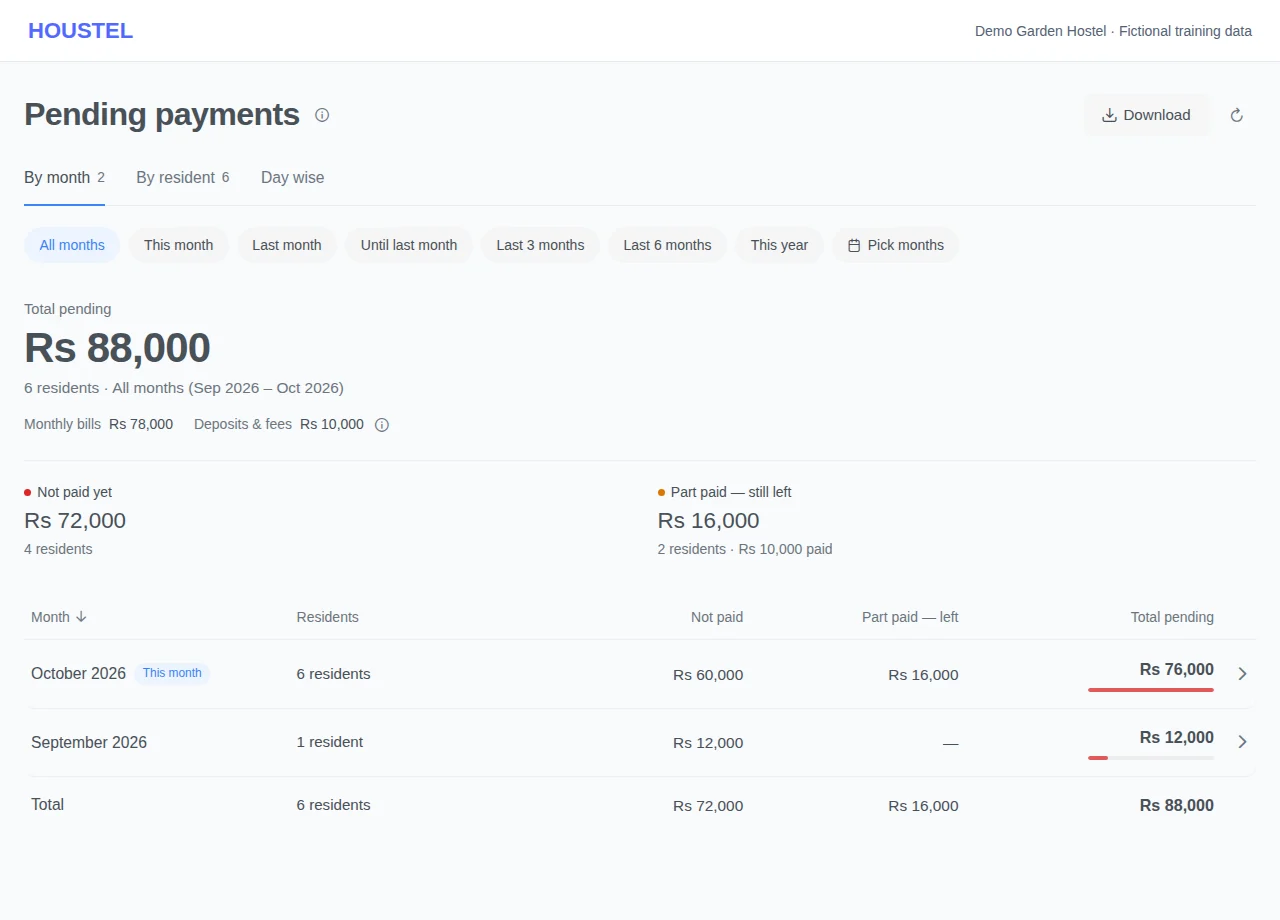
Review outstanding balances · Example with dummy data. Select the image to enlarge. -
Work today's list
Day wise opens on today: first who falls due today and has not paid, then each earlier day of the month back to the 1st. Use the arrows or press the day to pick another; you can look ahead to the end of this month. Press a row for everything that resident owes, with Remind (WhatsApp opens with the message written; nothing is sent until you send it) and Collect. Press the name for their payments page. Money due before the 1st is listed under By resident.
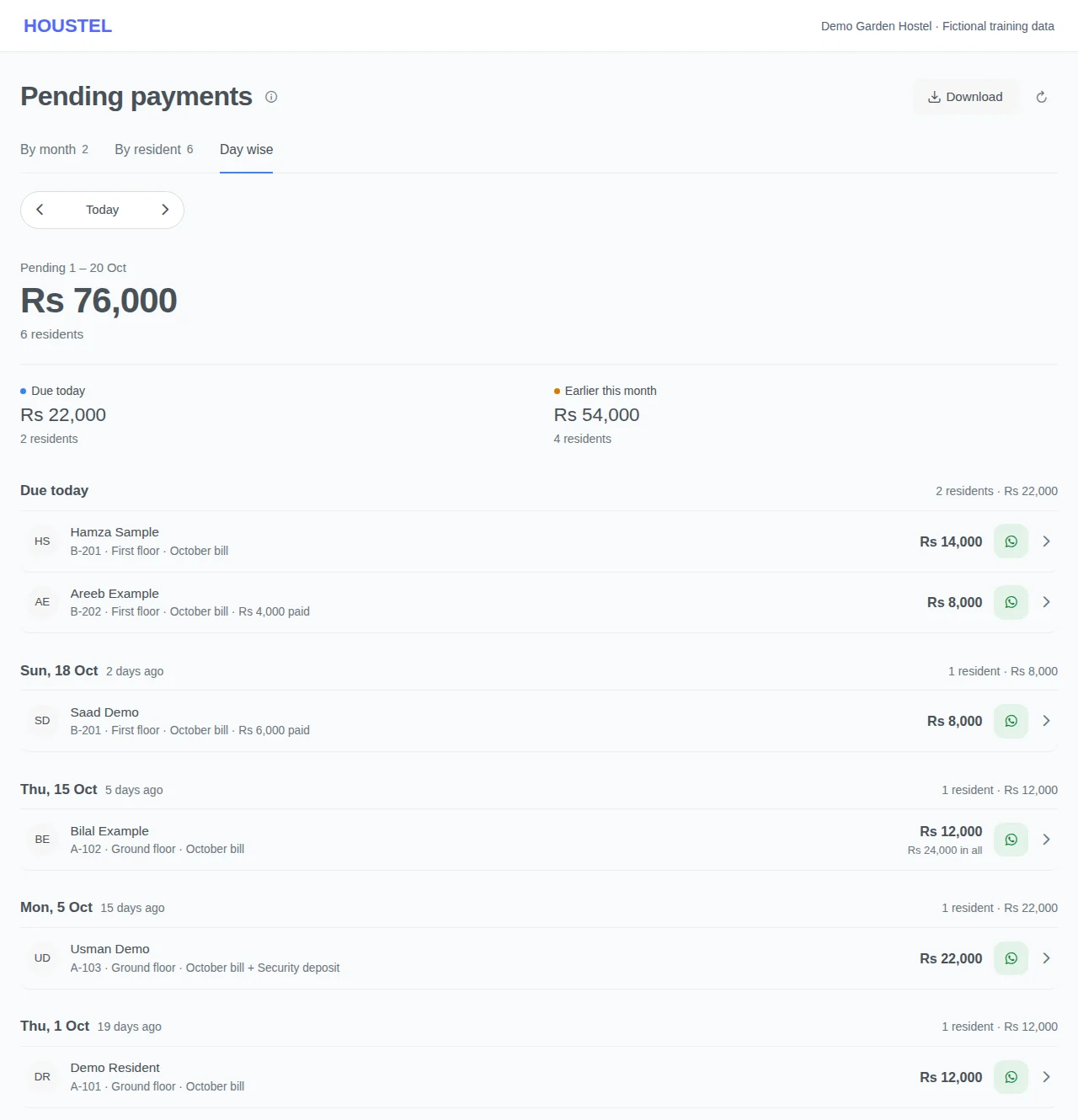
Work today's list · Example with dummy data. Select the image to enlarge. -
Download the list to go round
Press Download on Pending Payments. Pick the days (Today, Last 7 days, Last 30 days, 1st to today, Everything owed or Pick dates) and Room wise or Day wise, check the preview, then Print or Download PDF. Each row has the room, resident, last payment, what fell due, the amount, what they owe in all and a blank Collected column. No phone numbers are printed. The list is a snapshot: record what you collect in Houstel afterwards.
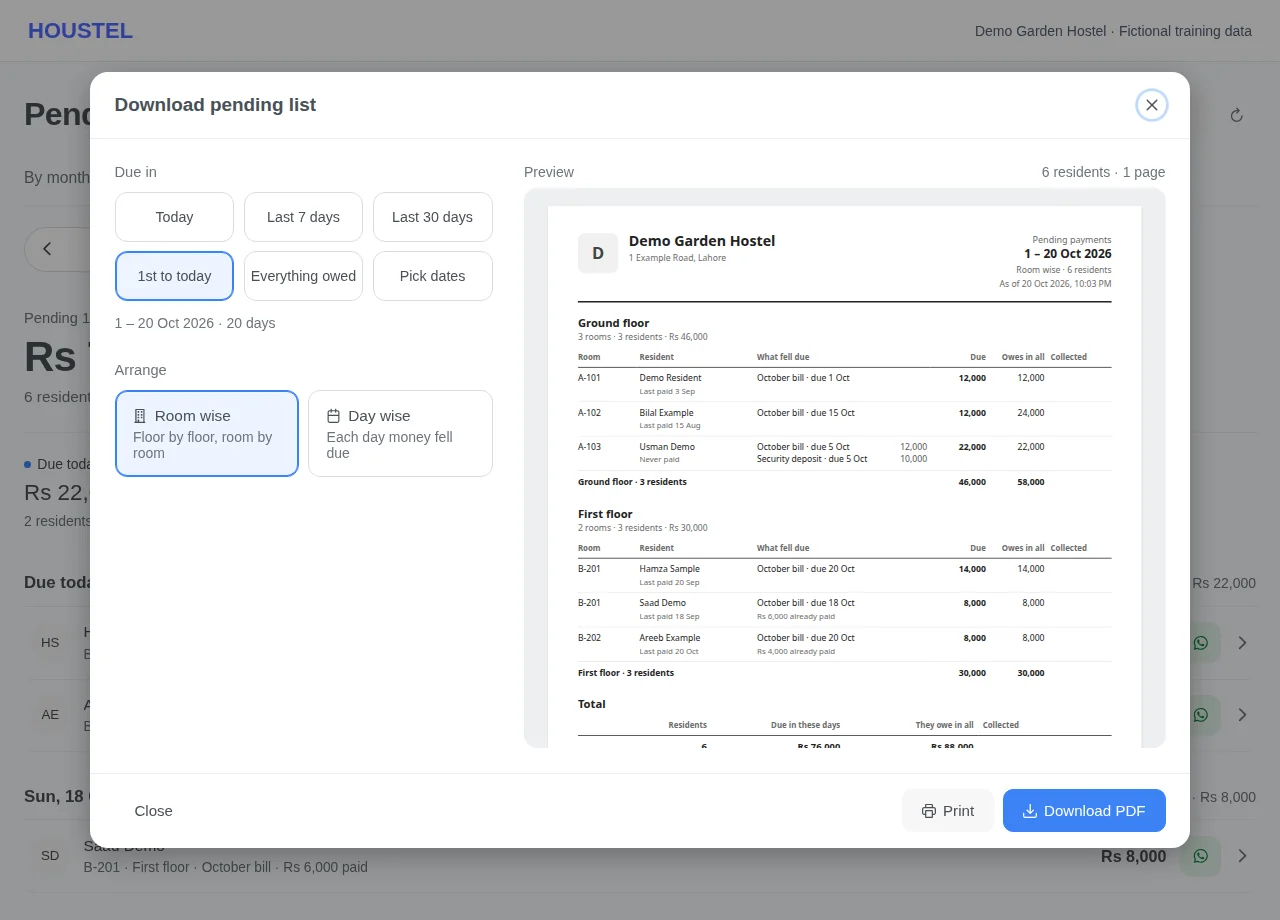
Download the list to go round · Example with dummy data. Select the image to enlarge. -
Check reminders
Review Billing Settings and the available reminder options, contact details and eligibility. Contact a resident once through an appropriate channel rather than sending repeated messages. The monthly statement and payment reminders can also be turned on or off in Emails → Email Settings; it is the same switch.
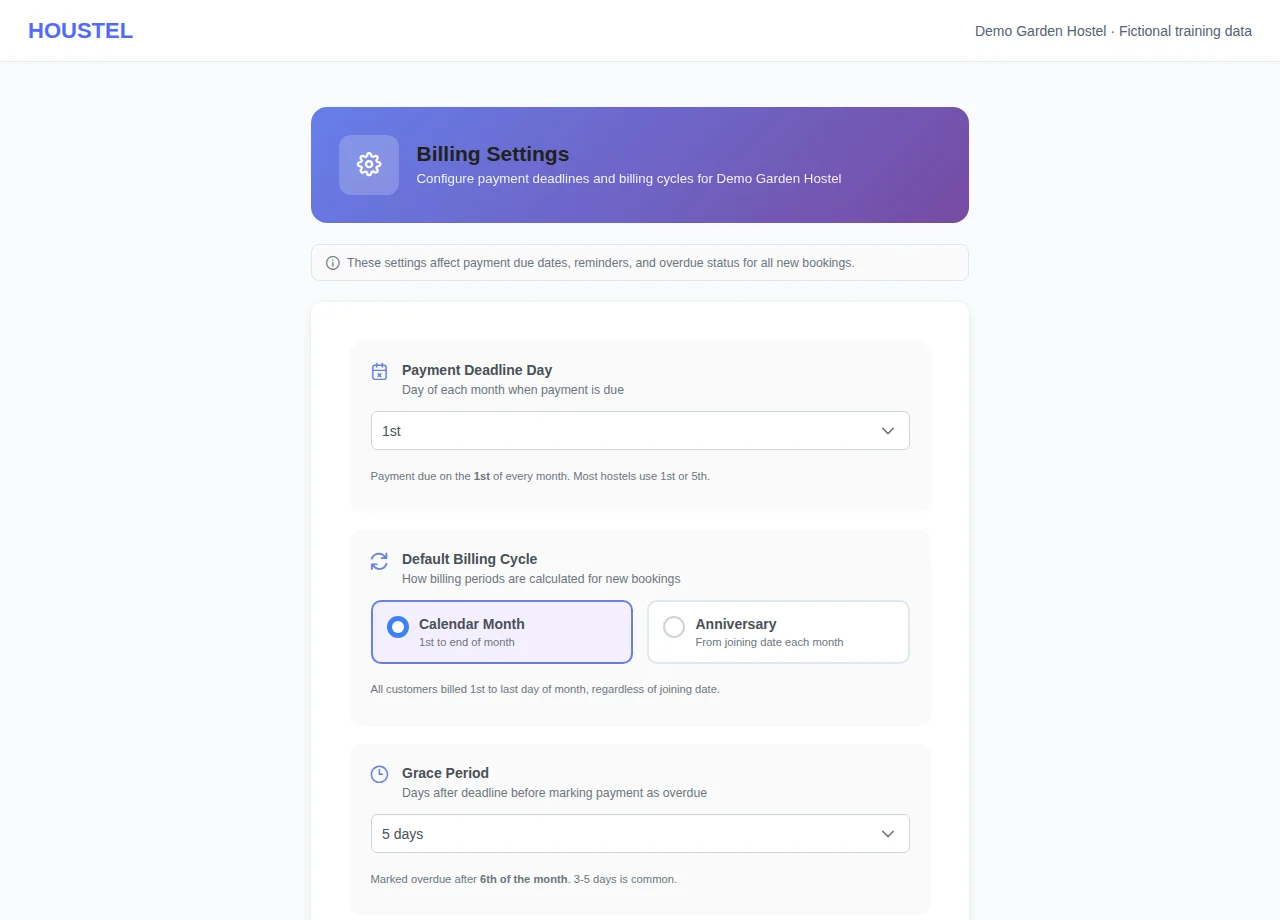
Check reminders · Example with dummy data. Select the image to enlarge. -
Send a pay link
Reminder and statement emails with something due carry a Pay now button that opens the resident's own payment page without signing in. For a resident with no email, open their payments page, press ⋮ next to Add Payment, then Send pay link, and send it on WhatsApp or copy it. You need access to Payments and the resident must be living here.
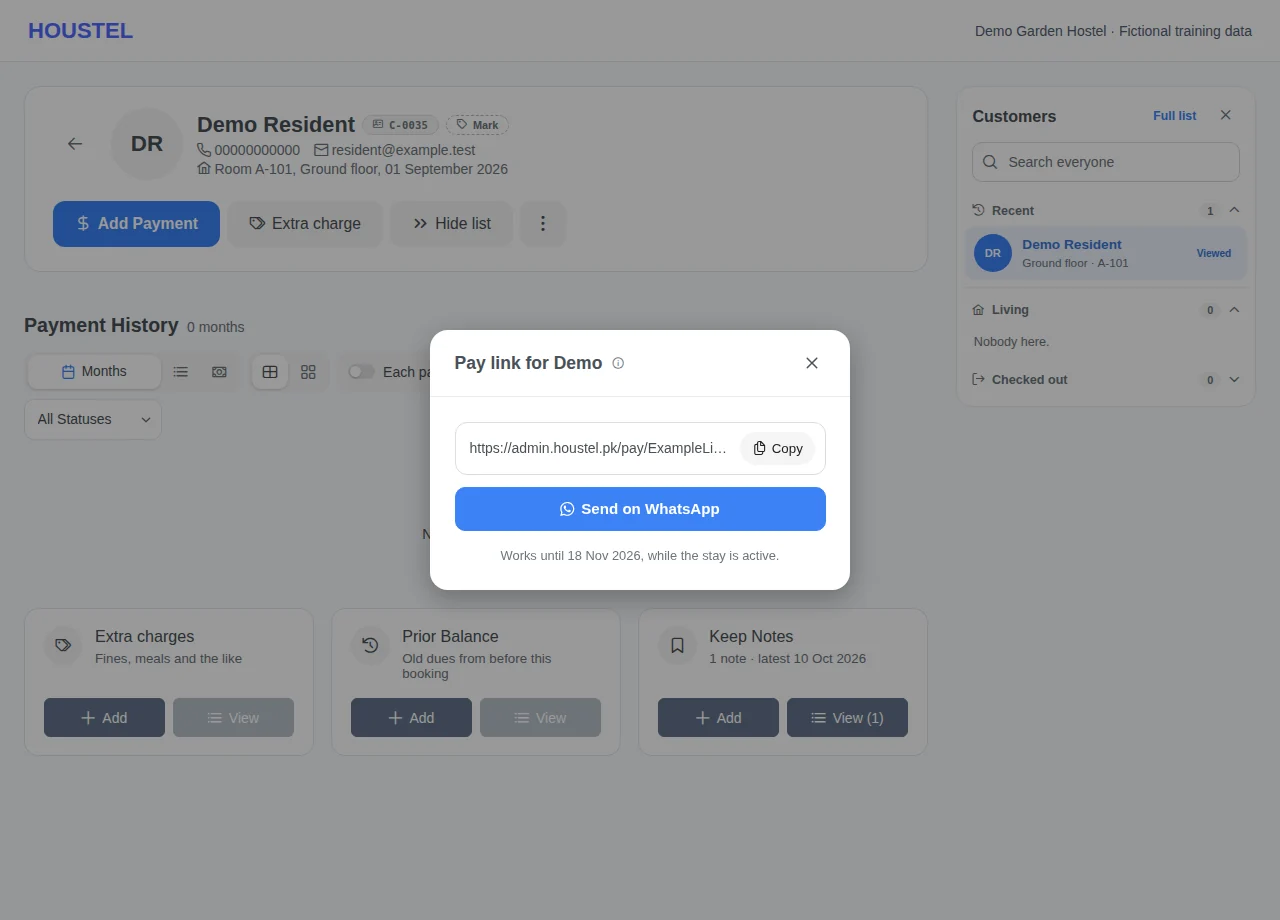
Send a pay link · Example with dummy data. Select the image to enlarge. -
Confirm what arrives
The page shows the months due, your accounts with Show to residents on, Another bank or wallet for money sent somewhere you do not list (they pick the bank by name; no account details are shown), a screenshot or transaction ID, the month(s) and the amount. What the resident sends waits under Payments to confirm and in Customer Requests, with a notification to you and staff who can see payments. Check your statement, then Review & record or Decline with a reason.
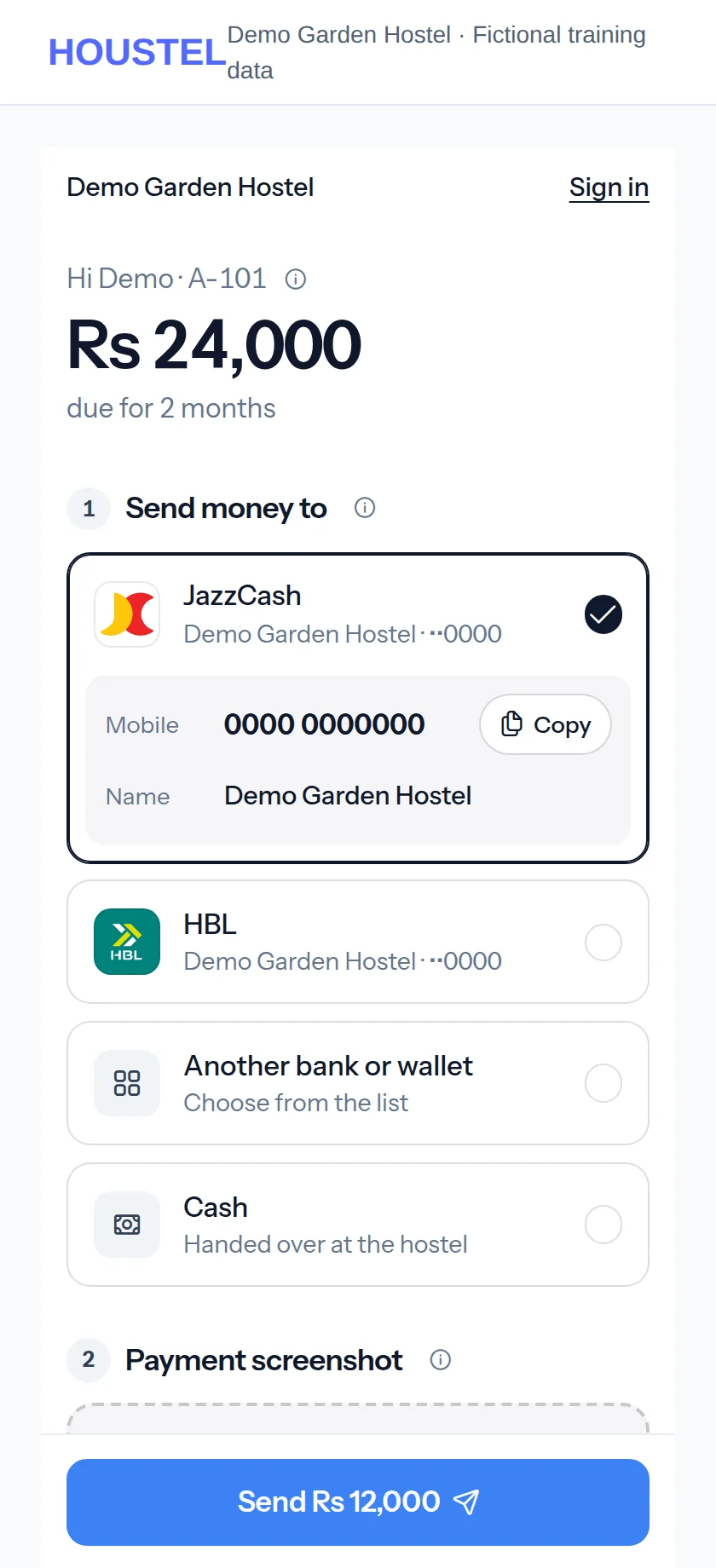
Confirm what arrives · Example with dummy data. Select the image to enlarge. -
Put up the payment QR code
Payments → QR code (also on Payment Requests) opens the poster: Print, PDF or Download PNG. Residents scan it and sign in, or type their CNIC; a CNIC of somebody staying at this branch opens their own payment page for three hours. The window shows how many residents have a CNIC on file. Only the owner can switch it off or make a new code, which stops every printed copy.
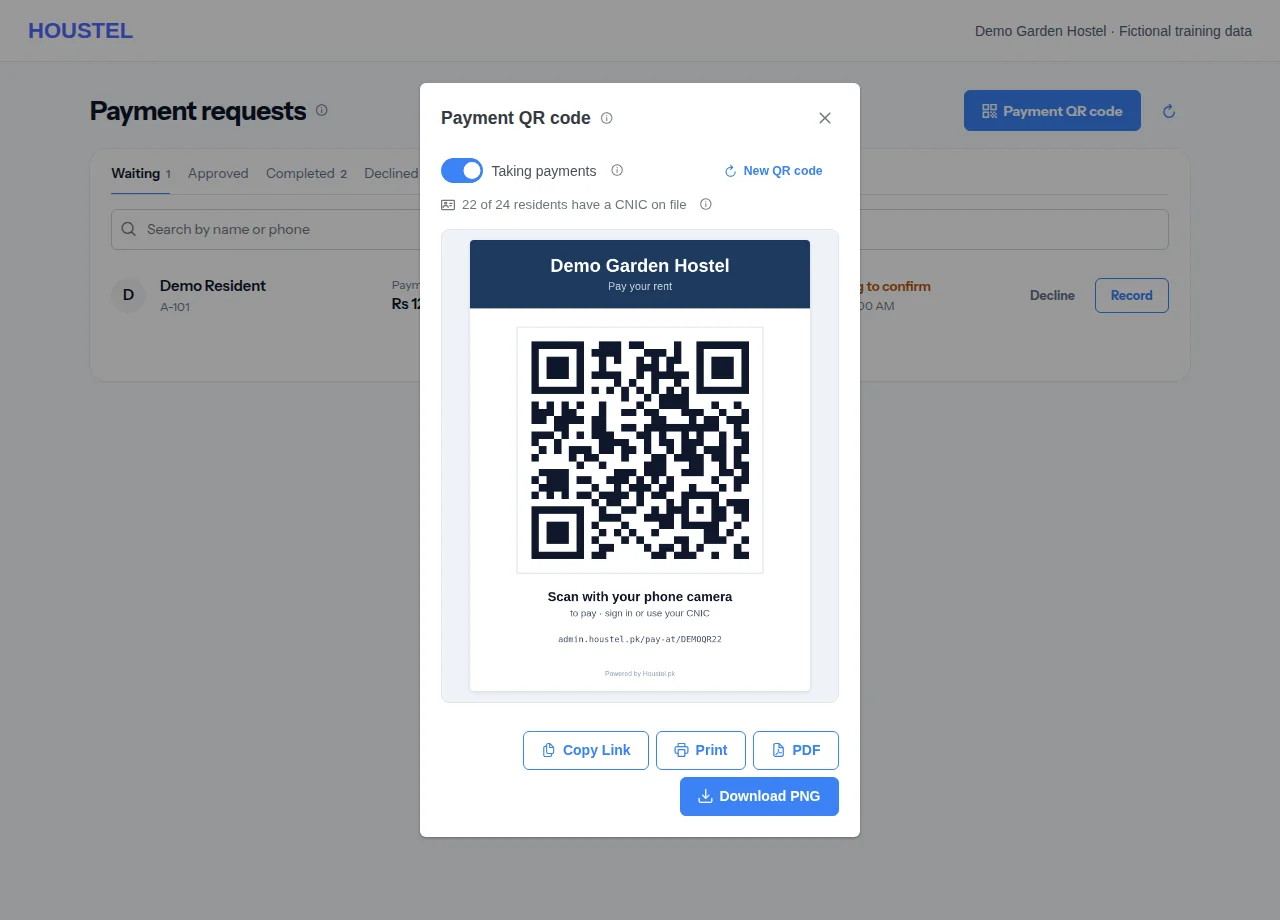
Put up the payment QR code · Example with dummy data. Select the image to enlarge.
Before you finish, and when something goes wrong
- Notification settings do not guarantee delivery. Imported contacts, opt-outs, a missing address, subscription state or device settings may affect messages.
- A pay link is personal: whoever holds it sees that resident's dues and your resident-facing accounts and can send a payment for you to check, but cannot sign in, see history or change anything. It works for 30 days and stops when the stay ends; a single link cannot be switched off early. Nothing is recorded until you record it.
- One transfer for several months becomes one entry per month, oldest first; record each month on its own. An entry marked as the same transaction ID or screenshot as an earlier one needs checking against your statement before you record it. Deposits, admission fees, extra charges and daily-billed stays are still paid at the desk.
- The payment QR code's CNIC check is not a password: only what a reminder already shows is opened, every payment waits for you, the resident is notified each time their CNIC is used, wrong CNICs are capped, and the page never says whether a CNIC exists. Residents without a CNIC on file must sign in.
If a save times out, check the record before repeating it. If access is denied, ask the owner to review your hostel assignment and permissions. Never share your login to work around an access restriction.
Related help
Chasing rent is the least pleasant part of running a hostel and the part that most often gets forgotten until it is a problem. Two settings and one screen turn it into a five-minute job on the same day each month.
Set your rules once
Billing Settings, under your account menu. Three settings, and you will never touch them again.
| Setting | What it does | Common choice |
|---|---|---|
| Due day | The day of the month rent is expected. | The 1st or the 5th |
| Grace period | How many days late you tolerate before somebody counts as overdue. | 3 to 5 days |
| Billing cycle | Whether a resident's month runs with the calendar, or from their joining date. | Calendar month |
With a due day of the 5th and a grace period of 3 days, somebody who has not paid by the 8th shows as Late on your Pending Payments list. Before the 8th they are simply not paid yet, which is a different thing and should not be treated like a debt.
Calendar month or joining date?
This one is worth thinking about once, properly.
- Calendar month. Everyone is billed 1st to the end of the month, whenever they joined. Someone who moves in on the 20th pays a part month, and from then on is in step with everybody else. Simplest to run, and what most hostels use.
- From the joining date. Someone who joins on the 15th is billed the 15th to the 14th, every month. Fairer to a resident joining mid-month, but it means rent arrives on thirty different days.
You set a default for the hostel, and can still put an individual resident on the other one. Switching a hostel later is possible and is recorded with the date it changed, so old months keep the rule they were actually billed under.
Who still owes: Pending Payments
Payments → Pending Payments is the only list you need for chasing. It counts every month a resident has not fully paid (rent, mess, electricity and every other monthly charge), plus security deposits and admission fees still owed, earlier balances you entered, and unpaid extra charges. Residents who have checked out are left out until you press Count them.
The tabs at the top read the same money three ways:
| Tab | What it shows | Use it for |
|---|---|---|
| By month | How much is pending in each month, not paid and part paid. Press a month to see who owes for it. | Seeing where the money is stuck |
| By resident | Everyone who owes, most late first: days late, when they last paid, and what they owe for. | The monthly chase, and the spreadsheet download |
| Day wise | Who falls due on one day, then who fell due on each earlier day of that month and still owes. | Your daily round |
On By month and By resident, the row of ranges under the tabs picks the months: All months, This month, Last 3 months and so on. For any other span, press Pick months and choose From and To. The big figure is everything those months add up to; its (i) explains what is counted.
Someone billed from their joining date is not late on the 8th just because your other residents are. Everybody is measured against the date that actually applies to them, which is why this list is worth trusting.
Day wise: who is due today
When residents are billed from their joining date, rent falls due on many different days, and a month-at-a-time list hides that today is somebody's day. Day wise opens on today.
- Due today comes first: everyone whose bill, deposit or other charge falls due today and is not fully paid.
- Then each earlier day of the month, back to the 1st, newest first, with how many days ago it was. Somebody due on the 3rd who still has not paid stays under the 3rd.
- Move between days with the arrows, or press the day to pick one from the calendar. You can look ahead to the end of this month; next month's bills are not out yet. Today brings you back.
- Each row is what fell due that day. When the resident owes more than that, the row also shows the amount "in all".
- Older money is not in the day list. A line at the bottom gives how much fell due before the 1st, and opens By resident with every month.
Press a row to see everything that resident owes, month by month, with Remind and Collect. Press their name to open their payments page. Remind asks English or Urdu and opens WhatsApp with the reminder written for you; nothing is sent until you send it there. A resident with no phone number on file cannot be reminded this way, and the button says so.
Take the list round the building
Download, at the top of Pending Payments, makes the list to print or keep on your phone while you go from room to room. Pick the days and how it is arranged; the preview shows the pages before you save them.
- Due in: Today, Last 7 days, Last 30 days, 1st to today, Everything owed, or Pick dates. It counts money that fell due in those days and is still not paid. It opens on the days Day wise is showing.
- Room wise goes floor by floor and room by room, with a total for each floor. Day wise follows the screen: each day money fell due, with the room beside each name.
- Each row has the room, the resident, when they last paid, what fell due, the amount, what they owe in all, and an empty Collected column to write in what they hand you.
- Print or Download PDF. Phone numbers are not on it. Residents who have checked out are on it only when you pressed Count them, in a section of their own.
- Paper does not update itself. Each page says when it was made. Record what you collect in Houstel afterwards, so the next list and your residents' receipts are right.
Working it takes minutes:
- Open Day wise each morning and remind the people due today, or download the room wise list and go round.
- Once a month, open By resident, a day or two after your grace period ends, and deal with the largest and the oldest first. A resident three months behind is a different conversation from one who is four days late.
- Record part payments as they come in. Somebody paying Rs 3,000 of Rs 10,000 drops down the list rather than off it, which is exactly right.
Automatic reminders
On a paid plan you can have the reminders sent for you instead of making the calls. Turn them on in Billing Settings and choose how many days before or after the due date they go out.
They go to your residents in your hostel's name, with your logo, so they read as coming from you. That is why they are off until you switch them on, and why they stop if your plan lapses. A hostel should not still be messaging its residents on a lapsed account.
Making them work rather than annoy
- One before the due date, one after. Three reminders a week teaches people to ignore all of them.
- Check your residents actually have correct phone numbers, or the reminder goes nowhere.
- Do not use reminders for a resident you are already talking to. It reads as if nobody is paying attention.
Pay links: paying without signing in
Every payment reminder and monthly statement that has something due carries a Pay now button. It opens the resident's own payment page with no sign-in: what is due month by month, your accounts that have Show to residents on (with Copy and the QR code), Another bank or wallet for money they sent somewhere you do not list (they pick the bank by name and see no account details), a place to upload the payment screenshot or type the transaction ID, the month or months it is for, and the amount, filled in and changeable.
Sending it does not record a payment. It arrives as a payment to confirm, exactly like one sent from the resident's account: under Payments → Payment Requests, under Payments to confirm on that resident's payments page, and in Customer Requests, with a notification (and an email) to you and the staff who can see payments. Check the money reached your account, then Record it on the collect form, or Decline it with a reason — from the list, or from the collect form itself.
For residents with no email
They never get a reminder email, so send them the link yourself: open their payments page, press ⋮ next to Add Payment, then Send pay link. The window gives you Send on WhatsApp (to the number on their record) and Copy. You need access to Payments, and the resident must be living here.
A payment QR code for reception
Payments → QR code (also on Payment Requests) gives you a poster to print, or to download as a PDF or PNG. A resident scans it and either signs in — Google, WhatsApp or email, and they come straight back to Pay — or types their CNIC. A CNIC that belongs to somebody staying at this branch opens their own payment page: first name, room, what is due and your accounts. That page works for three hours.
- The CNIC has to be on their record. The QR window shows how many residents have one. Add the missing ones on their profile, or ask those residents to sign in.
- A CNIC is not a password — a room-mate may know it. So the page shows only what a reminder already says, every payment waits for you, and the resident gets a notification each time their CNIC is used. Entries from the poster are marked "Sent from your payment QR code".
- Guessing is limited. Wrong CNICs are capped per phone and per poster, and the page never says whether a CNIC exists.
- Owner only: switching the poster off, or making a new code. A new code stops every printed copy of the old one.
What to know before you rely on it
- It is personal. Whoever holds the link can see that resident's dues and your accounts for residents, and send a payment for you to check. It cannot sign in, see their history or change anything. Residents can forward it to a parent who pays for them, and signed-in residents can share one from their Pay page.
- It runs out. A link works for 30 days, and stops as soon as the stay ends. An old one shows "expired" and offers sign-in. A single link cannot be switched off early.
- One transfer for several months is split oldest month first into one entry per month, each marked "Part of one Rs … payment". Record each month on its own.
- Seen before. If the same transaction ID or the very same screenshot was sent before, the entry says so. Check your statement before recording the same money twice.
- The screenshot follows the money. When you record it without attaching a receipt of your own, their screenshot is attached to the payment.
- The resident is told. They get a notification when a payment is sent from their link, and another when you confirm or decline it. A declined payment's email has a button to send it again.
- Months only. The deposit, admission fee, extra charges and daily-billed stays are still paid at the desk. A month already waiting cannot be sent again until you confirm or decline it, and the amount cannot be more than the chosen months owe.
Monthly statements
You can also send each resident a monthly statement: what they were billed, what they paid, what is outstanding. It heads off most billing arguments before they start, because the resident has had the figures every month rather than hearing them for the first time when there is a problem.
When somebody genuinely will not pay
The dashboard cannot solve this for you, but it gives you the two things that help: a dated record of every payment and every month missed, and receipts the resident has already seen in their own account. Both are far more useful in a difficult conversation than a notebook and a memory.
If the stay is ending, handle the deposit at check-out rather than informally. Deductions recorded against the check-out are visible to both of you and cannot be argued about later.
In short
- Set your due day, grace period and billing cycle once in Billing Settings.
- Overdue means past that resident's own due date plus your grace period, not the 1st for everybody.
- Payments → Pending Payments: Day wise for who is due today, By resident on a fixed day each month, oldest and largest first.
- Download gives the list room wise or day wise, as a PDF or a printout, with a blank Collected column for going round the rooms.
- Automatic reminders and monthly statements are available on a paid plan and go out under your hostel's name.
- Two reminders is plenty. More than that and people stop reading them.
- Reminder and statement emails carry a Pay now link; for residents without email, use ⋮ → Send pay link; at reception, print the payment QR code. Every payment sent that way waits for you under Payments → Payment Requests.
Common questions
What is the difference between the due date and the grace period?
The due date is when rent is expected: the 1st, the 5th, whatever your hostel uses. The grace period is how many days late you tolerate before a resident is shown as overdue. Three to five days is common.
Do reminders go out automatically?
Only if you switch them on, and only from a paid plan. Automatic reminders go to your residents under your hostel's name, so they are deliberately something you turn on deliberately.
Can I see who has to pay today?
Yes. Open Payments → Pending Payments and choose Day wise. It lists everyone whose rent or other charge falls due today and is not paid, then everyone from earlier days of the month who still owes. The arrows move a day back or on.
Still stuck?
Tell us the screen name, what you tried and what happened. Remove personal details, passwords and private links from any screenshot.