All guide chapters
Start here
Everyday running
- Residents
- Rent and payments
- Dues and reminders
- Deposits and advances
- Expenses and profit
- Mess and meals
- Reports and dashboard
- Laundry and food for residents
- Importing residents safely
- Room changes, checkout and resident requests
- Payment approvals
- Billing periods, installments and rent reviews
- Room electricity and resident charges
- Utility connections and bills
- Inventory and room assets
- Bank accounts and wallets
Filling your beds
Your team and residents
Enquiries, visits and reservations
When somebody on Houstel.pk is interested in your hostel, it arrives here. Speed matters more than anything else on this page, because the hostel that replies first usually gets the resident.
Step by step
Where to go: Leads → My leads (Visits, Reservations or Facebook) or Customers nearby
Who can use it: The hostel owner, or staff given that tab (Visits, Reservations, Customers nearby or Facebook leads). Working a lead needs that tab's Edit; registering a resident needs Residents and Bookings.
-
Find new customers from the dashboard
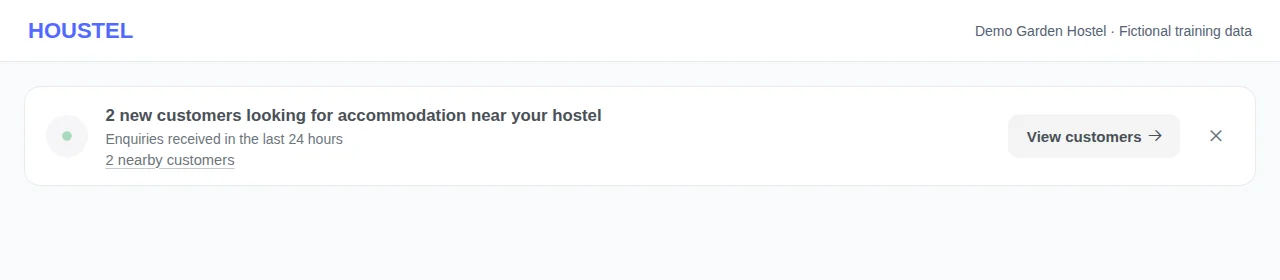
The banner says, for example, 2 new customers looking for accommodation near your hostel. The smaller line states the recent enquiry window, normally 24 hours. View customers opens the first category with new enquiries; use the individual links for a specific category. These counts are enquiries, not confirmed residents or necessarily unique people.
Find new customers from the dashboard · Example with dummy data. Select the image to enlarge. -
Review the incoming enquiry
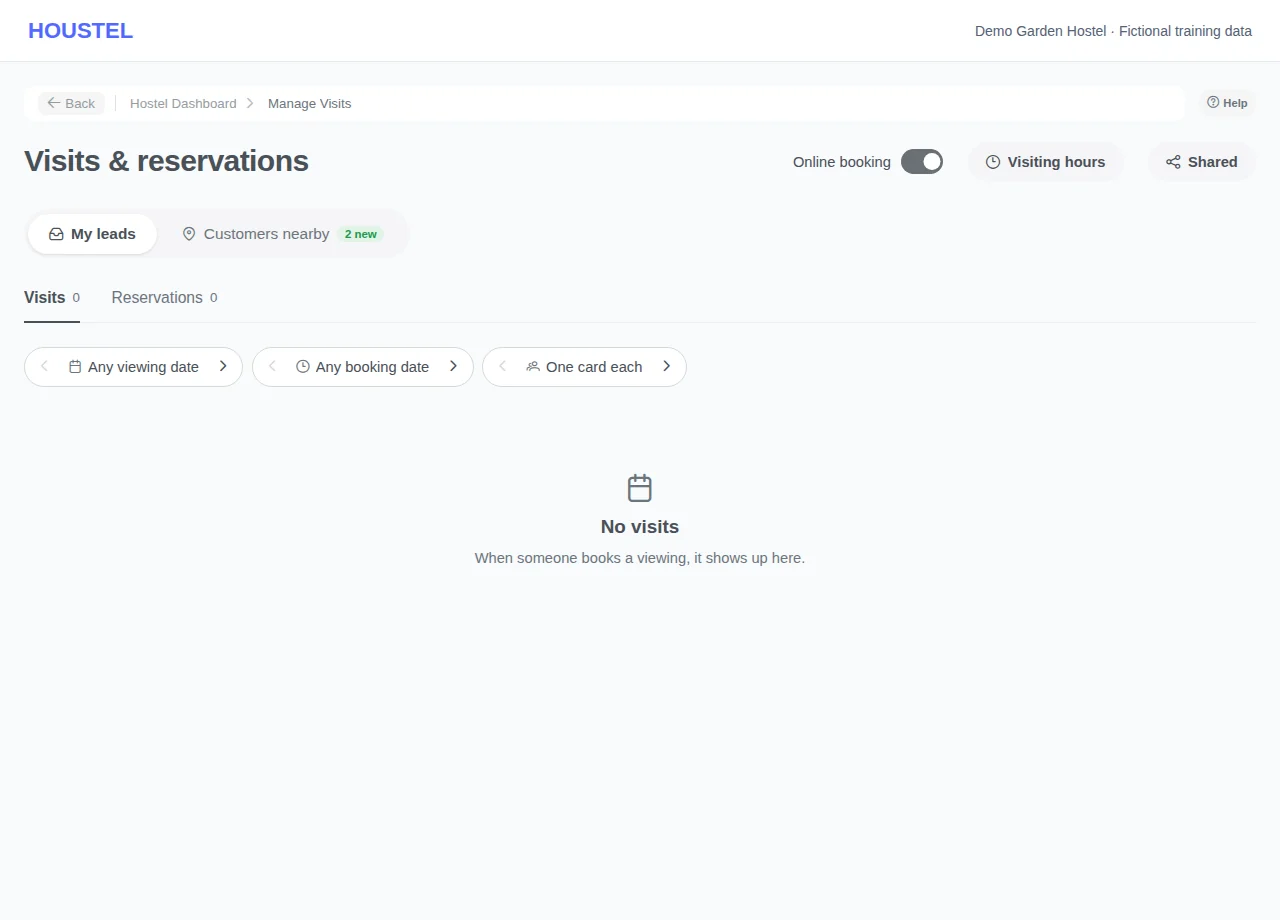
Under My leads, select the relevant tab and check the contact, requested dates and current status. A public reservation request is not yet a completed resident booking.
Review the incoming enquiry · Example with dummy data. Select the image to enlarge. -
Review customers looking nearby
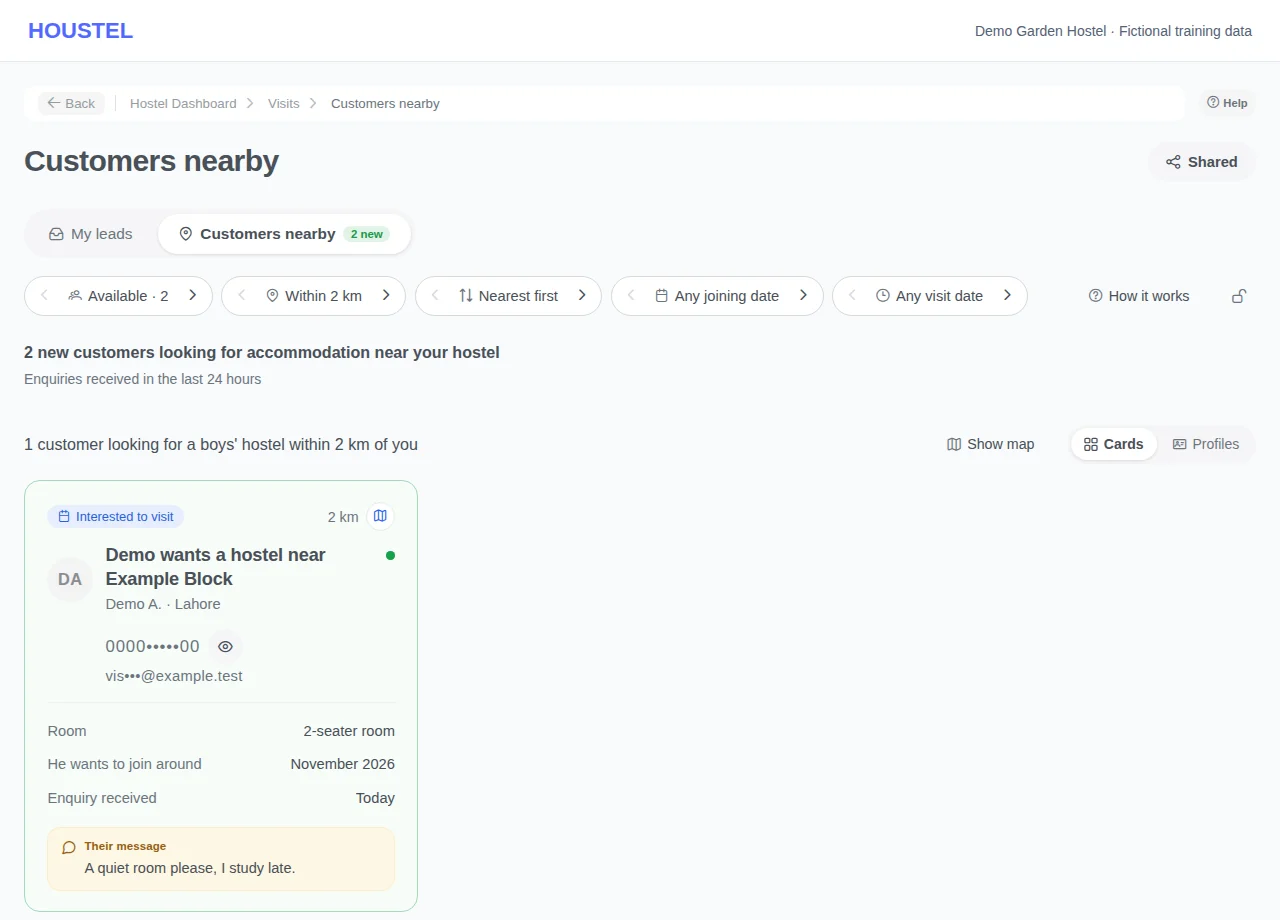
Press Customers nearby (previously Open leads) at the top of the Leads page, beside My leads. Its new badge and sentence count recent nearby enquiries, while Available can include older eligible enquiries. Narrow and order the list with the switches on the toolbar (distance, order, joining date, Still to come): arrows step a choice, pressing it opens the full list; the list starts Nearest first. The distance opens on the nearest one with anyone in it and goes up to 8 km; under a short list, Show N more within X km widens it. Each card leads with what the person wants, such as Abubakar wants a hostel near DHA; its map button shows the area on a small map. The map above the list has a pin per area: hover for who is looking there, press it to list just them. Show people as Cards or Profiles. Review the area and requirements, then press the eye beside the hidden number. Nearby contacts need this even on a plan; without one it uses a free unlock after you confirm. The card then shows the number and the lead is saved in Taken by you. Press Message to contact them on WhatsApp; showing a number alone does not send a message or confirm a booking.
Review customers looking nearby · Example with dummy data. Select the image to enlarge. -
Arrange the visit
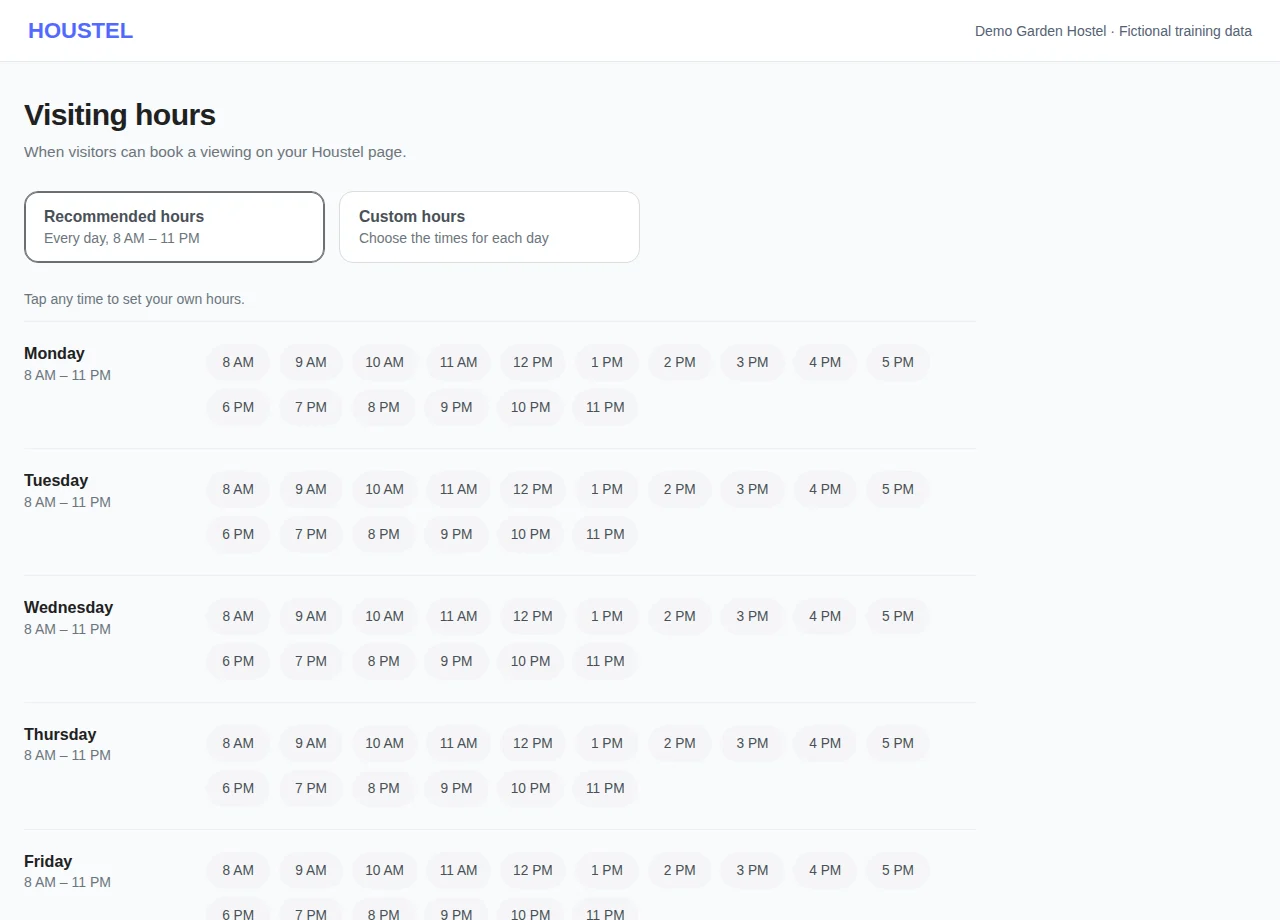
Use Visiting hours, at the top of the Visits and Reservations tabs, to maintain actual availability. Confirm or reschedule a visit using the options offered and verify the contact details.
Arrange the visit · Example with dummy data. Select the image to enlarge. -
Share a lead with your other branches
With more than one approved branch, press Share on a visit, reservation or Facebook lead (on Customers nearby, the share button beside Message on a lead you took). Tick one or more branches; with both boys' and girls' branches they are in two groups, each with its own Pick all. A branch it is already shared with shows Already shared. Add a note for them and press Share with and the branch name, or Share with 3 branches. The lead stays on this list and also appears on the same tab at each branch with its contact open and a Shared by line, and their owner and staff get one alert each without the customer's contact. The customer is not told.
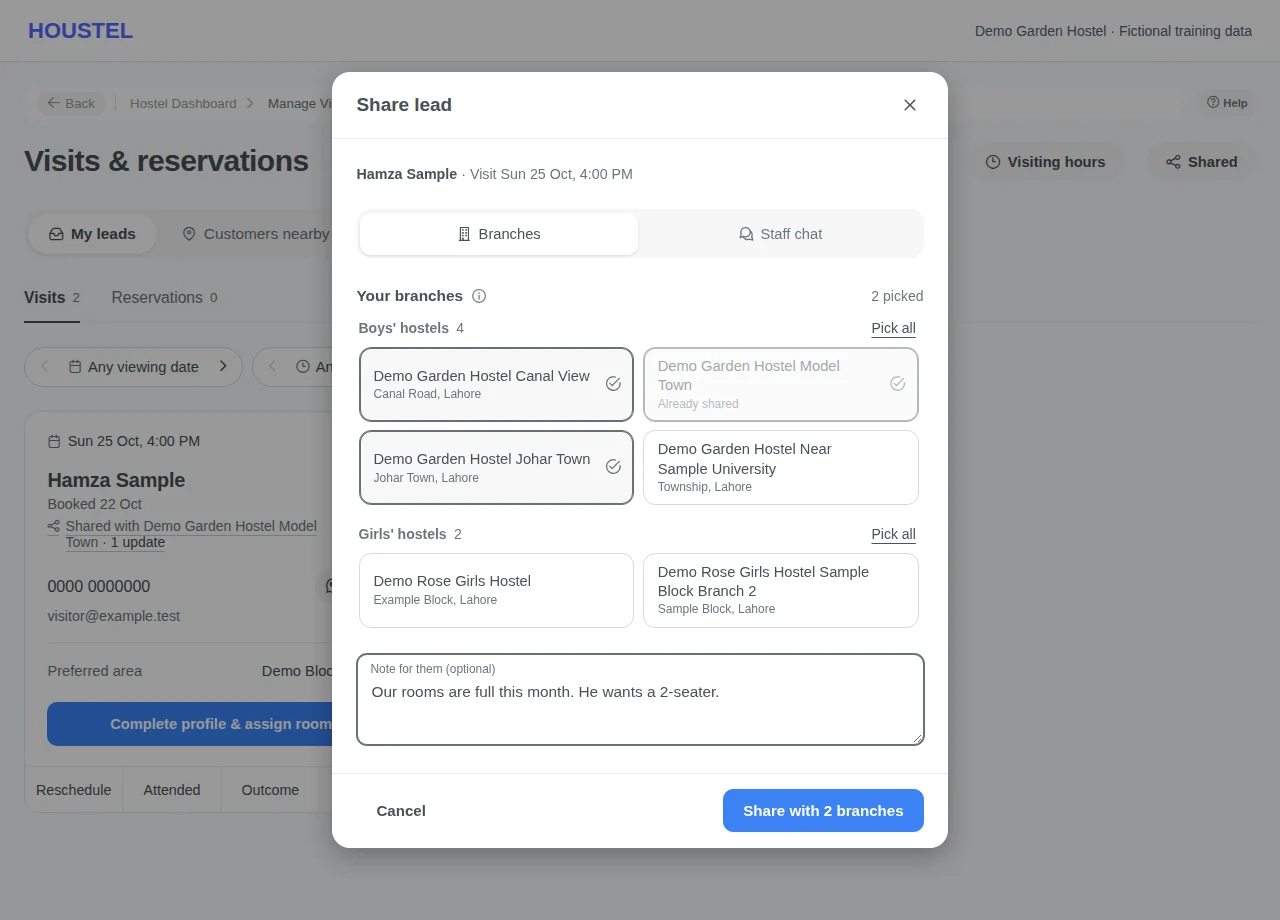
Share a lead with your other branches · Example with dummy data. Select the image to enlarge. -
See who was told and what came of it
Press Shared at the top of the Leads page, or the Shared with line on a card. For each branch you see who shared it and when, your note, its status, and who there was told, each with Seen and when or Not seen yet. Press Set status to record what your staff told you, or Stop sharing to take the lead off that branch's list; nobody is told.
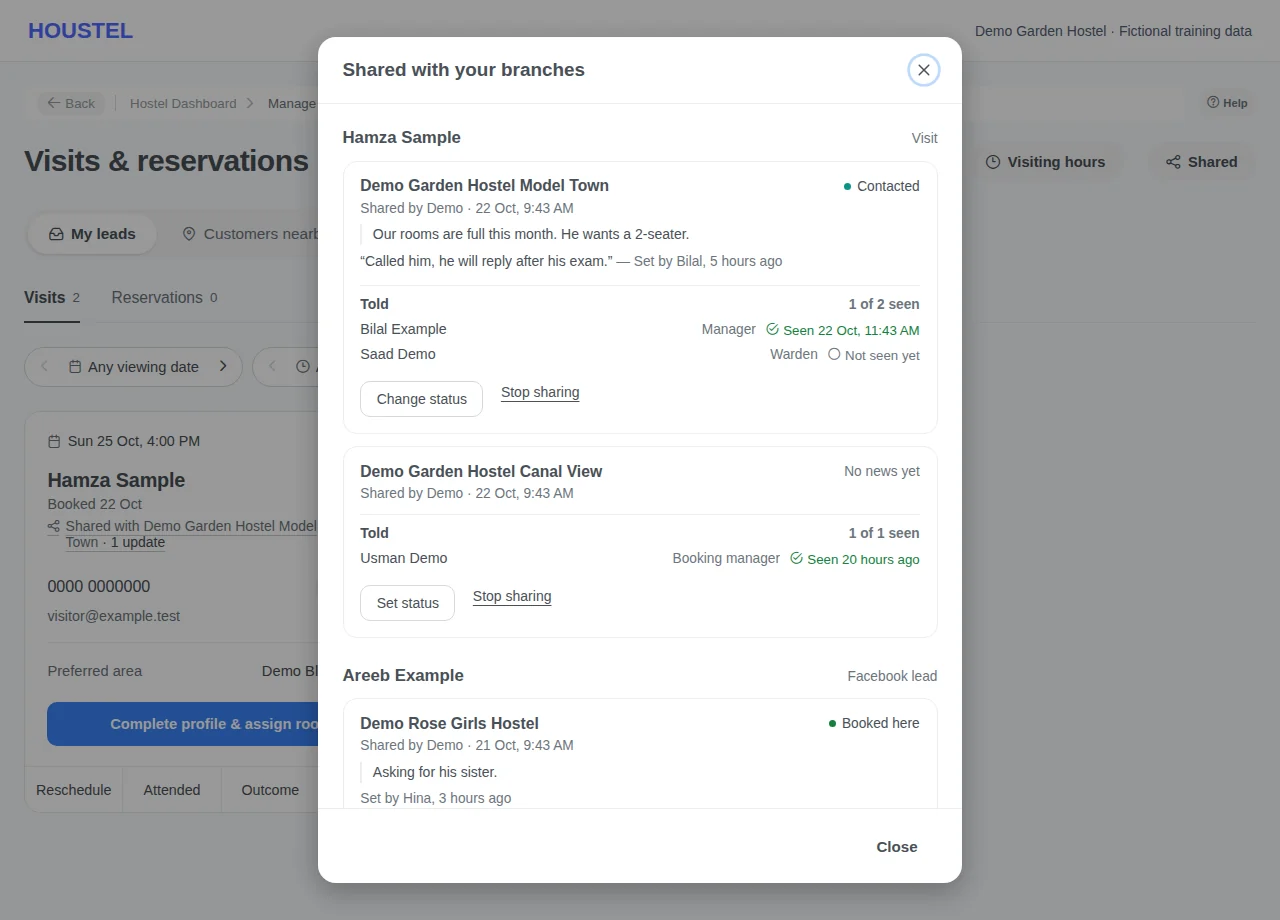
See who was told and what came of it · Example with dummy data. Select the image to enlarge. -
Record what came of a lead shared with your branch
On a card that says Shared by, press Set status, pick Contacted, Interested, Coming to visit, Visited, Booked here, Not interested or Unreachable, add what they said if useful, and Save. Whoever shared it and the owner get an alert. The lead stays the other branch's: you call the person and, if they take a room, register them with Register here; rescheduling, its outcome and confirming or rejecting a reservation stay with that branch.
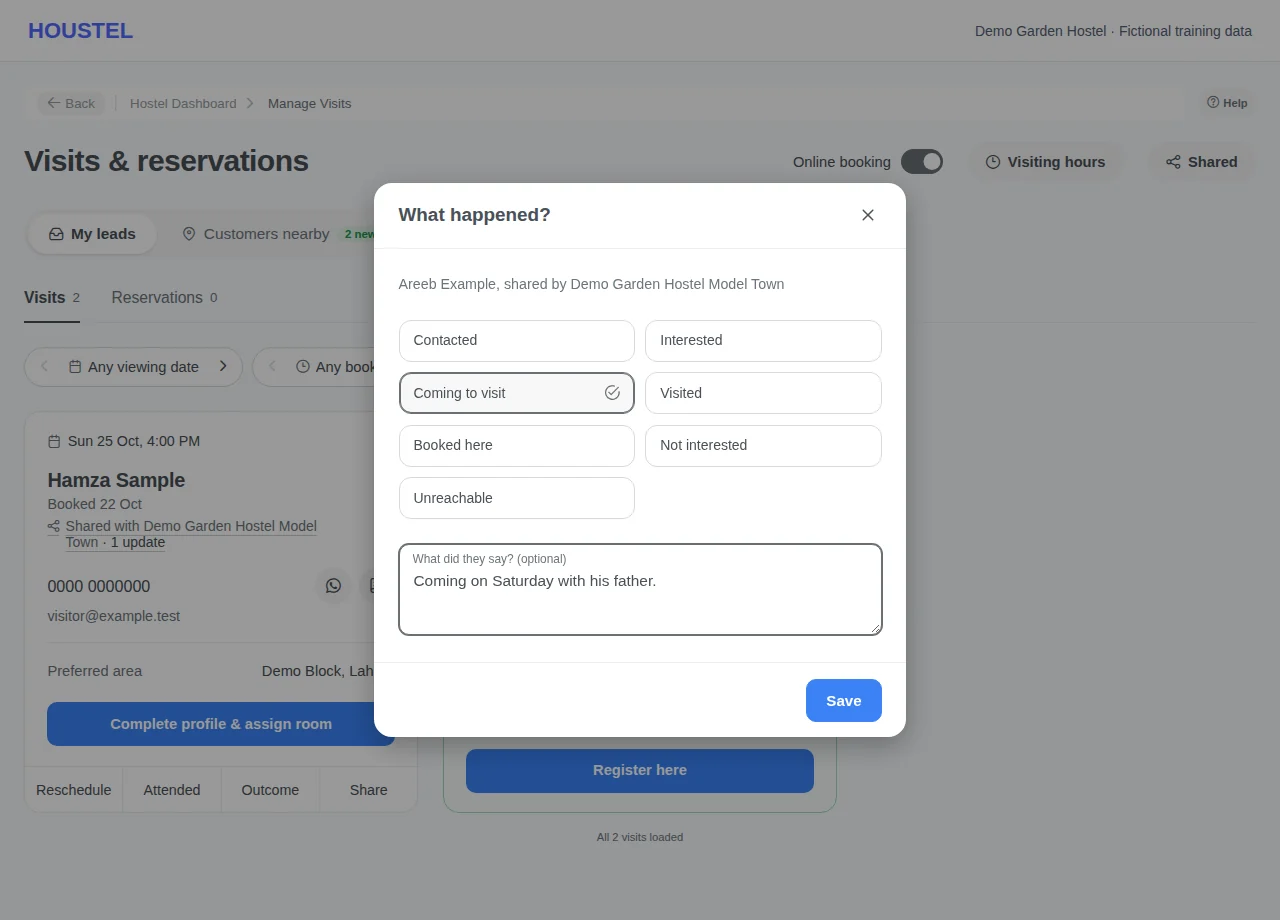
Record what came of a lead shared with your branch · Example with dummy data. Select the image to enlarge. -
Confirm the outcome
Record the visit result and follow-up. Check the room and rent again before creating a resident booking. Use the admission tracker for ongoing follow-up.
-
Work the leads your ad brought
Open Leads, then the Facebook tab. Each card shows who asked, when, their number and what they answered. Call or WhatsApp from the card, and use the card's main button to register them as a resident once they agree. A line above the cards counts the leads of the last 30 days with no outcome yet.
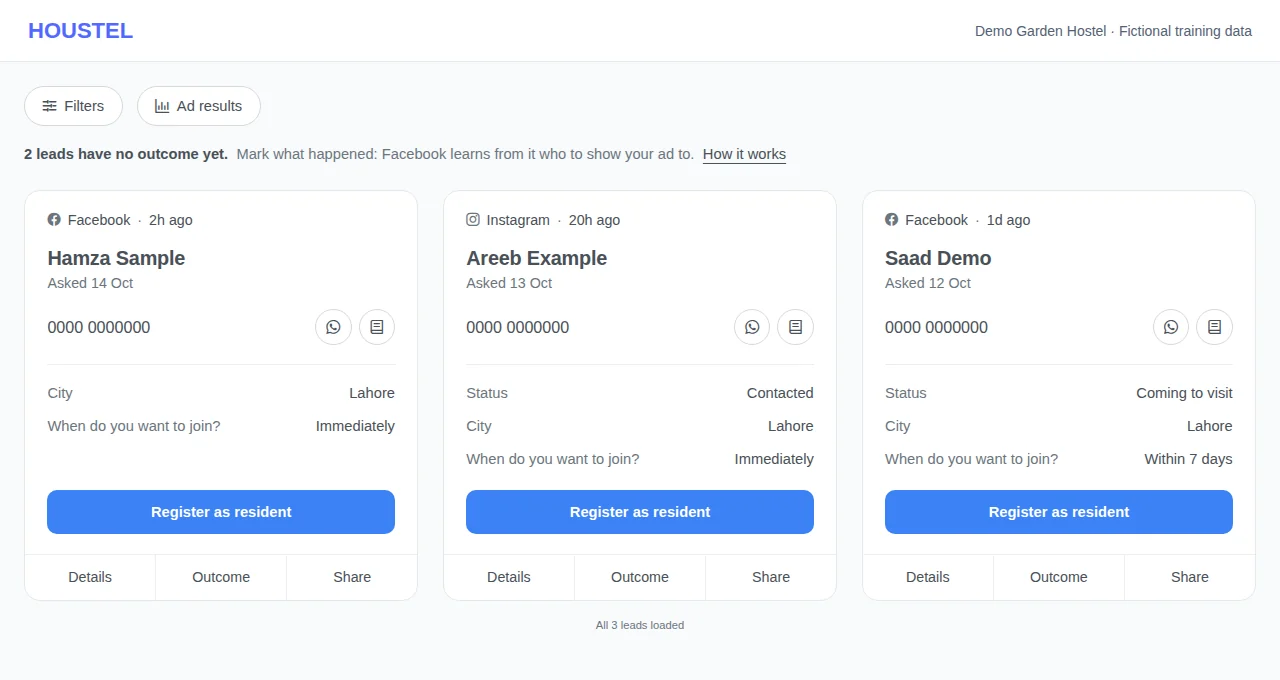
Work the leads your ad brought · Example with dummy data. Select the image to enlarge. -
Mark what came of each Facebook lead
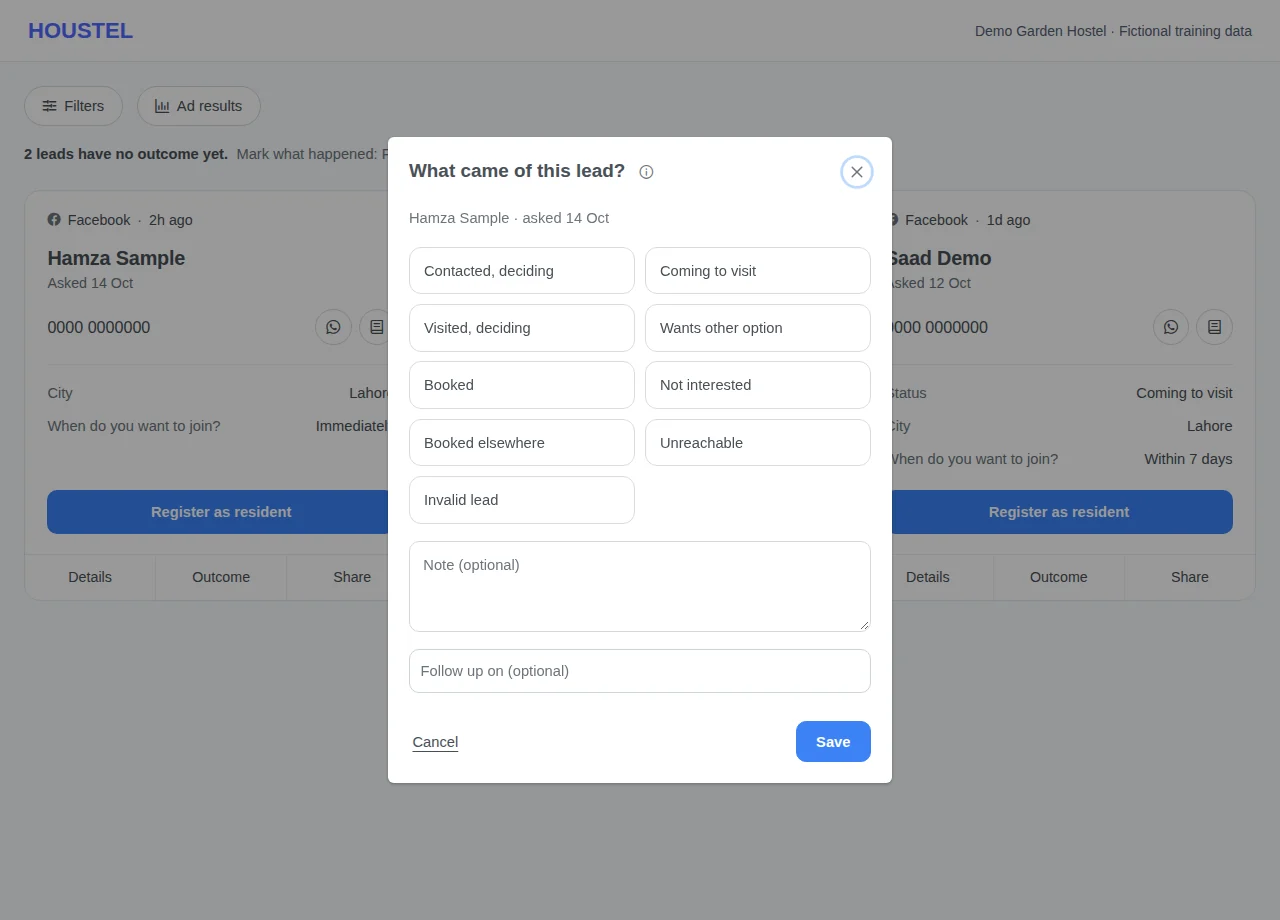
Press Outcome on a card and pick what happened: Contacted, deciding; Coming to visit; Visited, deciding; Booked; or why it ended. Add a note or a follow-up date if useful, then Save, and change it again when the lead moves on. When the tab shows the line about outcomes, Houstel.pk passes the step to Facebook, never the person's name or number, so Facebook can learn who to show your ad to. How it works explains it.
Mark what came of each Facebook lead · Example with dummy data. Select the image to enlarge. -
Check a Facebook or Instagram ad
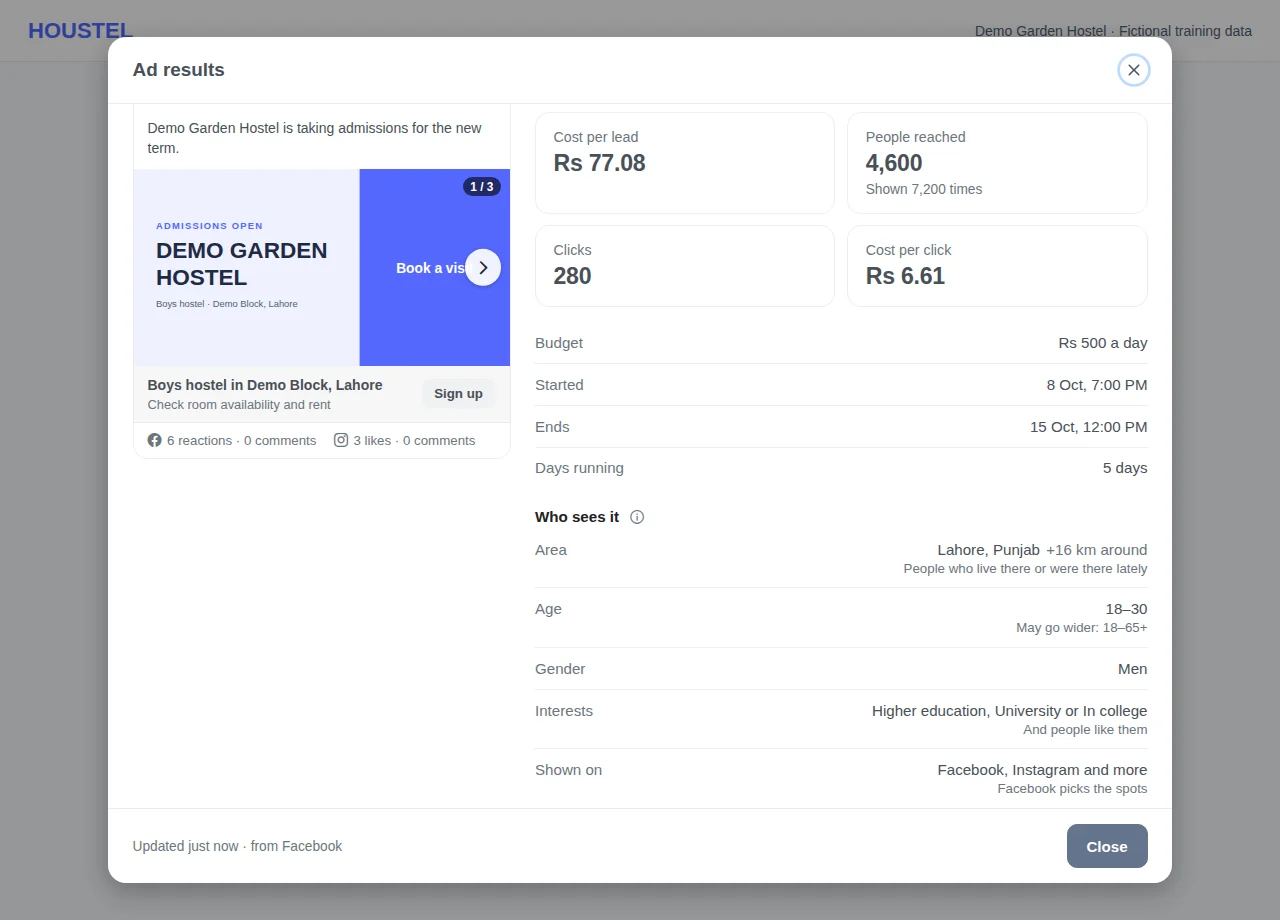
If Houstel.pk runs an ad for your hostel, open the Facebook tab and choose Ad results. An ad with several pictures or videos shows them one at a time: use the arrows or swipe, the counter says which one. Check what the ad spent and brought, then Who sees it: the area, age, gender, interests and apps. A note such as May go wider means Facebook can reach beyond that setting.
Check a Facebook or Instagram ad · Example with dummy data. Select the image to enlarge. -
Keep your ad running
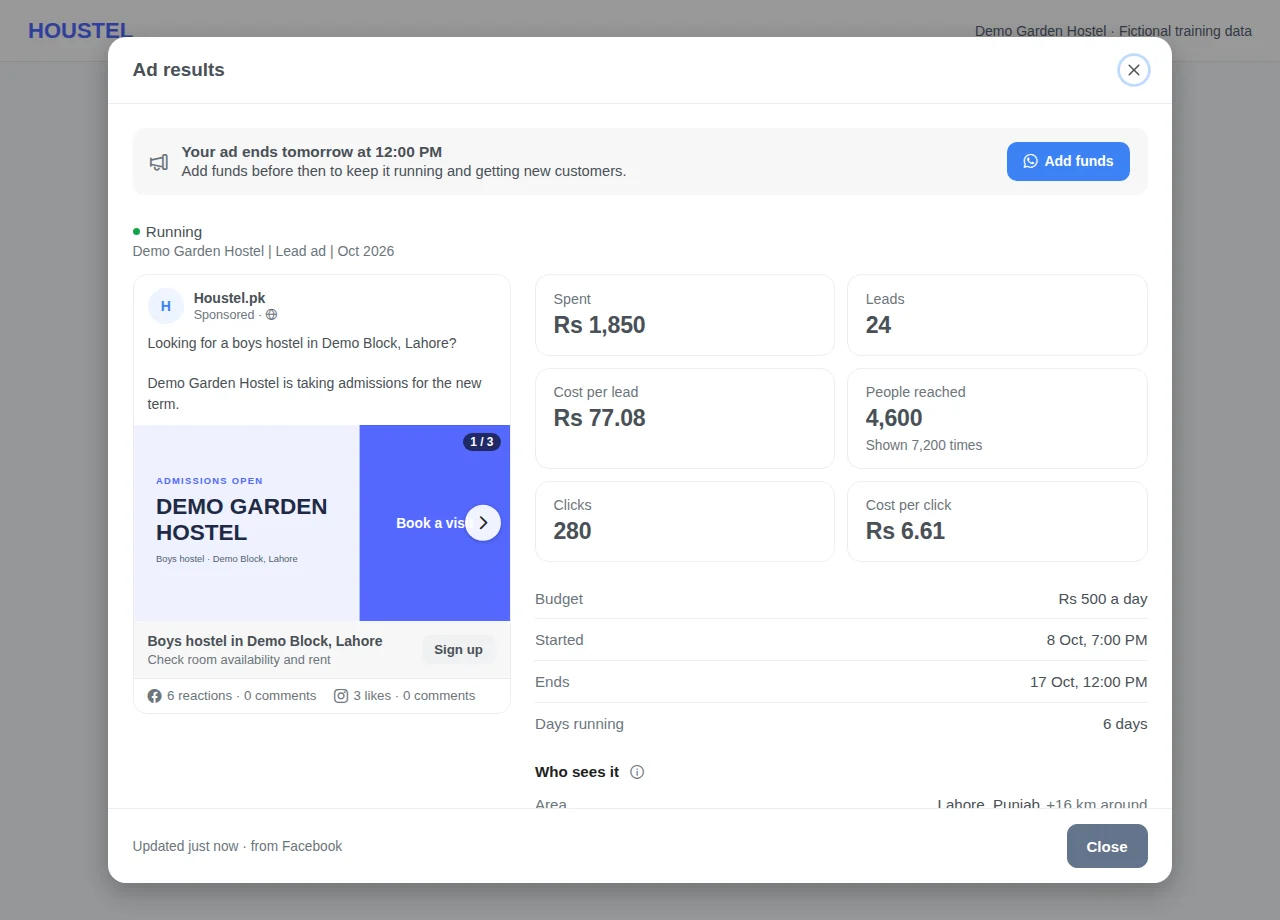
When Facebook approves the ad and when it starts showing, the hostel owner gets an email, a notification and a WhatsApp message. About a day before it ends, and on the 1st of each month it ran, they get the same three with what it did: days, people reached and leads, never money. To keep it running or start it again, press Add funds in Ad results (at the top when every ad ends within three days or none is running, otherwise at the bottom) or Add funds on WhatsApp in the email. It opens a WhatsApp chat with Houstel with your hostel named; the team arranges it with you. Nothing is paid inside the dashboard.
Keep your ad running · Example with dummy data. Select the image to enlarge. -
Request alternatives near an unverified listing
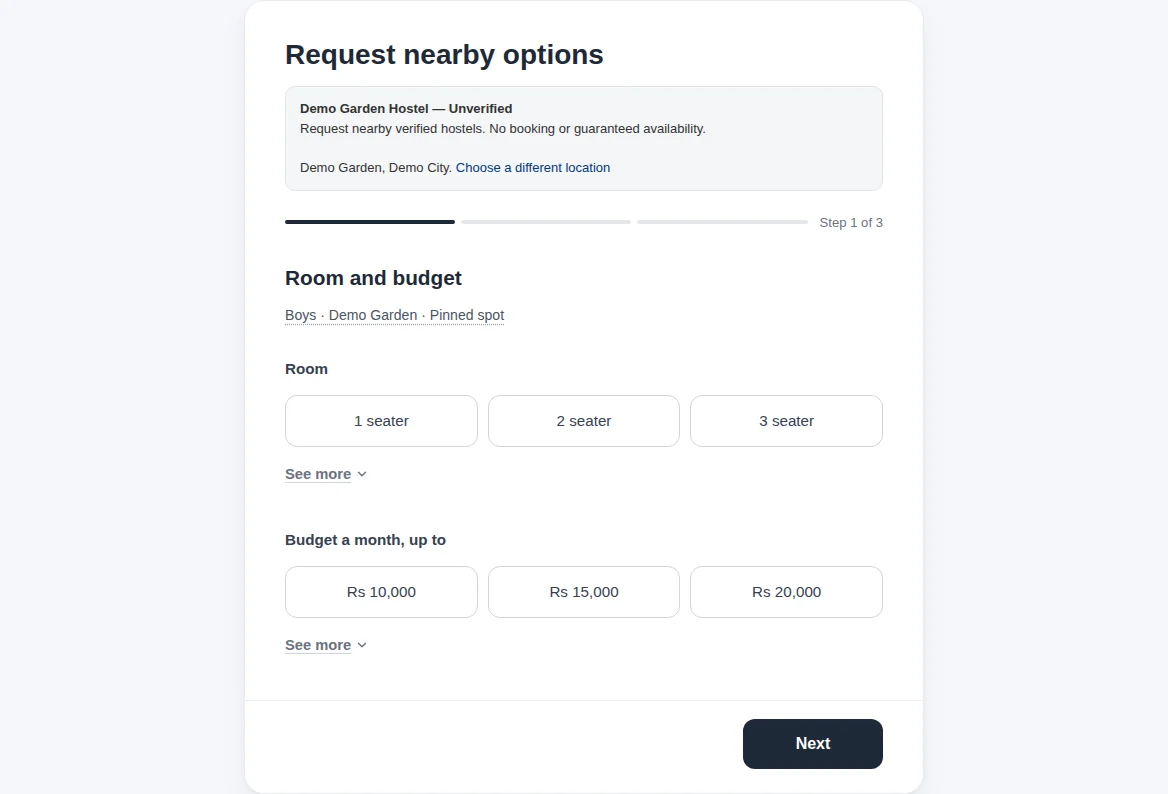
The source listing fixes the location. Choose your requirements and explicitly consent to nearby sharing before submitting. No visit or reservation is made.
Request alternatives near an unverified listing · Example with dummy data. Select the image to enlarge.
Before you finish, and when something goes wrong
- Do not promise a bed on the basis of an old enquiry. Check current availability and avoid contacting the same person repeatedly through multiple lists.
- Ad results are Facebook's figures, refreshed about every 15 minutes, and can differ slightly from your lead list. The window cannot change the ad; ask Houstel through Support to change its area, age or budget.
- Messages about the ad (approved, showing, ends tomorrow, monthly report) go to the hostel owner only, not staff. A paused ad that runs again gets an email and a notification, not a WhatsApp message. Ads shorter than two days get no reminder, and nothing is sent for a month without an ad. If the WhatsApp message does not arrive, for example because WhatsApp messages from Houstel are switched off, the email and notification carry the same news. Add funds only opens a chat: the ad keeps running only once Houstel has added the funds.
- An outcome reaches Facebook only while the Facebook tab shows the line about outcomes, and only the step is sent: not the person's name, number, email or your note. A wrong box changed within five minutes is not sent; after that it cannot be taken back. Tapping call or WhatsApp is not an outcome, and Lead tracker stages are not passed on. Facebook decides how much it helps; more or better leads are not promised.
- Visit access is required; reservation access controls reservation enquiries. Nearby sharing and the hostel setup must be eligible. Follow the displayed setup message, Turn on sharing if disabled, or Try again for loading errors. Clear filters if no suitable enquiries appear.
- The new-customer banner is hidden with no new enquiries, unavailable counts or no access. Closing it hides it until the count increases or the window expires. Existing notifications and their destinations are unchanged.
- A lead is shared only with other approved branches of the same owner, at most 50 at a time. Its contact must be open first (unlock it here); it then shows open there without using that branch's free unlocks, and a reservation's CNIC stays here. A visit already turned into a booking, a reservation no longer waiting for an answer, or a lead another branch shared with you, cannot be shared. A branch that took the same nearby customer itself is skipped. A Facebook lead's ad results and chat stay with the branch whose ad brought it. Setting a status needs Edit for that kind of lead. Leads moved with the earlier Send button stay where they were moved and show From.
- Directory-origin requests need explicit nearby-sharing consent. No customer welcome or confirmation email and no unverified-hostel email are sent. Existing nearby verified-hostel alerts and lead controls apply.
If a save times out, check the record before repeating it. If access is denied, ask the owner to review your hostel assignment and permissions. Never share your login to work around an access restriction.
Related help
Requests started from an Unverified hostel
A visitor to an Unverified directory page chooses Request nearby options. The form explains that it cannot book a visit or reserve a bed there. The visitor must explicitly agree to sharing their request with relevant nearby verified hostels; consent is not preselected. The source listing determines the city, area and hostel type.
These requests appear in the existing Customers nearby / Open leads workflow for participating verified hostels of the matching type in that city. Sharing is limited to 8 km when both map positions are known, or the same named area when distance cannot be measured. Widening your filters does not widen that permission. Existing eligibility, freshness, contact masking, reveal limits, blocks and STOP rules apply. Taking a lead does not create a visit, reservation or occupied bed.
Eligible nearby verified hostels can receive the usual lead bell and email, subject to notification preferences, distance and delivery limits. A request with no measurable distance may be visible in the relevant area without an immediate alert. The customer sees an on-screen receipt but receives neither a welcome email nor a confirmation email for this request. The unverified hostel is not emailed. No reply, room availability or booking is guaranteed.
Submitting the same request again within the duplicate window updates the open request rather than sending another round of alerts. If requests are temporarily disabled or the source listing has been withdrawn, return to search and choose an available option. Sharing can produce no matches; do not interpret submission as confirmation from an owner.
Everything your public listing produces arrives in one place: Leads in the sidebar. These are people who have already found you, looked at your hostel and put their name forward. They are worth more attention than anything else on your screen.
Customers looking near your hostel
The dashboard highlights recent enquiries with wording such as 2 new customers looking for accommodation near your hostel. The smaller line states the counting window, normally the last 24 hours. View customers opens the first category with new enquiries; the links underneath open each category directly. The total includes your visits, reservation requests, Facebook enquiries and eligible nearby enquiries. It counts enquiries, not confirmed residents or necessarily different people.
The Leads page has two places at the top: My leads, with your own Visits, Reservations and (when you have them) Facebook tabs under it, and Customers nearby. Each shows how many arrived in the stated window, and the page title follows the one you are on. Open Leads → Visits and press Customers nearby (previously Open leads) to find people looking for accommodation near your hostel; My leads goes back to the tab you had open. Customers nearby shows the same customer-focused wording above Available. Its new count uses the stated time window, while Available includes older eligible enquiries too; filters can narrow the cards without changing the new badge. The area, distance and hostel type help you assess suitability. These people may have enquired at another hostel or posted a general request; they have not necessarily contacted yours or agreed to move in.
Every choice sits on the toolbar as its own switch: first Available or Taken by you, each with how many, then the distance, for example ‹ Within 5 km ›, the order, the joining date and Any visit date / Still to come. Press the arrows to step through a choice one option at a time, or press its name to pick from the full list. The list starts Nearest first; choose Newest first or New first, then nearest to change it. Still to come keeps only people whose viewing or joining date is still ahead. Reset puts every choice except the distance back. The leads you have already taken also appear at the end of Available, after a Taken by you line. The distance narrows Available only; Taken by you always lists every lead you have taken.
Customers nearby shows people up to 8 km from your hostel. The distance opens on the nearest one that has anyone in it: if nobody is within 1 km, it opens on Within 2 km. Its list runs from there to 8 km and says how many people each distance covers. When fewer than five people are shown, a button under the cards, for example Show 2 more within 4 km, widens it to the next distance with more people, until 8 km.
Each card leads with what the person wants, for example Abubakar wants a hostel near DHA, with their name and city underneath, and when they want to move in, for example He wants to join around October 2026. A pulsing green dot marks enquiries from the last 3 days. The map button in a card's top corner shows a small map of the area they named and your hostel: hover over it on a computer, or tap it on a phone.
A map sits above the list: your hostel, the distance you picked drawn around it, and a numbered pin for each area where people are looking. Hover over a pin to see who is looking there — one person's details in full, or a short line each when there are several — and press it to list just those people; Show everyone goes back. A pin marks the middle of the area named on the card — or, for a request, the spot the customer pinned when they posted it (to about 100 m) — never the hostel they enquired at or where they live; anyone with no position is counted under the map. Hide map puts the map away and Show map brings it back. Under it, choose Cards or Profiles (one person per row, their picture beside what they asked for). A customer's profile picture shows when they have one, otherwise their initials. Neither the map nor the picture reveals contact details; you still show the number with the eye, as below. Your choices are remembered on that device.
Owners and staff given Customers nearby can open the tab; taking a lead (showing its number with the eye) and changing the tab's settings need its Edit tick. Nearby sharing must be enabled and your hostel must meet the setup requirements shown on the page. Follow its setup message or use Turn on when sharing is switched off. Your own enquiries are shared on the same terms. If the platform has disabled the feature, it cannot be enabled from your hostel.
A card shows the number and email partly hidden, for example 0302•••••27 and exe•••@gmail.com, with what they wrote in a yellow Their message box. On a suitable card, press the eye beside the hidden number. Showing the number takes the lead: nearby contacts need this even on an active plan, which includes unlimited unlocks, but each enquiry still has a limited number of hostel places. Without a plan, a dialog first confirms the free unlock it uses. The card then shows the full name, phone number and email, and the lead is also saved under Taken by you. Press the green Message to open WhatsApp with a first message ready; showing a number alone does not send a message or confirm a booking. The crossed-out eye hides the number again on your screen; the lead stays yours. If the free allowance is exhausted, the eye offers a subscription. If all places are taken or the enquiry is no longer available, the card disappears; choose another suitable enquiry.
When a customer within 8 km of your hostel posts a Find me a hostel request, the owner and the staff who can open Customers nearby get a bell and an email straight away; other new customers nearby come in a summary email. Each email shows the customer as their card does — what they want, their answers and message, the phone and email partly hidden — and View contact opens that card on Customers nearby, where the eye shows the number. Customers further than 8 km, or whose distance cannot be measured, are not emailed. Emails can be switched off from your profile.
No new enquiries means no dashboard banner or new-count sentence. Closing the banner hides it until the count grows or its time window expires; it does not delete enquiries or change notification settings. If the count cannot be loaded or you lack access, the banner is hidden. An empty nearby list can mean no enquiries match your choices or distance; press Reset or pick a farther distance and check again. For a loading error, use Try again. Existing lead notifications still lead to the same page; this wording change does not introduce a new notification.
The two kinds
| Lead type | What the person did | What they want from you |
|---|---|---|
| Visit | Asked to come and see the hostel, often for a particular day. | To know they can turn up, and that somebody will be there. |
| Reservation | Asked to hold a bed, usually for a joining date in the near future. | A yes or a no, quickly. They are choosing between two or three hostels. |
Both usually tell you when the person wants to join and how many beds they need, sometimes a month rather than an exact date, because people plan around a term starting rather than a day. A request for three beds is one enquiry, not three.
Visits and reservations from customers' Houstel accounts
A customer who is still choosing a hostel can also look through every hostel live on Houstel.pk from their own Houstel account (Explore hostels), and book a visit or reserve a room there. These reach you exactly like the ones from your Houstel.pk page: the same Visits and Reservations lists, the same bell, email and WhatsApp alerts, and still no phone number or email in the alert. A reservation made this way carries the customer's CNIC, like one from the website.
- The customer sees what your Houstel.pk page shows: photos, videos, rooms you show there, their prices and free seats. Rooms you hide from Houstel.pk and prices you keep "on request" stay hidden.
- They find hostels on a map, and by searching a city, an area or a place such as a university. Your pin is the location on your Houstel.pk page, so check it sits on your building: a wrong pin hides you from people searching your area.
- Each hostel in their list has a Message button that starts a chat with you straight away. It reaches you like any first message from a new customer (see alerts for a new enquiry).
- If they cancel a visit or a reservation from their account, the bell tells you at once and a reserved seat is free again.
- Your own residents never see other hostels there: not while they live with you, not once you have booked them in, and not for 90 days after you register them (unless a booking follows).
Speed is the whole game
Somebody looking for a room this week has usually contacted several hostels the same afternoon. The one that answers first gets the visit; the one that gets the visit usually gets the resident. An hour matters. A day is often too late.
- Turn on notifications so a new lead reaches your phone rather than waiting for you to open the dashboard.
- Reply even when the answer is no. “We are full until March, shall I call you then?” keeps a lead alive.
- If somebody asked for a visit on a particular day, confirm that day explicitly. “Come any time” is how people end up at a locked gate.
Seeing a lead's phone number
On an active plan your own enquiries show their contact details. On Customers nearby, press the eye beside the number first, as described above.
Without a plan, the page shows your remaining lifetime free unlock allowance. One shared allowance covers visits, reservations, nearby enquiries and Facebook leads. You choose which enquiries to unlock, one at a time; review their details before spending it.
Once you have unlocked a lead, that unlock is spent, including if the lead later turns out to be a wrong number, or if you delete it. Read what the lead says before unlocking it: the joining date, the number of beds and the message are all visible first.
Working the list
Each lead moves through stages, and the list keeps them in front of you until they are resolved:
- New Just arrived, nobody has spoken to them. This is where speed counts.
- Contacted You have reached out. Messaging them on WhatsApp from the lead moves it here on its own.
- Visited They came and saw the hostel.
- Joined They moved in. Turn them into a resident from the lead itself, so their details carry over rather than being typed again.
- Cold Not going anywhere for now. Mark it and it drops out of your working queue without being deleted.
You can also see how many times you have contacted somebody: once, twice, three or more. A lead you have chased three times with no reply is a different problem from one you have never called.
Do not delete leads
Mark them cold instead. People who were looking in June start looking again in August, and a hostel that kept the record can start the conversation with “you asked us about a room a few months ago”. A deleted lead takes its history with it and cannot be brought back.
Managing visits
You can publish the times you are happy to receive visitors, so people book into a slot that suits you instead of arriving during dinner. Someone may also request visits at several hostels at once. If you are one of them, you are being compared directly, and being the one who confirmed first is a real advantage.
The Online booking switch and the Visiting hours button sit at the top of the Visits and Reservations tabs. They are not shown on Customers nearby or Facebook, which they do not affect. Switching online booking needs the Visits Edit permission.
Share a lead with your other branches
If you run more than one hostel, you can share any lead with one or more of your other branches: a visit, a reservation, a Facebook lead, or a customer nearby you have taken. The lead stays on this branch's list and also appears on the same tab at every branch you pick. Use it when this branch is full, the person wants a different area, or you want each branch to try.
- Press Share on the lead On Visits, Reservations and Facebook it is in the row of buttons at the foot of the card. On Customers nearby it is the share button beside Message, on leads under Taken by you.
- Pick the branches Your other approved branches are shown as boxes, each with its area. If you have both boys' and girls' branches, they are in two groups, this branch's kind first, and each group has its own Pick all. Tick as many as you like; with many branches, search above them. A branch the lead is already shared with shows Already shared. If you pick branches of the other kind, the window says how many; it does not stop you.
- Add a note, then share The note is for those branches: why you are sharing the lead and what the person wants. Press Share with and the branch name, or Share with 3 branches.
The owner and the Houstel.pk team also see a Staff chat tab in this window, to put the lead into a conversation with staff instead (see Staff chat). The customer is not told: nothing is emailed or sent to them when you share.
What happens next
- At each branch, its owner and the staff who can open that tab get one alert in their bell and on their phone. Someone who works at two of the branches gets one alert, not two. The alert names the person and your branch, never their phone number or email.
- There, the card shows Shared by and your branch's name; hover over or tap it to see who shared it and your note. It counts as new there for a day.
- Their contact is open at that branch and does not use its free unlocks, because you had already opened it. A reservation's CNIC stays at your branch.
- The lead stays yours. Only your branch reschedules a visit, records its outcome, confirms or rejects a reservation, or shares it further. The other branch calls the person and, if they take a room there, registers them as its own resident (on a visit or reservation, Register here, which finds them if they are already on Houstel.pk).
- Your card shows Shared with and the branches. Press it, or Shared at the top of the Leads page for everything this branch shared, to see for each branch: who shared it and when, your note, its status, and who there was told, each with Seen and when, or Not seen yet. If nobody at a branch can open that kind of lead, it says so; give someone Leads access on the Hostel Staff page.
What came of it
Each branch you shared with has its own status. At that branch, the card has Set status: pick Contacted, Interested, Coming to visit, Visited, Booked here, Not interested or Unreachable, add what the person said if useful, and press Save. Whoever shared the lead and the owner get an alert with the status. Your card then shows how many branches have an update.
When your staff tell you the result instead, by phone or in chat, set it yourself: in the Shared window press Set status (or Change status) under that branch; nobody is alerted about a status you set yourself. Clear takes a status off. Setting a status needs the Edit permission for that kind of lead.
Stop sharing
In the Shared window, press Stop sharing under a branch. The lead leaves that branch's list; nobody is told. A resident they already registered stays theirs, the history stays in your window, and you can share the lead with them again later.
Sharing with branches needs another approved branch and the Edit permission for that kind of lead. A lead whose contact is still hidden must be unlocked here first. A visit that already became a booking, or a reservation that is no longer waiting for an answer, cannot be shared. A lead another branch shared with you cannot be shared on from your branch. If a branch has already taken the same customer nearby itself, it is skipped and the window says so. A Facebook lead's ad results and Messenger chat stay with the branch whose ad brought it in. Leads go only to your own branches, never to another owner's hostel.
Leads moved with the earlier Send button stay at the branch they were moved to and show From and the branch that sent them.
Turning a lead into a resident
When somebody agrees to move in, convert the lead rather than starting a fresh resident record. Their name and number carry over, the enquiry stays linked to the stay, and you keep a straight answer to a question worth asking later: how many of my residents came from my Houstel.pk listing?
Leads from Facebook and Instagram ads
When Houstel.pk runs a Facebook or Instagram ad for your hostel, the people who fill in the ad's form arrive on a Facebook tab under Leads. The tab only appears once your hostel has an ad or leads from one. You work these leads like any other.
Ad results on that tab opens a window with the ad as people see it in their feed and what it has done so far: what it spent, the leads it brought, the cost per lead, how many people it reached, its clicks, its budget, when it started and when it ends. The comments people left under the ad are shown underneath.
An ad with several pictures or videos shows all of them, one at a time: use the arrows or swipe, and the counter shows which one you are on. A carousel ad shows each card with its own headline and button. A video plays when you press it.
Who sees your ad
Under the numbers, Who sees it shows who the ad was set up to reach:
- Area: the places it is shown in, with the distance around each one, and whether that means people who live there or were there recently.
- Age and Gender.
- Interests and Languages, if the ad uses them.
- Shown on: Facebook, Instagram or other apps. “Facebook picks the spots” means Facebook chooses where it appears.
Facebook can be allowed to go beyond a setting when it expects more leads that way. If so, the row tells you. “May go wider: 18–65+” under an age means the ad aims at that age but can reach anyone in the wider range. “Others may see it too” under a gender means the ad is not shown to that gender only. Hover over or tap a row's name for an explanation. Within these limits, Facebook decides which people actually see the ad.
The numbers and settings come from Facebook and are refreshed about every 15 minutes. Nothing in the window changes the ad. To change its area, age or budget, ask Houstel through Support. If the window says it could not load the numbers, Facebook did not answer. Try again in a few minutes. Facebook's lead count can differ slightly from your list, for example when someone fills in the form twice.
Messages about your ad, and adding funds
Houstel tells the hostel owner how the ad is doing. Staff do not get these messages.
- When Facebook approves the ad, and when it starts showing: an email, a notification and a WhatsApp message. An ad that is approved and starts showing straight away gets one message.
- When something else changes: the ad is paused or runs again, is not approved, gets a new end date or budget, or finishes. You get an email and a notification.
- About a day before the ad ends: an email, a notification and a WhatsApp message with what it has done so far: the days it ran, the people it reached and the leads it brought. Ads that run for less than two days do not get this reminder.
- On the 1st of each month, if your ad ran in the month before: a short report on that month's days, people reached, clicks and leads. Nothing is sent for a month in which no ad ran.
The reminder and the monthly report never show money: no spend, budget or cost per lead. Those are in Ad results.
To keep the ad running, or to start it again, add funds before it ends. Press Add funds in Ad results, or Add funds on WhatsApp in the email. It opens a WhatsApp chat with Houstel with your hostel's name already written, and the team arranges it with you. Ad results shows this at the top when every ad ends within three days or none is running, and as a button at the bottom the rest of the time. There is no payment for ads inside the dashboard.
The WhatsApp message goes to the owner's phone number on the account. If it does not come, for example because WhatsApp messages from Houstel are switched off, the email and the notification say the same thing. Emails can be switched off from your profile. The notification opens Ad results, which always has the latest numbers.
Mark what came of each lead
Every card on the Facebook tab has an Outcome button. Press it and pick what happened: Contacted, deciding, Coming to visit, Visited, deciding, Booked, or the reason it ended (Wants other option, Not interested, Booked elsewhere, Unreachable, Invalid lead). You can add a note and a follow-up date. Change the outcome again whenever the lead moves on. Saving with nothing picked reopens the lead.
Tapping the phone number or WhatsApp on a card marks it Contacted. That only says you tried. It is not an outcome, so choose one once you know how the conversation went.
Outcomes are useful to you on their own, and they can also help your ad. When Houstel.pk is passing outcomes to Facebook for your hostel, the tab says so: a line above the cards counts the leads of the last 30 days that have no outcome yet, and How it works opens a short explanation. Houstel.pk then tells Facebook which step each lead reached:
- Contacted, deciding: a real person who answered.
- Coming to visit or Visited, deciding: a visit.
- Booked: they took a room.
- Any other choice: nothing is sent, so the lead counts as one that went nowhere.
Facebook uses these steps to learn which people turn out real, so it can show your ad to more people like them. The more leads have an outcome, the more it has to learn from. It takes a few weeks to show, and how much it helps is up to Facebook. Houstel.pk cannot promise more leads or better ones.
Only the step, the time, and Facebook's own reference for the lead it sent you. Not the person's name, phone number or email from Houstel.pk, and not your note. A step is sent a few minutes after you save it. If you tapped the wrong box, change it within five minutes and the wrong step is not sent. After that it cannot be taken back, although you can still correct the card. A lead you register as a resident with the same phone number or email, and give a confirmed room, counts as Booked without you marking it. Stages you record in the Lead tracker are for your own follow-up and are not passed on. If the line above the cards is not there while leads are waiting for an outcome, outcomes are not being passed to Facebook for your hostel at the moment.
Getting more of them
Leads come from your listing, so the fixes are all on the listing:
- More and better photos, the biggest single lever by a distance.
- Accurate rents. Hidden or vague pricing loses people before they ever contact you.
- Nearby landmarks on your profile, because most people search “hostel near X”.
- Reviews, which decide it when two listings look alike.
- Featured placement, if you want to appear above other hostels in your area during a busy season.
In short
- Visits and reservations both land under Leads, usually with a joining date and how many beds.
- Answer within the hour if you can. This is the one thing that decides who gets the resident.
- Nearby contacts need an unlock even on a plan. Without a plan, check the shared free allowance shown on the page; spent unlocks are not refunded.
- Move leads through the stages, and mark dead ones cold rather than deleting them.
- Convert a lead into a resident from the lead itself so nothing is retyped.
- Leads from a Houstel.pk Facebook or Instagram ad arrive on the Facebook tab. Ad results shows every picture and video of the ad, what it did and who it is shown to.
- The owner hears from Houstel when the ad is approved and starts showing, a day before it ends, and on the 1st of each month it ran. To keep it running, press Add funds. It opens a WhatsApp chat with Houstel.
- With more than one branch, Share shows a lead at as many of your other branches as you pick, while it stays here. Their people are told, you see who has seen it, and each branch's status comes back to you.
- Mark each Facebook lead's Outcome. When the tab says outcomes go to Facebook, the step you pick (never the person's details) is what Facebook learns from.
Common questions
Do I have to pay to see a lead's phone number?
Not always. An active plan shows your own enquiries' contacts and includes unlimited nearby contact unlocks. Nearby contacts still need the eye beside the hidden number pressed, and have limited places per enquiry. Without a plan, the page shows a shared lifetime free allowance across lead types; you choose which contacts to unlock.
A lead has gone quiet. Should I delete it?
No. Mark it cold and leave it. People who were looking three months ago start looking again, and a deleted lead takes its history with it.
Can I pass a lead to my other hostels?
Yes, if they are yours and approved. Press Share on the lead, tick one or more branches, add a note and share. The lead stays here and also shows at those branches with its contact open, and their people are told. Shared shows who was told, who has seen it, and each branch's status. Unlock a hidden contact first. The customer is not told.
How do I find out what happened to a lead I shared?
The branch you shared it with sets its status, such as Contacted, Coming to visit or Booked here, and you get an alert. If your staff tell you instead, open Shared on the Leads page and press Set status under that branch yourself.
Why should I mark what happened to a Facebook lead?
Because the step you record is what Facebook learns from. When your Facebook tab shows the line about outcomes, Houstel.pk passes each step on (a real person who answered, a visit, Booked), never the person's name or number, and Facebook uses it to work out who to show your ad to. A lead with no outcome teaches it nothing. How much it helps is up to Facebook.
Still stuck?
Tell us the screen name, what you tried and what happened. Remove personal details, passwords and private links from any screenshot.