All guide chapters
Start here
Everyday running
- Residents
- Rent and payments
- Dues and reminders
- Deposits and advances
- Expenses and profit
- Mess and meals
- Reports and dashboard
- Laundry and food for residents
- Importing residents safely
- Room changes, checkout and resident requests
- Payment approvals
- Billing periods, installments and rent reviews
- Room electricity and resident charges
- Utility connections and bills
- Inventory and room assets
- Bank accounts and wallets
Filling your beds
Your team and residents
Recording rent and payments
Every rupee a resident hands you gets recorded once, against the month it pays for. Do that and the dashboard, the dues list and the receipts all take care of themselves.
Step by step
Where to go: Payments → Collect payment; resident → Payments
Who can use it: The hostel owner, or staff with access to this feature. Some actions need additional permission.
-
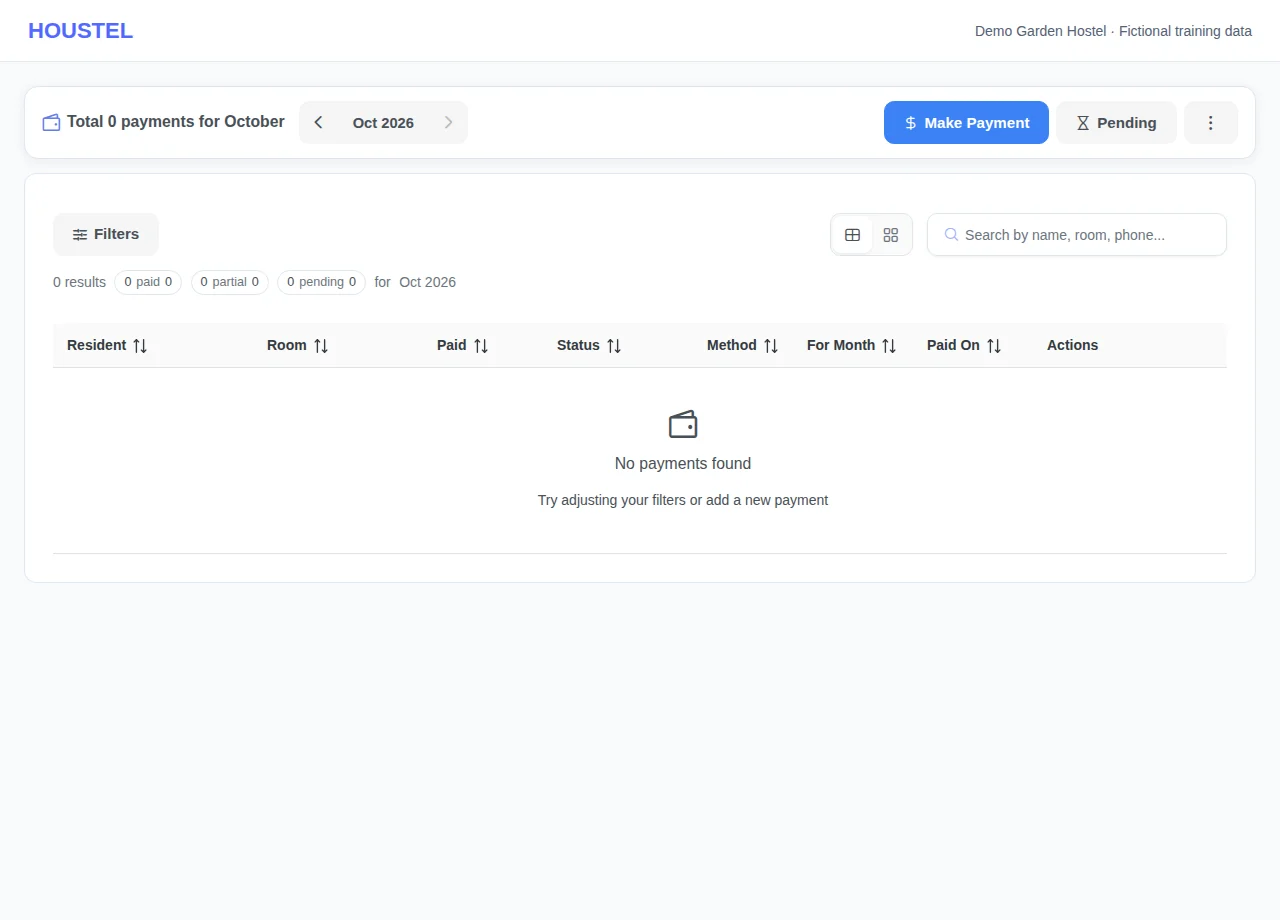
Choose the resident and booking
Open the resident’s payment record and confirm the booking and month. Verify actual money received before continuing.
Choose the resident and booking · Example with dummy data. Select the image to enlarge. -
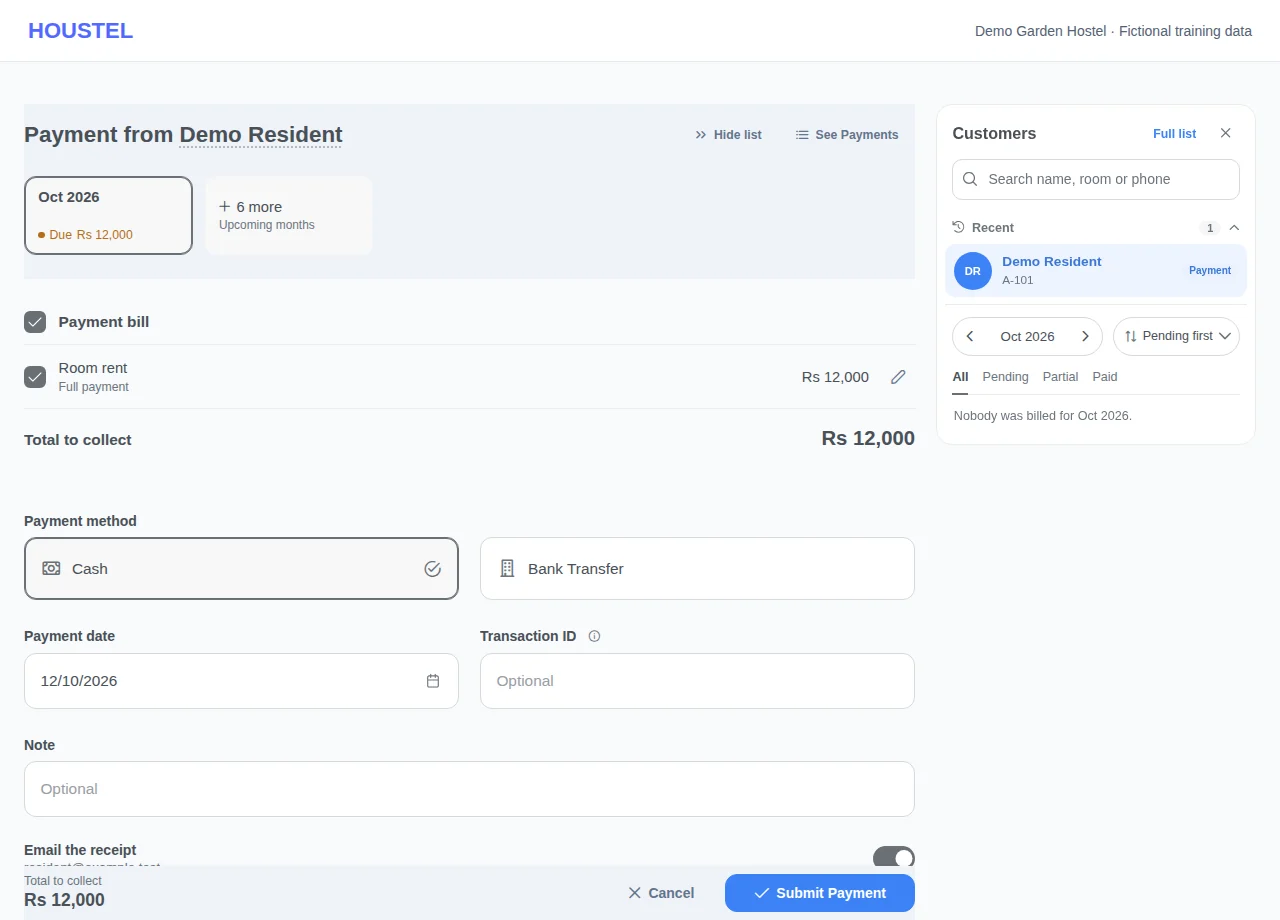
Record once
Enter the amount, method, date and applicable charges. Review the confirmation, save once, then check the receipt and balance.
Record once · Example with dummy data. Select the image to enlarge. -
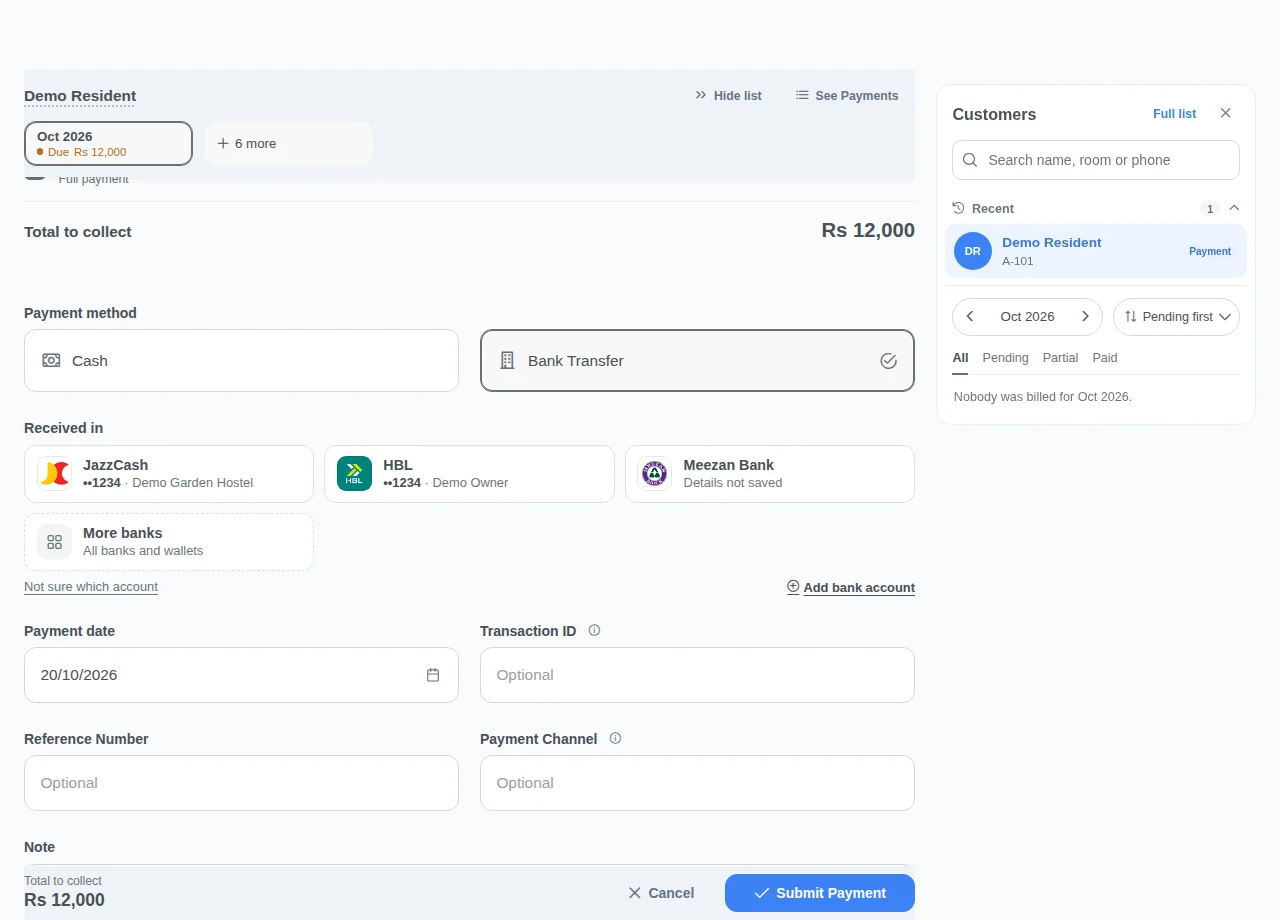
Say which account received a bank payment
Choose Bank Transfer, then pick under Received in where the money arrived. Your saved accounts come first, then banks you have recorded money into before, each most-used first; three show, and More banks opens every bank and wallet with a search. You can pick any bank even if you never saved its details: it is recorded by name, marked Details not saved, and the bank is named on the payment and its receipt, in the payments filters and on the dashboard's Bank Collection. If you do not know, press Not sure which account; it is reported as No account chosen. The owner can save account details without leaving the form: under a bank marked Details not saved, press Save … details (it becomes a full account and keeps the payments recorded as it), or press Add bank account for a new one, which is then picked for this payment. Staff do not see these links.
Say which account received a bank payment · Example with dummy data. Select the image to enlarge. -
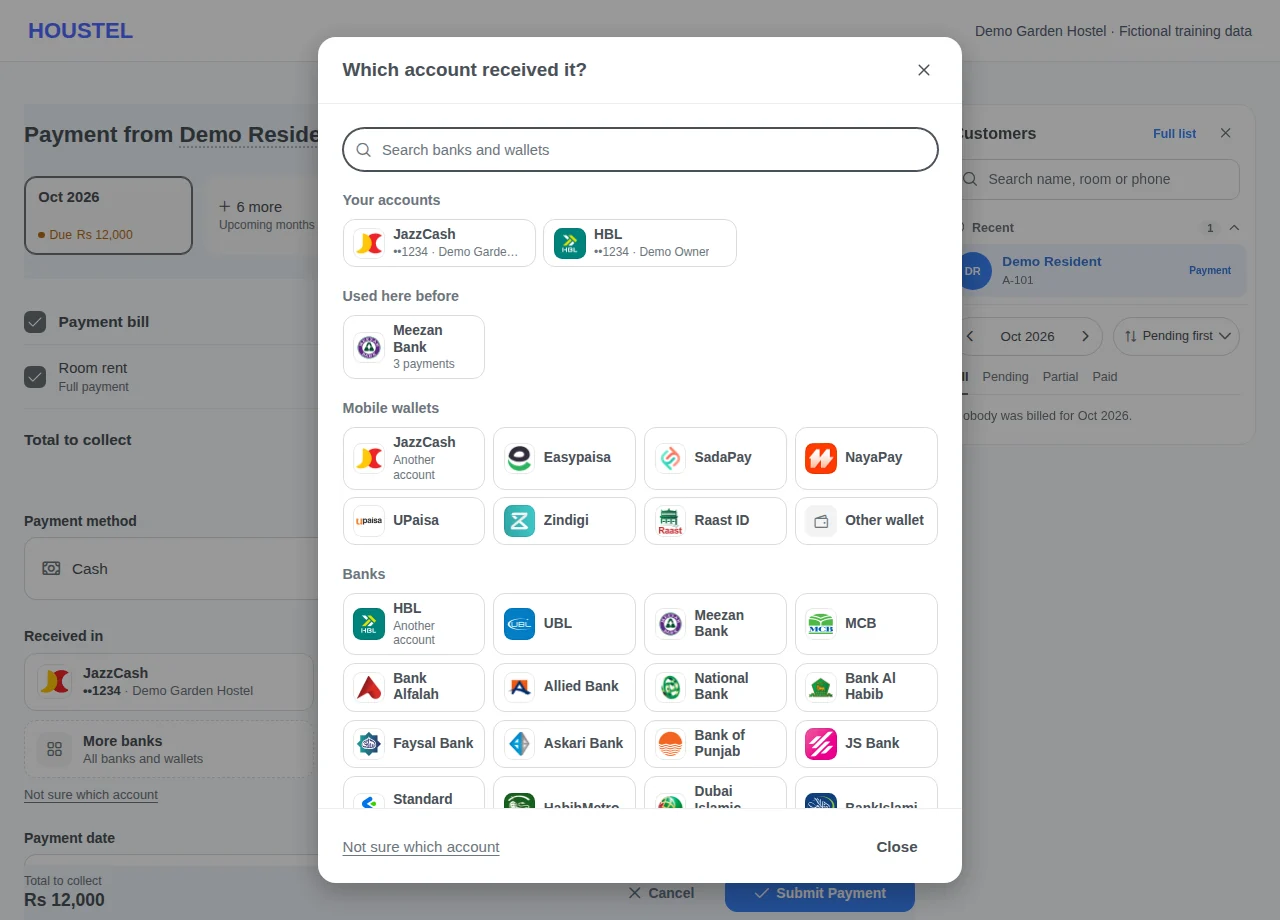
Find any bank or wallet
More banks lists Your accounts, Used here before, then every mobile wallet and bank. Type to search; Enter takes the first match. A bank marked Another account is the same bank as one of your saved accounts but a different account. If the bank is not listed, pick Other bank or Other wallet.
Find any bank or wallet · Example with dummy data. Select the image to enlarge.
Before you finish, and when something goes wrong
- Bank details must be verified before sharing. After a timeout, look for an existing receipt before retrying. In hold approval mode, new payments wait outside the books; in count mode they appear immediately with an approval warning.
- To work through one room's payments, open one resident's payments page, hover over their room at the right end of the Recent row and click the next name; the list is who lives in that room today.
- If Payment receipt is turned off in Emails → Email Settings, the payment form says Receipt emails are turned off instead of offering Email the receipt. The payment is recorded as usual and the resident can still see it in their own account.
- A bank picked without details only names where the money went. Residents never see it on their Pay screen. To let residents pay into it, open Payments → Bank Accounts and press Add details under Banks without saved details.
- When a resident says they sent a payment to a bank you have not saved, the request names that bank. Check that bank's statement before you record it; on the collect form you can still change where it was received.
- Staff need the Payments permission to see Received in. A bank account that was turned off or deleted no longer appears for new payments, but editing an old payment keeps the account it was recorded into.
- In the Payments filters, Payment Method → Bank shows Received in: All accounts, the three accounts and banks used most (saved ones first), Not chosen, and See all for the rest.
If a save times out, check the record before repeating it. If access is denied, ask the owner to review your hostel assignment and permissions. Never share your login to work around an access restriction.
Related help
Go to Payments → Make Payment, pick the resident, and record what they handed you. That is the whole job. The rest of this chapter is about the two or three decisions inside that screen that people get wrong at first.
Recording a payment
- Pick the resident You will see what they owe and what they have already paid, so you are not working from memory.
- Choose the month it pays for Not today's month, but the month the money covers. This is the field that matters most.
- Enter what you actually received If they gave you half, enter half. Do not round it up in the hope that the rest arrives.
- Say how they paid Cash or bank. Your dashboard keeps the two apart, which is how you check the drawer at night against the screen. For a bank payment, pick under Received in where it arrived: one of your accounts, or any bank or wallet from More banks, even one whose details you never saved.
- Save, and hand over the receipt A receipt is produced straight away, and the resident can see it in their own account.
“Which month?” is the one thing to get right
A payment has two dates and they are often different: the day you received the money, and the month it pays for. Houstel.pk keeps both, which is why it can answer two different questions correctly.
| The situation | Which month to choose |
|---|---|
| They paid on the 3rd of March for March | March |
| On 28 November they paid December's rent | December, the month it covers |
| In April they cleared February's arrears | February, the month being cleared |
| They paid three months together | Record it as an advance so each month is credited as it comes |
Get this right and both of your money screens are correct at once: your dashboard shows cash received today, and each resident's record shows which months are actually settled.
Part payments
Common, and fully supported. Record Rs 5,000 against a Rs 12,000 month and the booking shows as part-paid with Rs 7,000 still due. When the rest comes, record a second payment against the same month. The resident's record shows both, and the receipt for each shows what was paid and what remains.
Never delete the first payment and re-enter a bigger one. You lose the record of a payment that genuinely happened, and the resident's receipt no longer matches their bank statement.
One payment, several things
A resident rarely hands over rent alone. The screen lets you record the whole handful in one go (rent, mess, electricity, a deposit, an admission fee) and it comes out as one receipt rather than five.
Behind that, each part is filed where it belongs. This matters more than it sounds:
- Rent and charges are income for that month.
- The security deposit is not income. It is money you are holding. It is kept out of your income figures deliberately, so a month with four new admissions does not look like a bumper month that never happened.
Receipts
Every saved payment produces a receipt you can print or send, showing your hostel's name, and on a paid plan your logo. Residents can download their own receipts from their account at any time, which quietly removes an entire category of “I paid you in June, don't you remember?” conversations.
Fixing a mistake
| What went wrong | What to do |
|---|---|
| Wrong amount typed | Edit the payment and correct it, while it is fresh. |
| Recorded against the wrong month | Edit it and change the month. Do not add a second payment to compensate. |
| Recorded against the wrong resident | Remove it from that resident and enter it against the right one, or one of them shows dues they have paid. |
| Cash recorded as bank | Edit the method. It changes nothing about what is owed, but it makes your cash total honest. |
Discounts and special rates
You can set a lower rent for one resident without touching the room's price for everybody else: a long-stayer on an old rate, a sibling discount, a friend of the family. The change applies from the date you set it, so a rent increase in June does not retrospectively make somebody's May look unpaid.
To remember who is on a special rate, or who always pays late, give them a mark from the Mark button beside their name on their payments page. It stands out on the Payments list in its colour. Marks and notes →
To see every payment of one person, every month at once, click their name in the Recent row above the list and choose Select. The Recent row →
To go through the payments of everyone in one room, open one resident's payments page, hover over their room at the right end of the Recent row and click the next name. The others in their room →
Checking yourself at the end of the day
- The dashboard's Last 24 hours panel shows what was recorded today. Compare it to your drawer before you go home.
- Cash and bank are shown separately, so a mismatch tells you which one to look at.
- Recording payments the same day, not weekly, is the single habit that keeps the numbers trustworthy.
In short
- Record what you actually received, on the day you receive it.
- Choose the month the money pays for, not the month you are in.
- Part payments are normal. Record them as they come, and never delete and re-enter.
- Rent, mess, electricity and deposit can go on one receipt, and each is filed correctly behind it.
- A security deposit is not income; it is money you are holding.
- Fix mistakes by editing the payment, not by adding a balancing one.
Common questions
A resident paid half the rent. What do I record?
Record what they actually gave you. The booking then shows as part-paid with the balance still due, and you add the rest as a second payment when it arrives.
Someone paid in November for December. Which month do I choose?
Choose December, the month the money is paying for. The date you received it is recorded separately, so your daily cash figures stay right as well.
Can residents get a receipt?
Yes. Every saved payment produces a receipt you can print or send, and residents can download their own from their account at any time.
Still stuck?
Tell us the screen name, what you tried and what happened. Remove personal details, passwords and private links from any screenshot.