All guide chapters
Start here
Everyday running
- Residents
- Rent and payments
- Dues and reminders
- Deposits and advances
- Expenses and profit
- Mess and meals
- Reports and dashboard
- Laundry and food for residents
- Importing residents safely
- Room changes, checkout and resident requests
- Payment approvals
- Billing periods, installments and rent reviews
- Room electricity and resident charges
- Utility connections and bills
- Inventory and room assets
- Bank accounts and wallets
Filling your beds
Your team and residents
Emails, templates and resident logins on Houstel.pk
Write and schedule resident emails, choose which automatic emails residents get, check delivery history, and help residents access their own accounts.
Step by step
Where to go: Emails → Compose, Scheduled, Templates, Email Settings; Resident Logins
Who can use it: The hostel owner, or staff with access to this feature. Some actions need additional permission.
-
Choose the audience first
Open Compose, choose who receives the message and check the preview or recipient count. Check out old residents from the audience where appropriate. Use a clear subject and avoid broadcasting individual debts or private complaints.
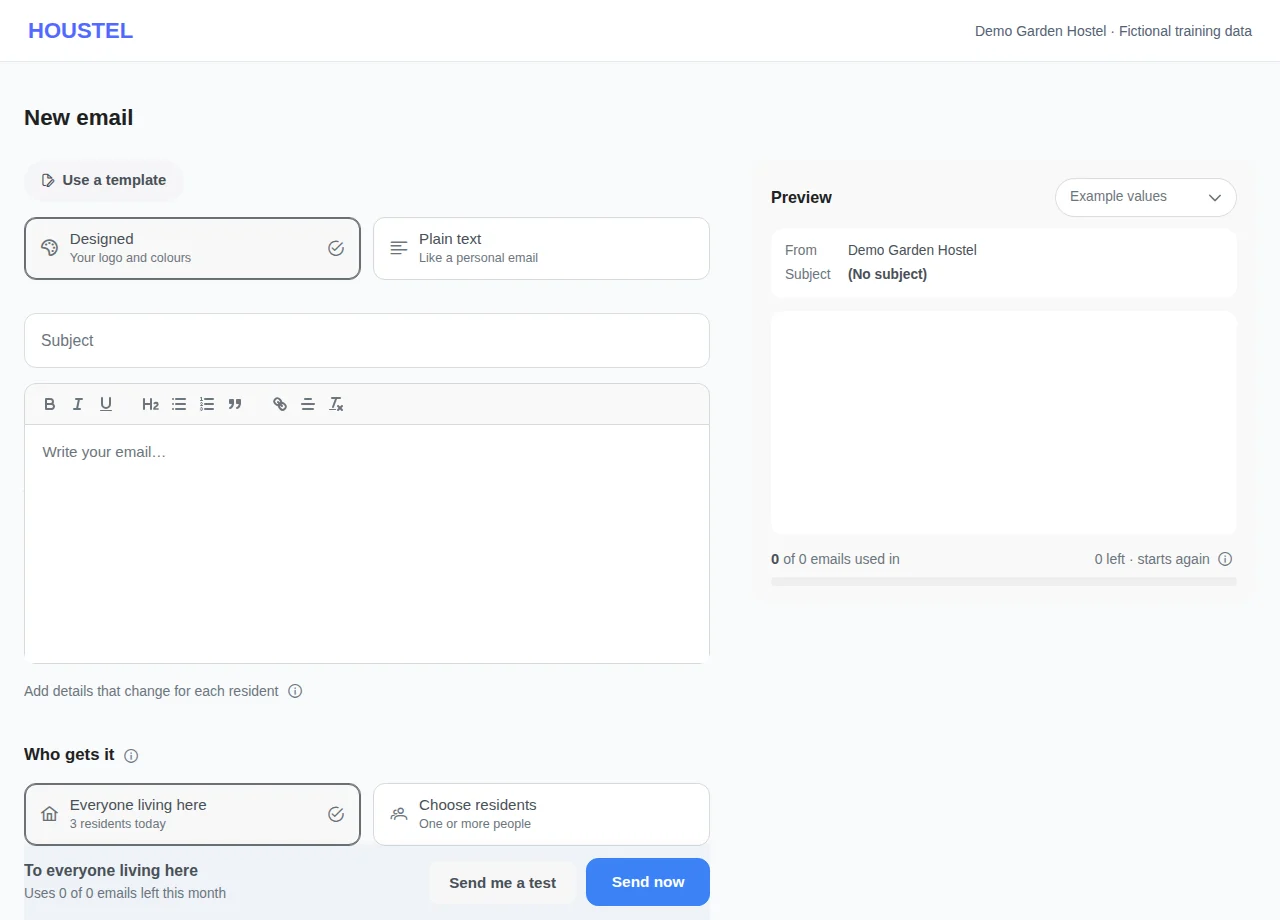
Choose the audience first · Example with dummy data. Select the image to enlarge. -
Preview and schedule
Write the message or choose a template. Check personalisation, links and the displayed send time. Send or schedule only after reviewing the final confirmation. Check Scheduled to edit or cancel a pending send, and the log for delivery results.
-
Choose which automatic emails residents get
Open Emails → Email Settings, or press Settings at the top of the Emails page. It lists the emails Houstel sends your residents on its own, in three groups: Payments (payment receipt, payment not confirmed, advance received and used, monthly statement and payment reminders), Bookings and rooms, and Requests and help desk. Each row says when the email goes and how many went in the last 30 days. Turn a switch off and that email stops for every resident of this branch straight away, including any that were still waiting to go. Turn it on again to start sending it again. The change saves as soon as you press the switch and a message confirms it; a row you turned off shows who turned it off and when.
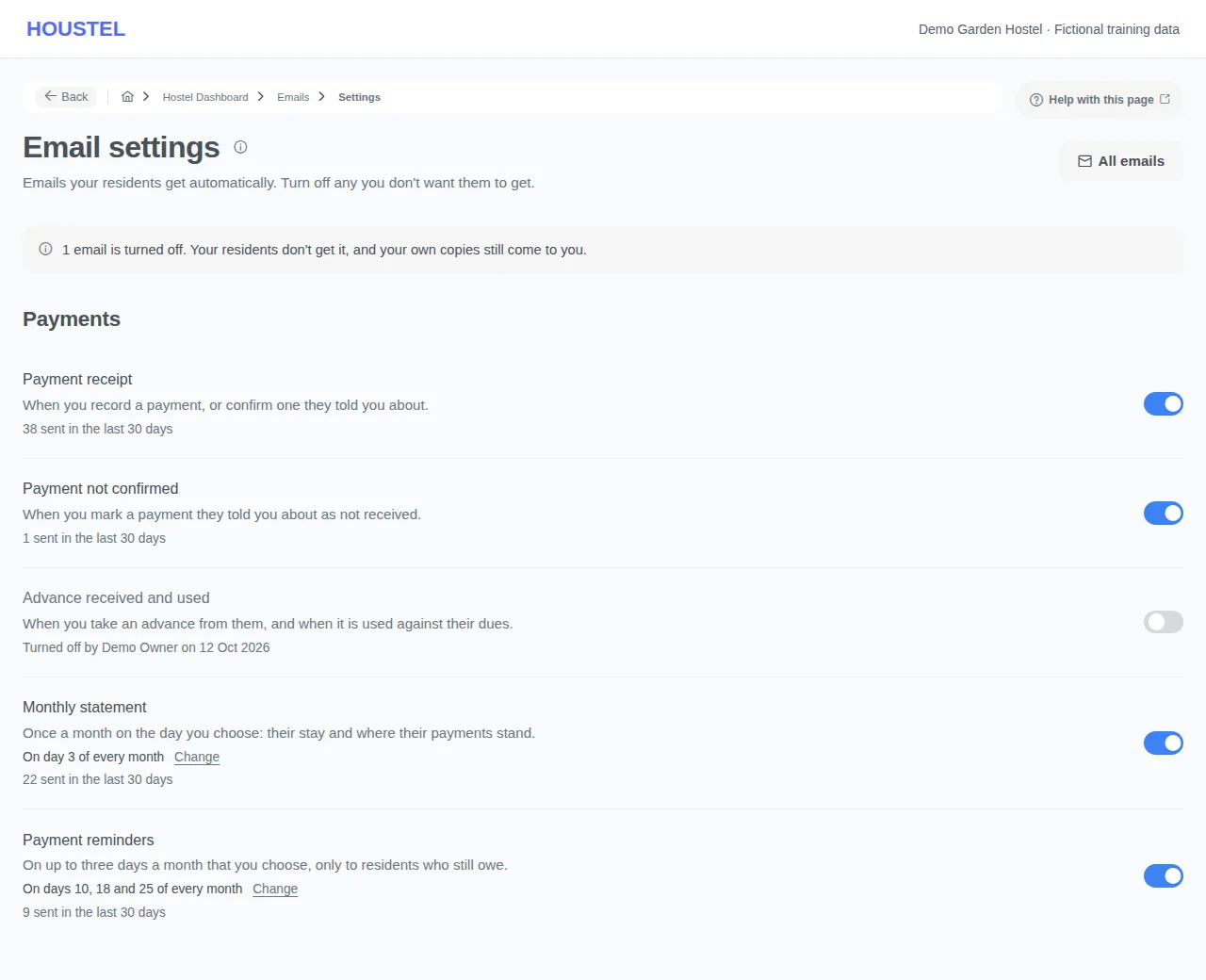
Choose which automatic emails residents get · Example with dummy data. Select the image to enlarge. -
Help one resident sign in
Open Resident Logins and find the correct resident. Verify their identity and email before using the available password or invitation action. Check the history after sending. Never post an access link or password in a group.
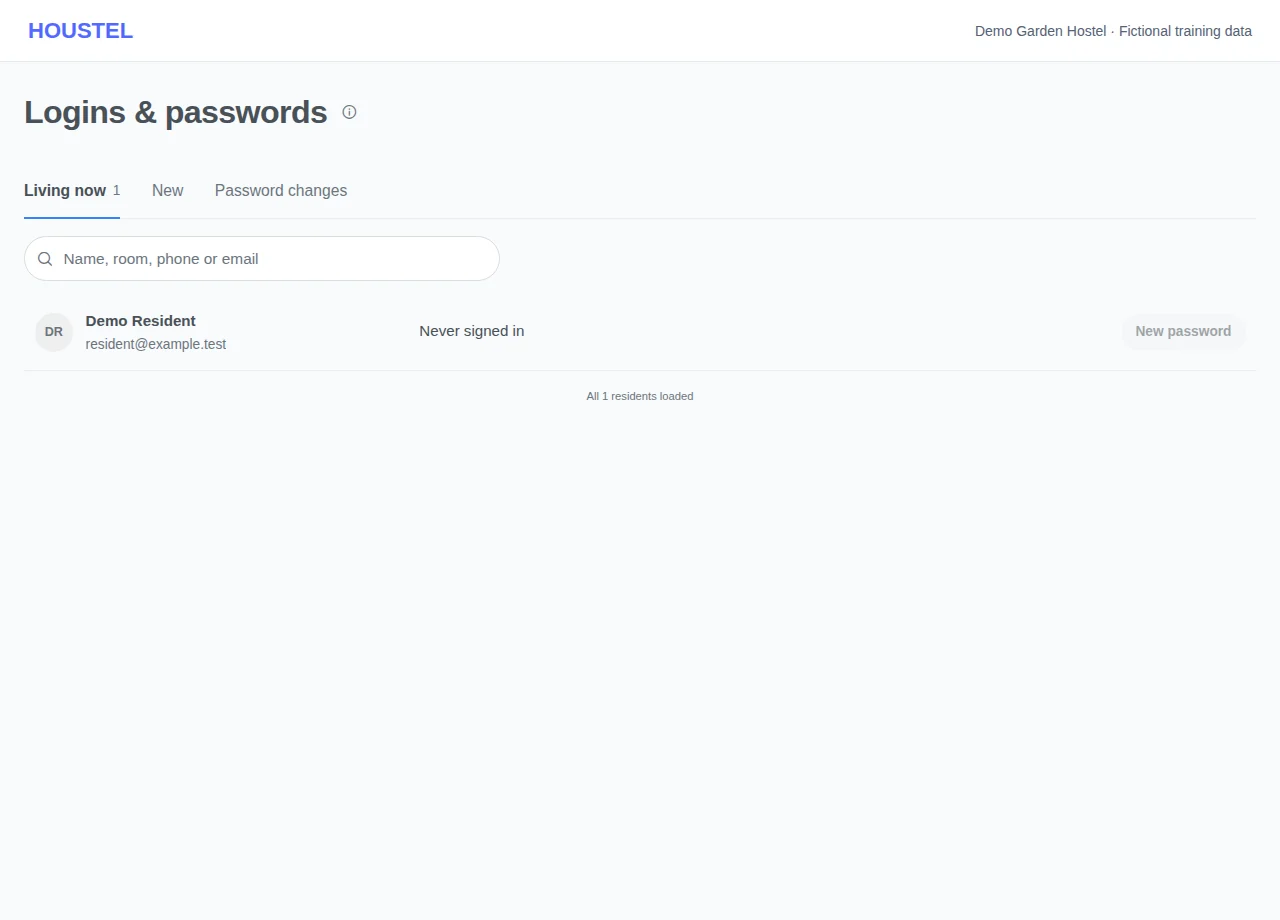
Help one resident sign in · Example with dummy data. Select the image to enlarge.
Before you finish, and when something goes wrong
- Sent, delivered, opened and read are different states. A queued email may take time and an open count does not prove that the person read it.
- A turned-off email still appears in the Emails list for each resident it would have reached, marked Turned off, so you can see who did not get it. Turning the email back on does not send those again.
- Email Settings only stops emails to your residents. Your own copy, such as the owner email about a new booking, still comes to you. Houstel sign-in codes, password emails and review requests are not on the list and keep going. Emails you write yourself, rent change notices and payment correction emails go only when you choose to send them, so they are not on the list either.
- Monthly statement and Payment reminders are the same switches as the Resident Emails window (Payments → Settings): Change opens that window for their days and who gets them. They need a paid plan to turn on and show Paid plan without one. Turning any email off is always allowed.
- Switches belong to one branch. If you run several, open Email Settings in each. Staff need the Emails to residents permission to open it; without it the page asks them to get access from the owner.
- A recipient can be skipped because of missing email, an opt-out or eligibility rules. Do not re-enable an opt-out merely to force a campaign through.
- An email already sent cannot be recalled by deleting a template or changing a scheduled copy.
- Login links and password messages give access to an account. Send only to the verified resident contact; share safe instructions, never credentials, in support requests.
If a save times out, check the record before repeating it. If access is denied, ask the owner to review your hostel assignment and permissions. Never share your login to work around an access restriction.
Related help
Still stuck?
Tell us the screen name, what you tried and what happened. Remove personal details, passwords and private links from any screenshot.