All guide chapters
Start here
Everyday running
- Residents
- Rent and payments
- Dues and reminders
- Deposits and advances
- Expenses and profit
- Mess and meals
- Reports and dashboard
- Laundry and food for residents
- Importing residents safely
- Room changes, checkout and resident requests
- Payment approvals
- Billing periods, installments and rent reviews
- Room electricity and resident charges
- Utility connections and bills
- Inventory and room assets
- Bank accounts and wallets
Filling your beds
Your team and residents
Setting up floors, rooms and beds
Everything in Houstel.pk sits on top of your room list: availability, rent, the map, your public advert. It is worth half an hour to get right.
Step by step
Where to go: Rooms → rooms, floors, templates or hostel map
Who can use it: The hostel owner, or staff with access to this feature. Some actions need additional permission.
-
Set up the structure
Add floors and rooms with their actual bed capacity, facilities and prices. Use templates for repeated room types.
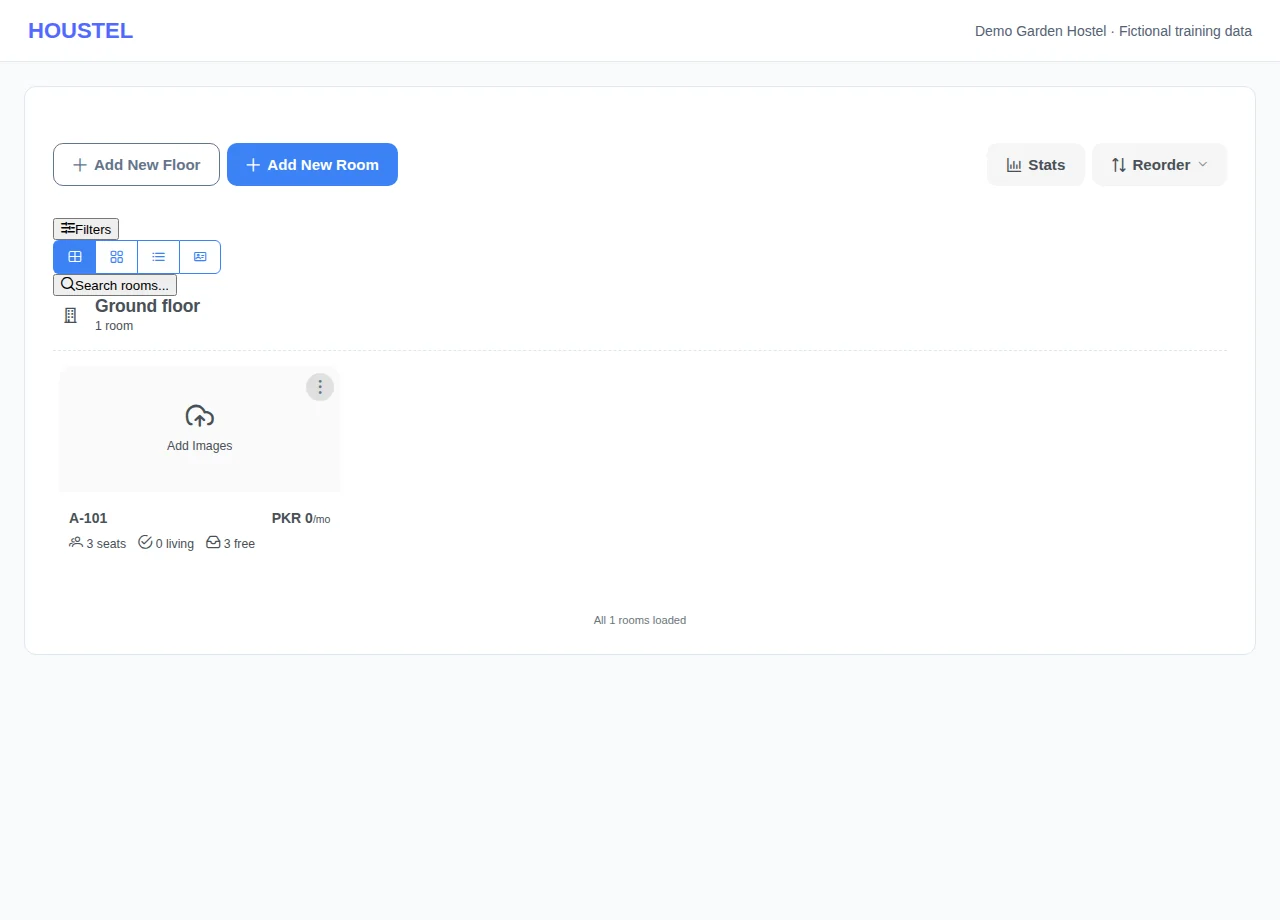
Set up the structure · Example with dummy data. Select the image to enlarge. -
Review a room
Open a room to check its beds, images, videos, discounts and inventory. Verify existing occupancy before reducing capacity or deleting a room.
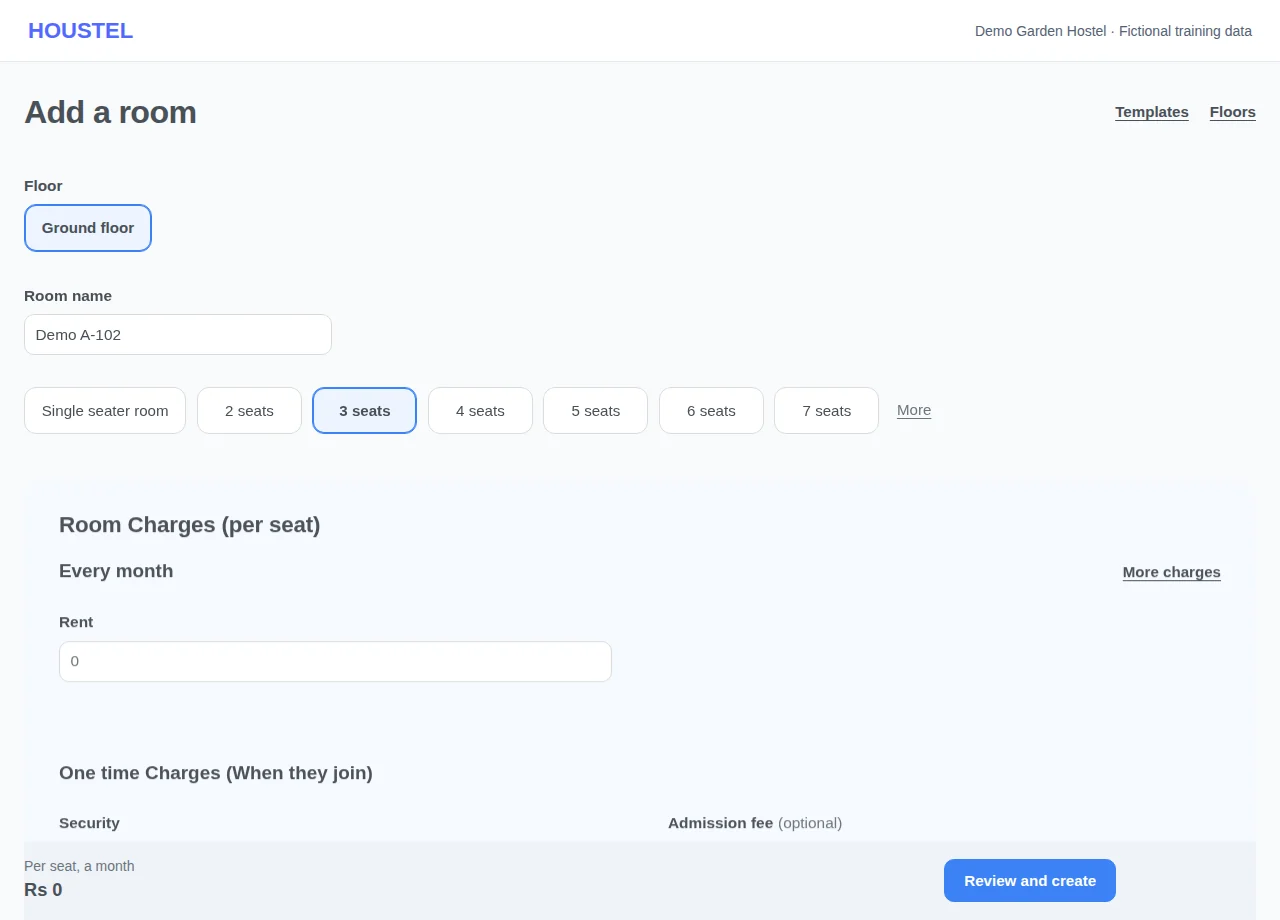
Review a room · Example with dummy data. Select the image to enlarge. -
Reuse a room template
Open Room Templates and create a template with the usual facilities, capacity and charges. Choose it while adding a room, then check the room-specific values. A template is a starting point; check existing rooms separately after editing it.
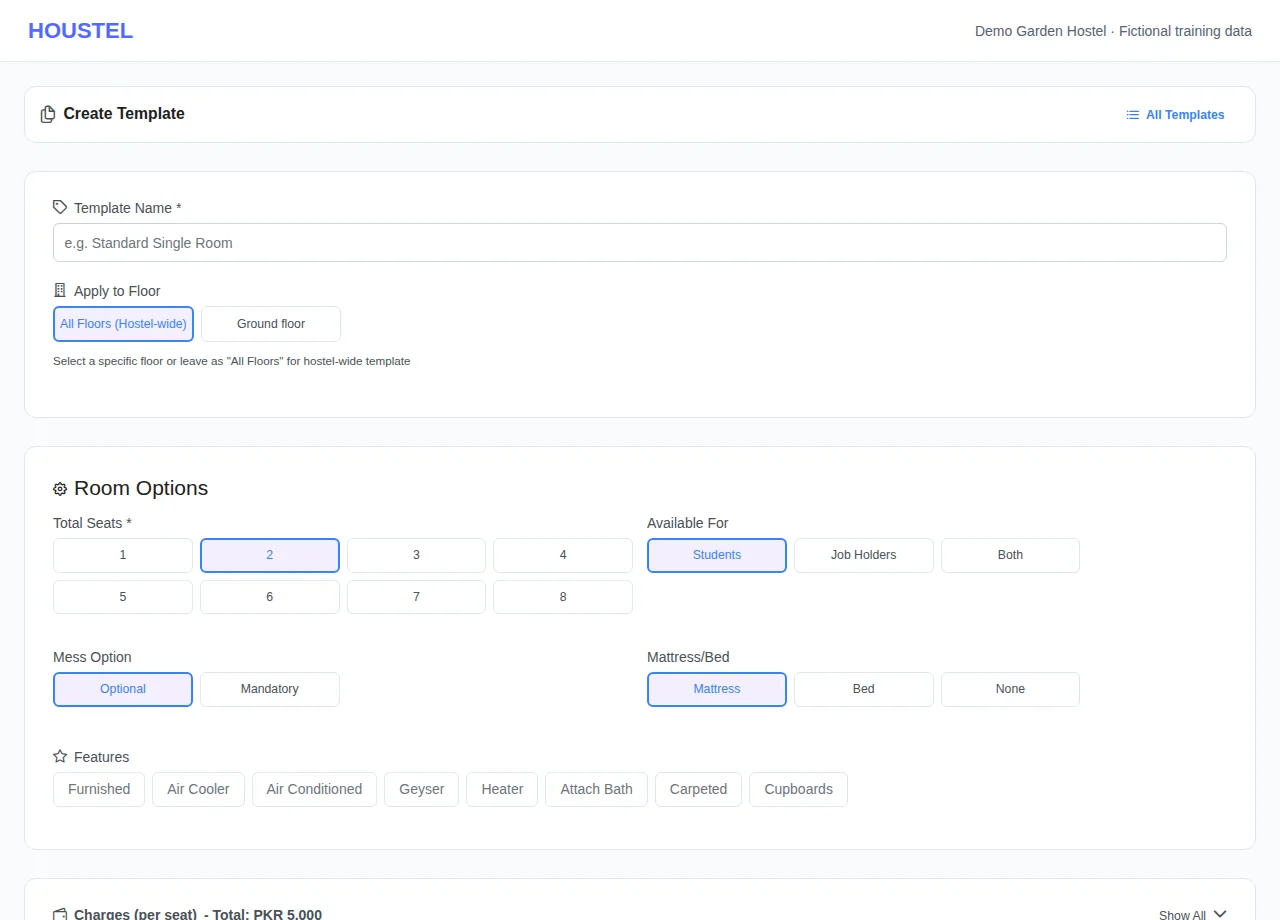
Reuse a room template · Example with dummy data. Select the image to enlarge. -
Review discounts and the hostel map
Open a room’s Discounts to review its amount and applicable dates before saving. Check the public rate and actual booking amount separately. Use My Hostel Map to inspect the room and occupancy; changing its drawing is not a resident move.
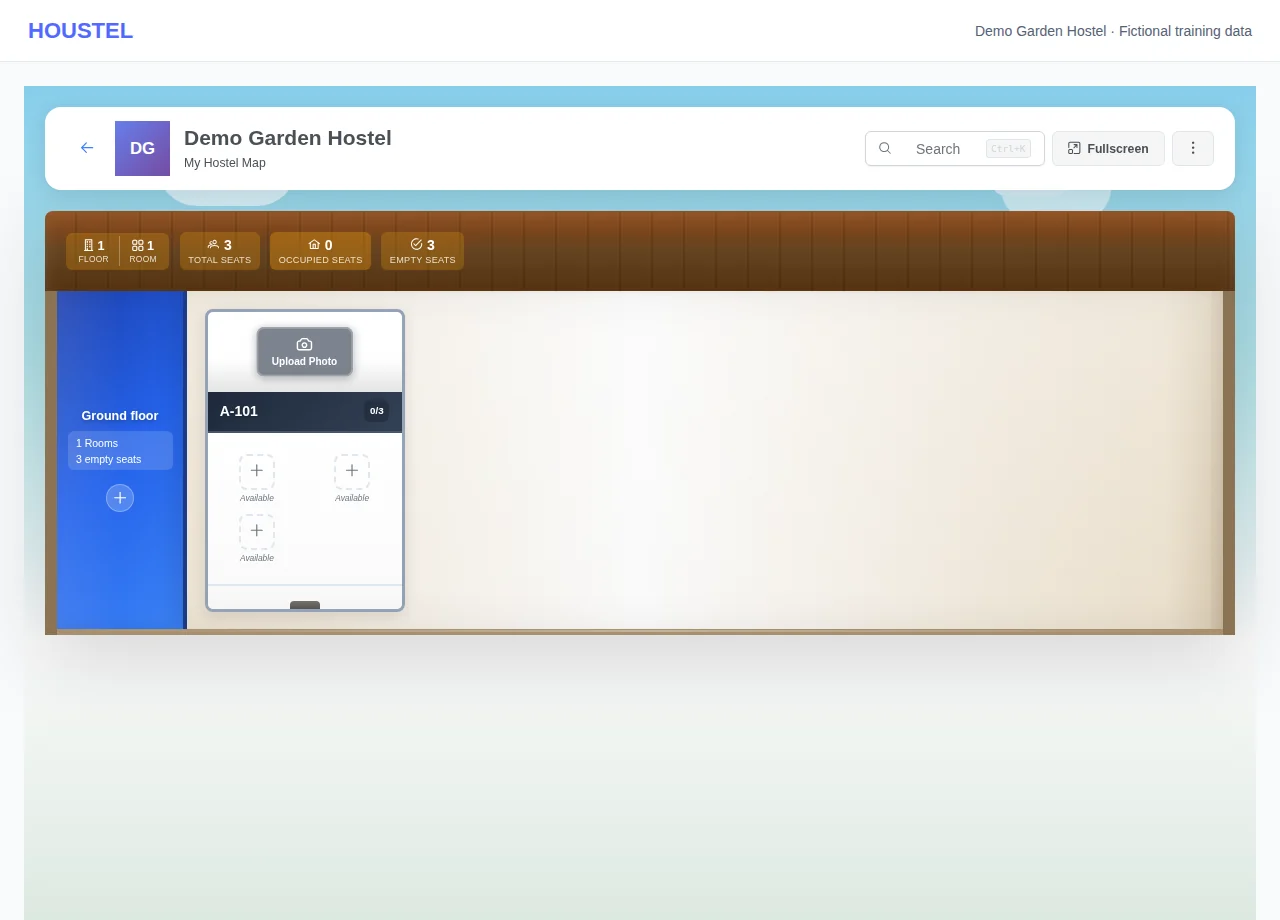
Review discounts and the hostel map · Example with dummy data. Select the image to enlarge. -
Pick up where you left off on the map
My Hostel Map opens on the resident you worked on last, the first one in the Recent row: it scrolls to their room and highlights their bed for a few seconds. Marked residents' beds take the mark's colour; click a resident to set or change their mark.
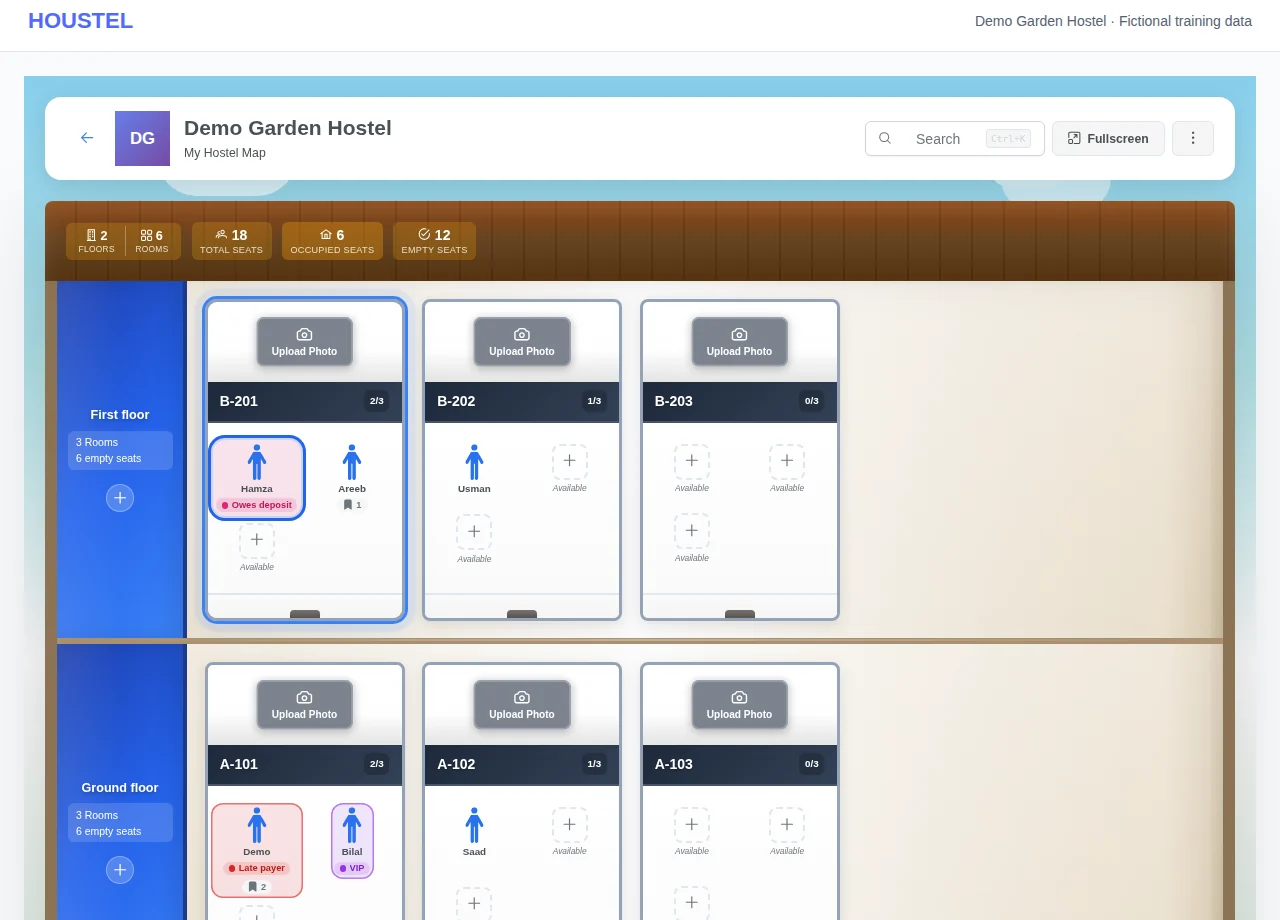
Pick up where you left off on the map · Example with dummy data. Select the image to enlarge.
Before you finish, and when something goes wrong
- A discount, daily price and monthly rent can serve different purposes. Check the actual booking amount before confirming an admission.
- If the last resident you worked on has checked out or has no room yet, the map does not move. Open a resident from Recent or search to find them instead.
If a save times out, check the record before repeating it. If access is denied, ask the owner to review your hostel assignment and permissions. Never share your login to work around an access restriction.
Related help
There are three levels, and they nest: a hostel has floors, a floor has rooms, and a room has beds. Add them in that order and the rest of the system (availability, rent, the visual map, your public advert) falls into place without you doing anything else.
Floors
Start at Rooms → Manage Floors. Name them the way your residents and staff say them out loud: Ground Floor, First Floor, Basement, Annexe. If your building is one storey, add a single floor and move on. The level still has to exist, because your public listing will not appear without at least one.
Rooms
Add each room as it exists in the building. The important field is how many beds it holds.
A 4-bed room is one room with 4 beds. Do not add it as four rooms. If you split it, your map shows four rooms that do not exist, your advert claims more rooms than you have, and moving somebody between beds becomes a mess.
For each room you set:
- Name or number. Whatever is painted on the door.
- Beds. How many people sleep in it when it is full.
- Single or shared, and who it is for: students, job holders, or both.
- What is in it. Attached bath, AC, air cooler, heater, geyser, cupboards, carpet, bed or mattress. These show on your advert and are what people filter by.
- Whether it appears publicly. A room you keep for staff or family can be switched off the advert while still existing in your dashboard.
Rent and charges
Charges are set per room, so your Rs 8,000 shared room and your Rs 20,000 single can sit in the same hostel without fighting each other.
| Charge | What it is |
|---|---|
| Monthly rent | The main figure, per bed per month. This is the price shown on your listing. |
| Security deposit | Taken once, and normally refundable when the resident leaves. It is held separately from your income: why deposits stay out of income. |
| Admission fee | A one-time joining charge, if you take one. You choose whether it is refundable. |
| Mess | Food, if you bill it on top of rent rather than including it. |
| Extras | AC, air cooler, heater, geyser, WiFi, laundry, cleaning, gas, cable, fridge, water, maintenance, car or bike parking. Add only the ones you actually charge for. |
Whatever you set here becomes the default when you assign somebody to that room. You can still change the rent for one individual resident, say a long-stayer on an old rate or a discount for a friend, without touching the room's price for everybody else.
Electricity
Each room is set to one of three ways of handling electricity:
- Included. Nothing extra is billed. Simplest, and what most hostels with a flat rent use.
- Fixed. A set amount every month on top of rent.
- By meter. The room has a sub-meter and the bill is split between the people in it. Record the reading each month and the charge is worked out and divided for you.
How availability works
Seats available is worked out for you. You never edit it by hand, and you should not try to. Assigning a resident takes a bed, checking one out gives it back, and your public listing updates itself.
A bed is counted as taken from the moment you confirm a booking, not from the day the person arrives. That is deliberate: a bed somebody is moving into next Monday is not free, and showing it as free is how two people end up promised the same bed.
The hostel map
My Hostel → My Hostel Map draws your whole building: floors, rooms, and which beds are taken. It is the fastest way to answer “do you have anything free?” while somebody is standing at your desk, and it is the screen most owners keep open.
The map opens on the resident you worked on last, the first one in the Recent row above the page: it scrolls to their room and highlights their bed and room for a few seconds. If that person has no bed on the map, because they have checked out or have no room yet, the map stays where it starts.
A resident with a mark has their bed tinted in the mark's colour, with the status under their name, and a bookmark shows when they have notes. Click a resident to open their window, where Mark sets or changes it. How marks and notes work →
To look at one person, click their name in the Recent row and choose Select: everyone else fades until you choose Show everyone. How the Recent row works →
Inventory
Under Rooms → Inventory you can record what is in each room: beds, fans, cupboards, mattresses. It is optional, and it earns its keep at two moments: when you are buying replacements and want to know what you actually own, and when somebody checks out and you are working out what is missing.
Getting it right the first time
- Add every room, including the ones that are currently full. The system needs the whole building to be useful.
- Count beds, not people currently in them.
- Set rent before you start assigning residents. It saves correcting each booking afterwards.
- If two rooms are identical, set one up completely, then copy it.
In short
- Floors, then rooms, then beds. Every hostel needs at least one floor and one room to appear publicly.
- A 4-bed room is one room with 4 beds, never four rooms.
- Rent, deposit, admission fee and extras are set per room, and can still be adjusted per resident.
- Electricity is included, fixed, or split by sub-meter, whichever you choose per room.
- Availability updates itself as you assign and check out residents. Do not maintain it by hand.
Common questions
How is "seats available" calculated?
It is the total beds in a room minus the beds held by residents who are living there or booked to arrive. You never have to update it by hand. Assigning or checking out a resident moves it on its own.
Should one room be one bed, or one room?
Add the room as it exists and set how many beds it holds. A 4-bed room is one room with 4 beds, not four rooms. That way the map, the advert and your rent all match reality.
Still stuck?
Tell us the screen name, what you tried and what happened. Remove personal details, passwords and private links from any screenshot.