All guide chapters
Start here
Everyday running
- Residents
- Rent and payments
- Dues and reminders
- Deposits and advances
- Expenses and profit
- Mess and meals
- Reports and dashboard
- Laundry and food for residents
- Importing residents safely
- Room changes, checkout and resident requests
- Payment approvals
- Billing periods, installments and rent reviews
- Room electricity and resident charges
- Utility connections and bills
- Inventory and room assets
- Bank accounts and wallets
Filling your beds
Your team and residents
Bank accounts and wallets on Houstel.pk
Set up verified payment destinations, including business accounts and QR codes, decide what residents see, review changes to bank and wallet details, and handle banks recorded without saved details.
Step by step
Where to go: Payments → Bank Accounts
Who can use it: The hostel owner. Staff who collect payments may use the permitted accounts, and may pick any bank or wallet by name when recording a payment, without being allowed to add, change or see the details of accounts.
-
Choose the bank or wallet
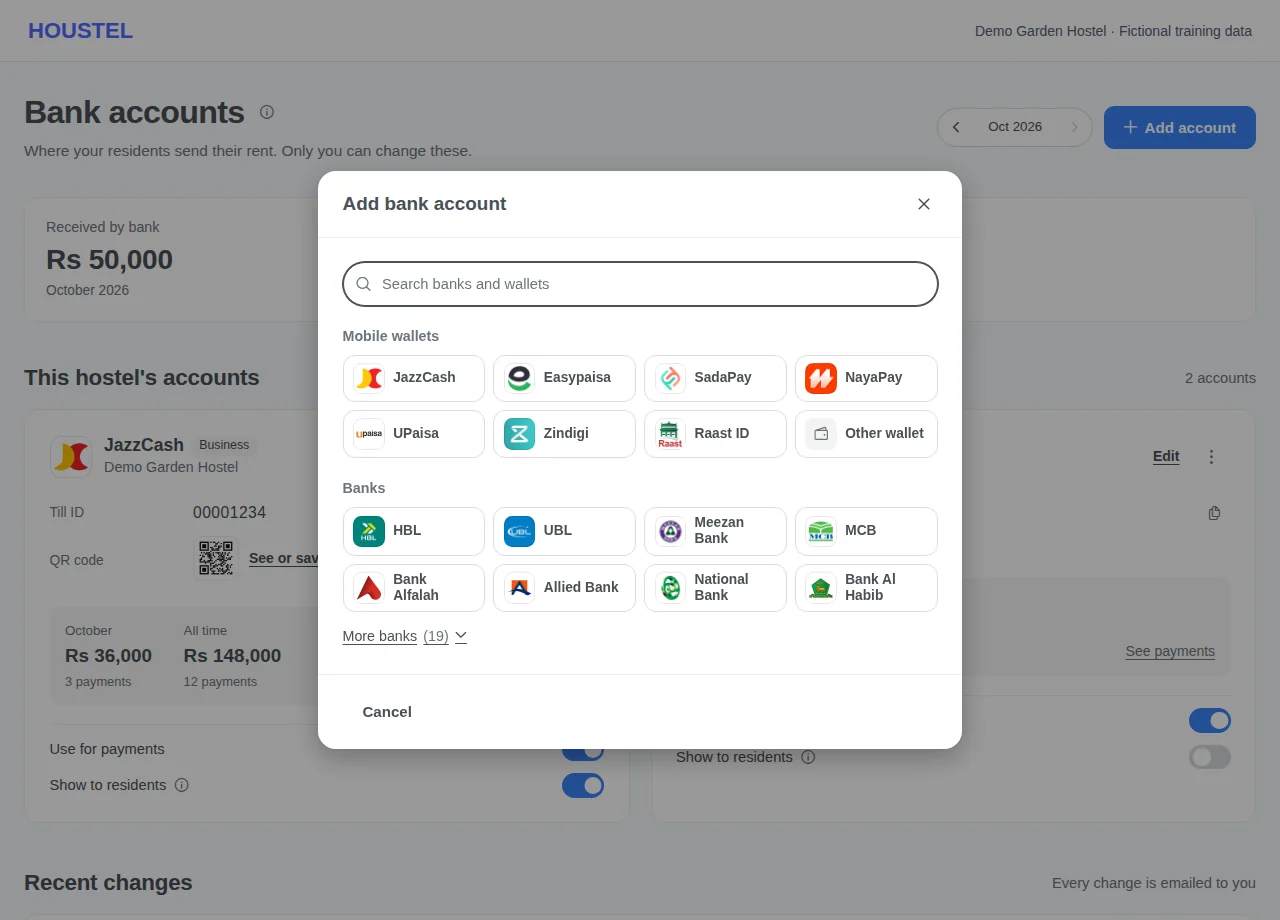
Open Bank Accounts and press Add account. Mobile wallets come first (JazzCash, Easypaisa, SadaPay, NayaPay and others), then the banks most people use; More banks or the search finds the rest. If yours is not listed, search for it and add it by name as another bank. Picking one opens its form under its logo; Change takes you back to the list.
Choose the bank or wallet · Example with dummy data. Select the image to enlarge. -
Enter the account details
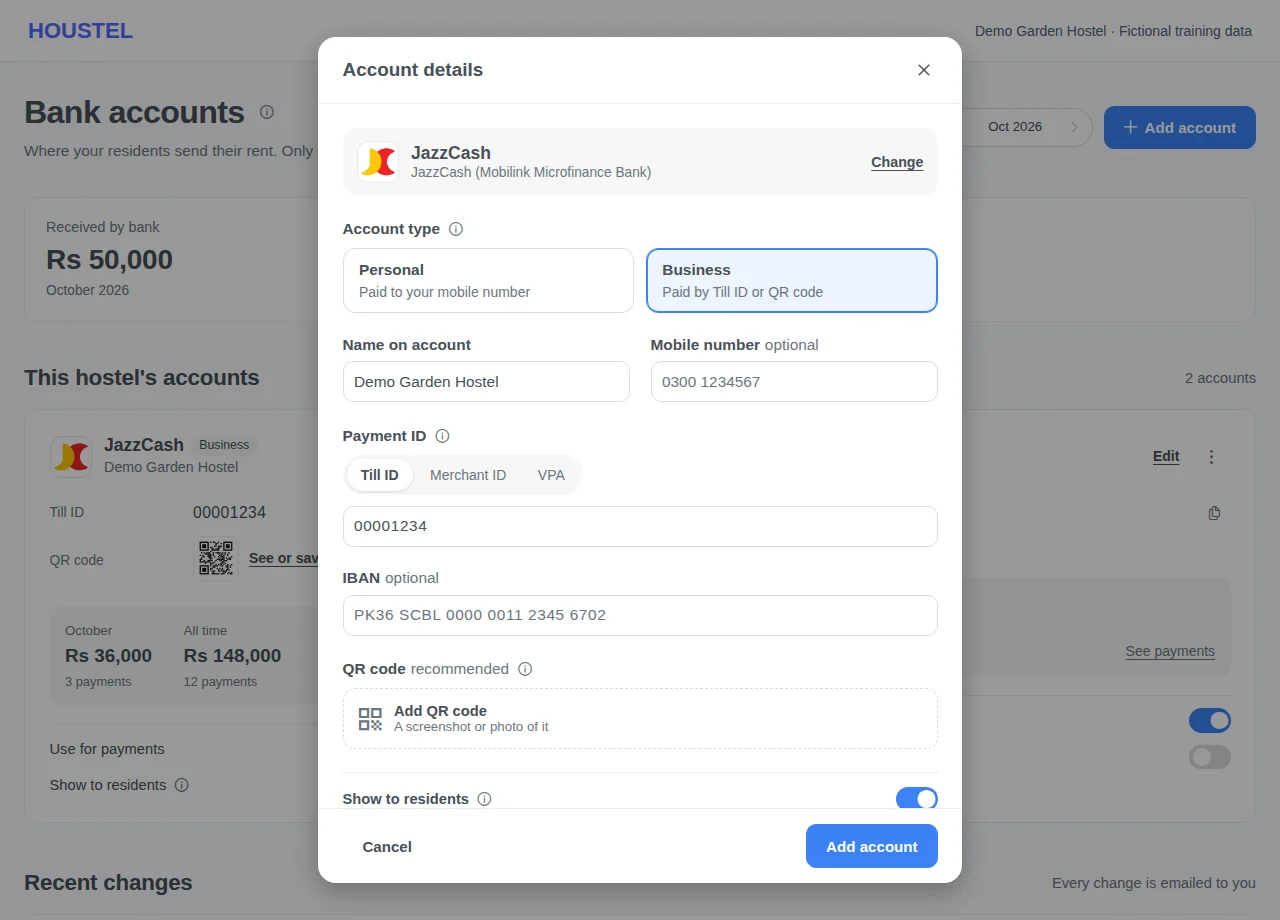
Choose Personal or Business. A personal wallet needs the mobile number it is registered on, and a personal bank account its account number or IBAN. A business (merchant) account, such as JazzCash Business, an Easypaisa merchant account or a bank's Raast merchant account, needs at least one way to pay it: its payment ID (Till ID, Merchant ID or VPA), the mobile number or IBAN, or its QR code. Copy the name and numbers from your bank app. The IBAN is checked for typos before saving.
Enter the account details · Example with dummy data. Select the image to enlarge. -
Add the QR code
Any account can have a QR code. It is optional, but recommended for business accounts. Press Add QR code and take or choose a clear screenshot of the QR code your app or bank shows for receiving money (JPG, PNG or WebP, under 5 MB). It is saved when you press Add account or Save changes. On the account's card, See or save opens it full size with Save QR code, for printing at reception. Edit the account to replace or remove it.
-
Choose where it is used
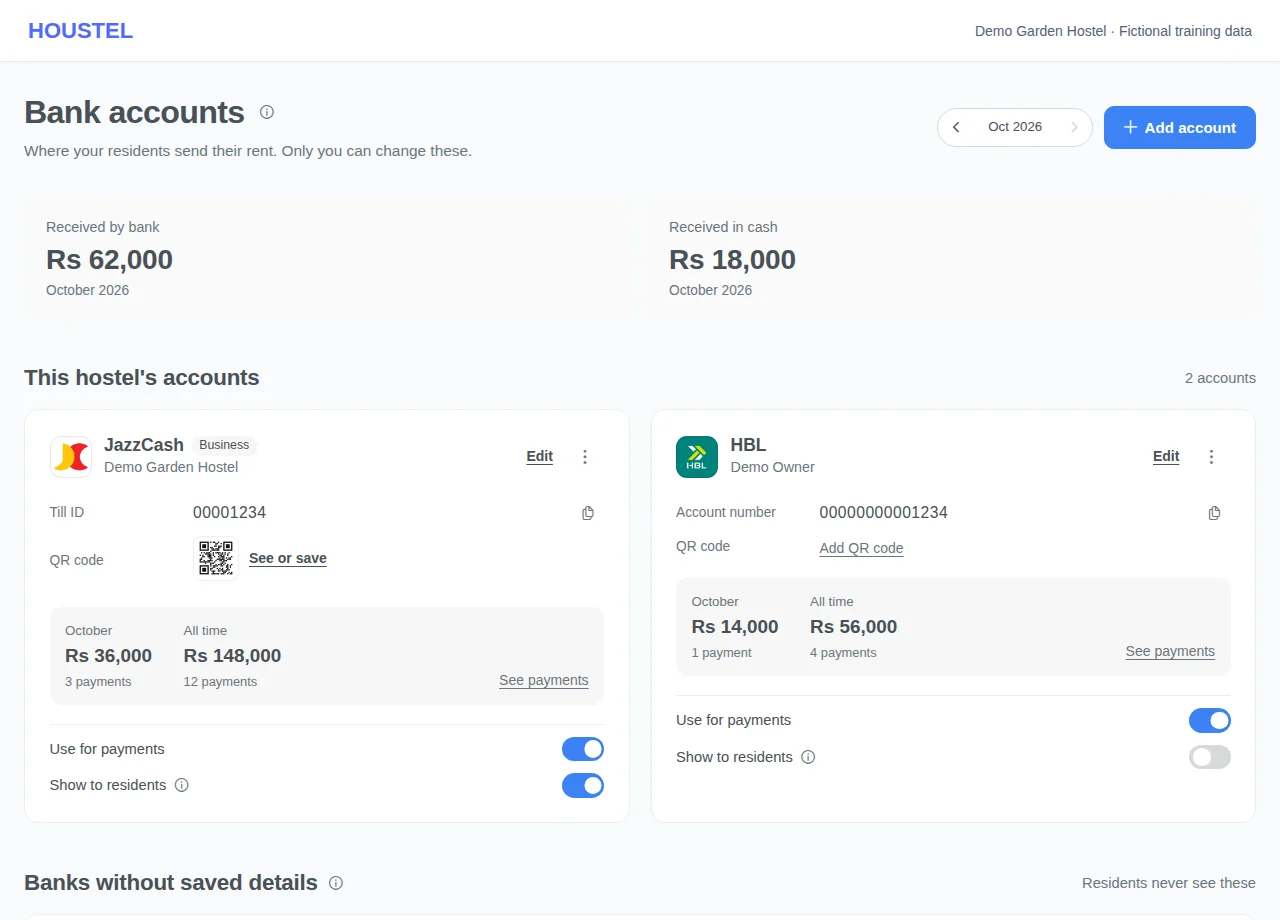
Review whether the account is active for collecting payments and whether it is shown to residents on their Pay screen. These are separate switches. Residents see a shown account's full number, IBAN, payment ID and QR code, with Save QR code: a resident paying from the same phone saves the picture and opens it from the gallery in their banking app's Scan QR. If using an existing account from another branch, check the branch and ownership before enabling it.
Choose where it is used · Example with dummy data. Select the image to enlarge. -
Banks without saved details
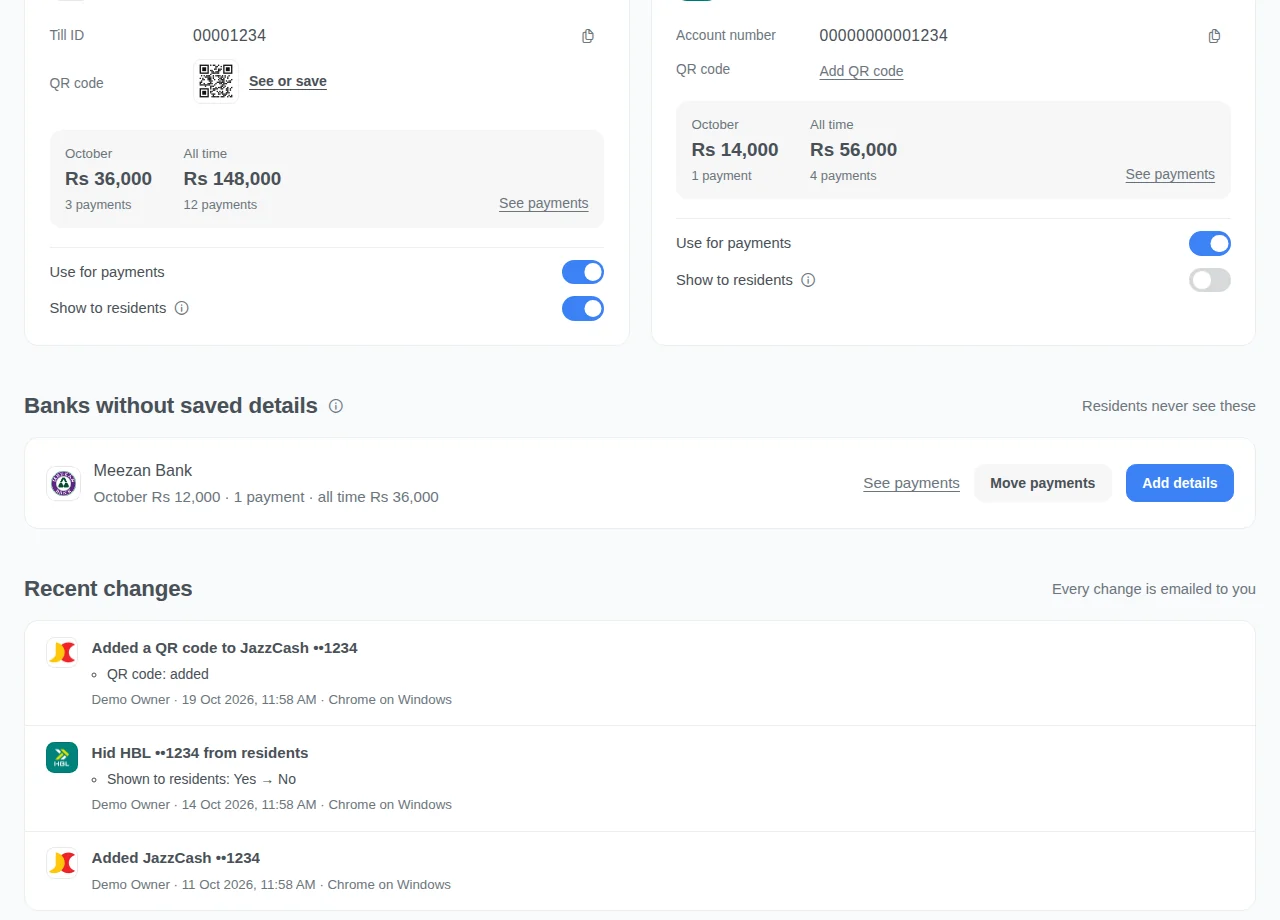
Money recorded into a bank you never saved here — picked from More banks on a payment form, or named by a resident who sent it there — is listed under Banks without saved details, with what it took this month and all time. See payments opens those payments. Add details saves the account's number, IBAN, payment ID or QR code and turns it into a full account: the payments already recorded as that bank then show the account. If the money really went into an account you already saved, press Move payments and pick that account: every payment this branch recorded as that bank moves into it.
Banks without saved details · Example with dummy data. Select the image to enlarge. -
Review history after a change
Save and reopen the account to confirm the details. Review the activity history and the owner’s change alert. If a change was unexpected, disable the affected destination, review access and contact support privately.
Before you finish, and when something goes wrong
- Turning an account off keeps its past payments; it prevents new use where the account selector requires an active account. Hiding it from residents is a different choice.
- The amounts received this month and all time use different periods. Match transactions using dates and references, not just the displayed total.
- A QR code and a payment ID send money exactly like an account number. Adding, replacing or removing them appears in Recent changes and in the change alert. Houstel does not read where a QR code pays, so scan it with your own app before showing it to residents.
- If the account cannot be saved, read the message under the field: a personal wallet needs its mobile number, a business account needs a payment ID, number, IBAN or QR code, a Till ID is digits only, and a QR picture that is too small or not JPG, PNG or WebP is refused. Take a clearer screenshot and try again.
- Changing where residents pay is sensitive. Confirm new details through a trusted channel and reconcile payments already sent to the previous account.
- Do not include actual bank details, QR codes, transaction references or owner change emails in a public screenshot. Keep documents and exports private.
- A bank without saved details is never shown to residents and has no switches. Adding its details is recorded in Recent changes and emailed to you like adding an account, and Show to residents is on unless you turn it off before saving.
- Add details keeps the bank the payments were recorded as; to use another bank, add a new account instead. If you type the details of an account you already saved, the form tells you to use Move payments.
- Move payments only moves this branch's payments, into an account this branch uses. It is recorded in Recent changes and emailed to you. It cannot be undone from the page, so check the account before moving; you can still change a single payment's account by editing that payment.
If a save times out, check the record before repeating it. If access is denied, ask the owner to review your hostel assignment and permissions. Never share your login to work around an access restriction.
Related help
Still stuck?
Tell us the screen name, what you tried and what happened. Remove personal details, passwords and private links from any screenshot.