All guide chapters
Start here
Everyday running
- Residents
- Rent and payments
- Dues and reminders
- Deposits and advances
- Expenses and profit
- Mess and meals
- Reports and dashboard
- Laundry and food for residents
- Importing residents safely
- Room changes, checkout and resident requests
- Payment approvals
- Billing periods, installments and rent reviews
- Room electricity and resident charges
- Utility connections and bills
- Inventory and room assets
- Bank accounts and wallets
Filling your beds
Your team and residents
Messages, alerts and the notice board
Four ways to reach people, each for a different job: chat for conversations, the notice board for announcements, WhatsApp and email for things that must not be missed, and alerts to tell you something needs attention.
Step by step
Where to go: Bell; Chat → Customer Chat (sections down the left: Residents, Enquiries, Groups, Staff); Chat button (top of every page: Residents, and My Staff for the owner); Help Desk → Notice Board; SMS where enabled
Who can use it: The hostel owner, or staff with access to this feature. Some actions need additional permission.
-
Review your alerts
Open the bell, read the alert and follow its link. Check which hostel the destination belongs to. Marking an alert read does not complete the underlying task.
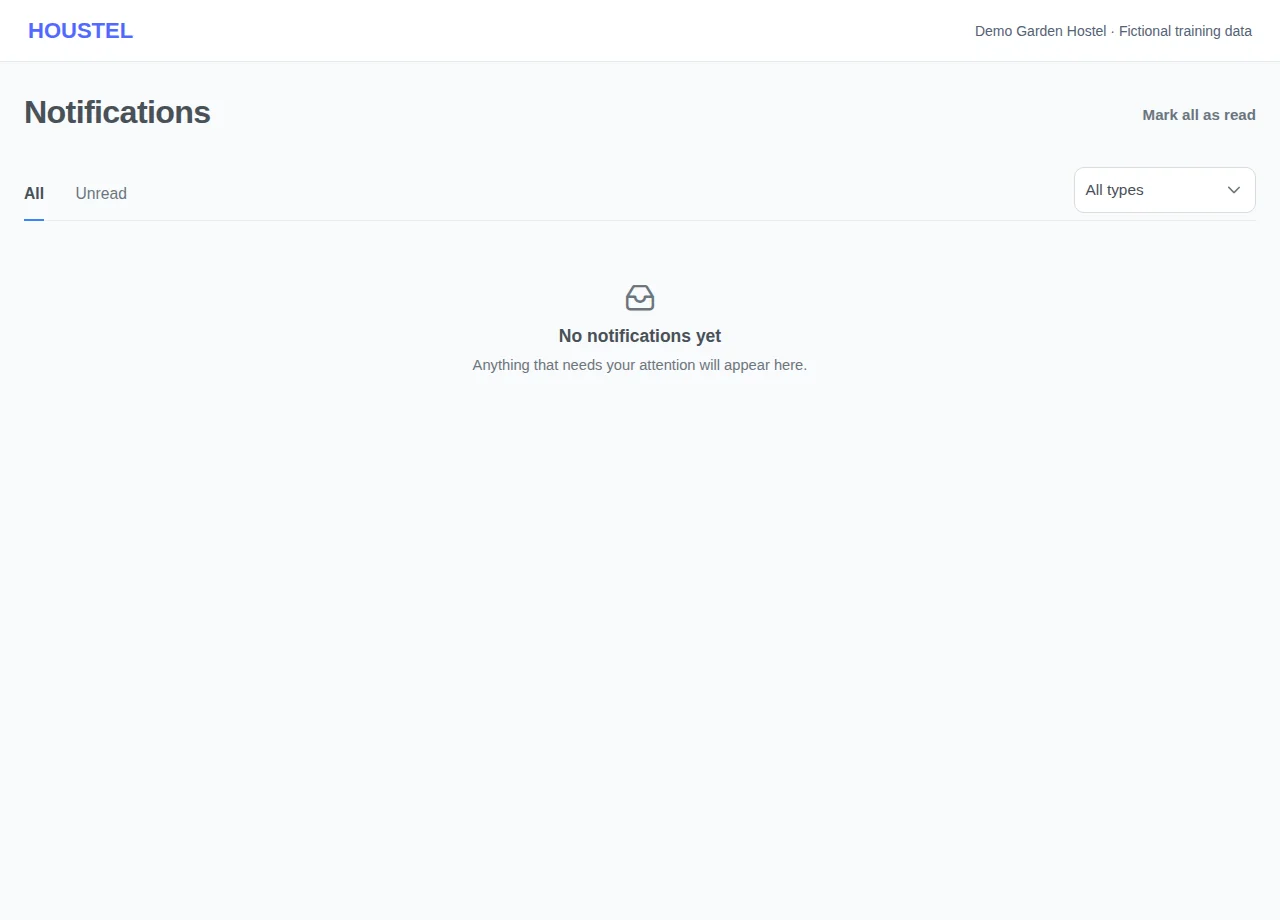
Review your alerts · Example with dummy data. Select the image to enlarge. -
Choose a private or shared channel
Use a resident conversation for private matters and Notice Board for building-wide information. In the notice form, Notify residents chooses In the app, Email, App and email or Don't notify; the line under it says how many currently living residents each choice reaches before you post.
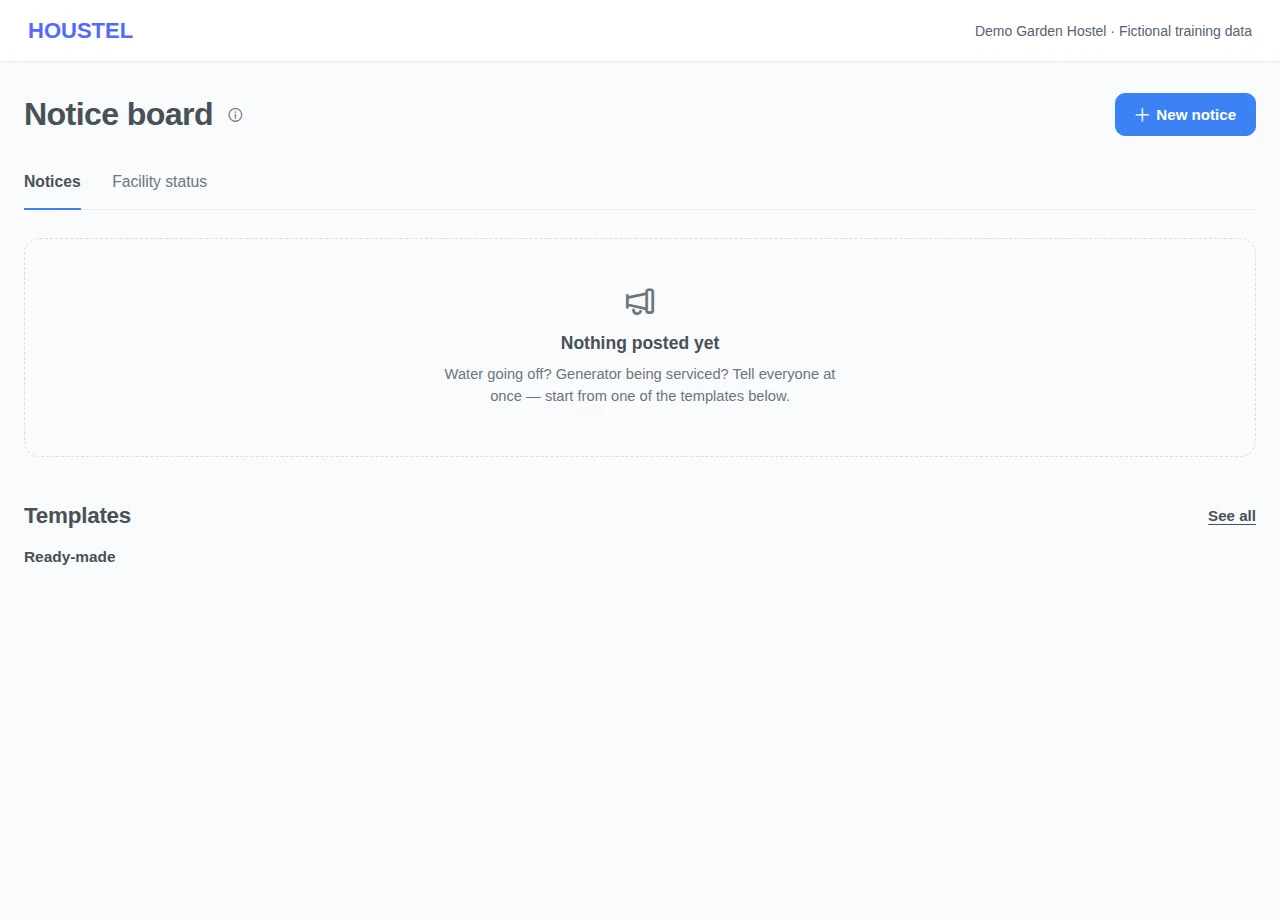
Choose a private or shared channel · Example with dummy data. Select the image to enlarge. -
Start a chat with a resident
Open Chat → Customer Chat. Residents (down the left, along the bottom on a phone) lists your conversations, then everyone living in the hostel you have not written to under Start a new chat. Search finds a name, room or phone number in both lists; the pen button at the top (New chat) opens the same people in a window. Press a name to open their conversation.
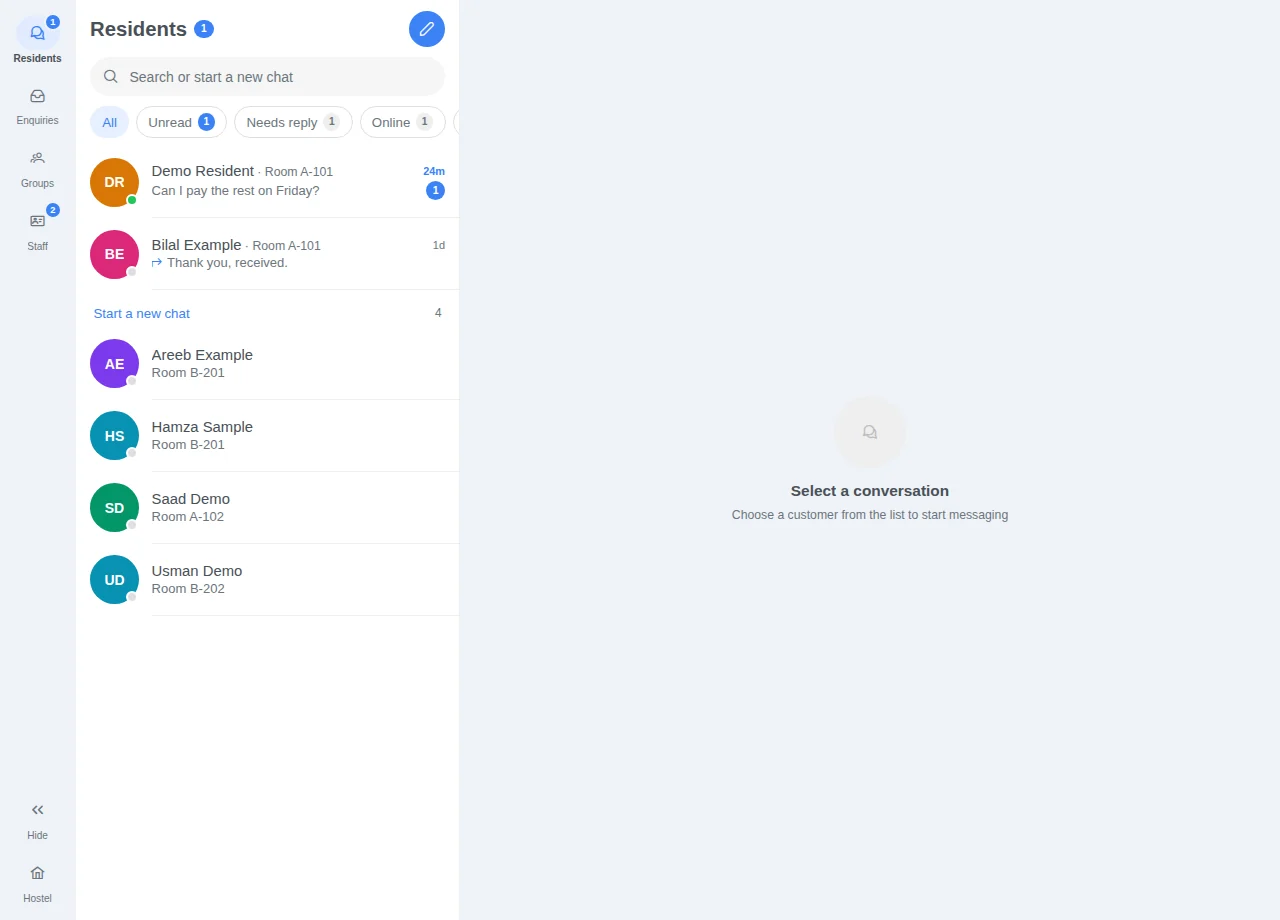
Start a chat with a resident · Example with dummy data. Select the image to enlarge. -
Filter the list and see who it is
The chips under the search show Unread, Needs reply (their message was the last), Online or one Floor. At the top of a conversation the name opens the resident's payments, the person button their profile, and resting on the room lists everyone living there — press a name to open their chat.
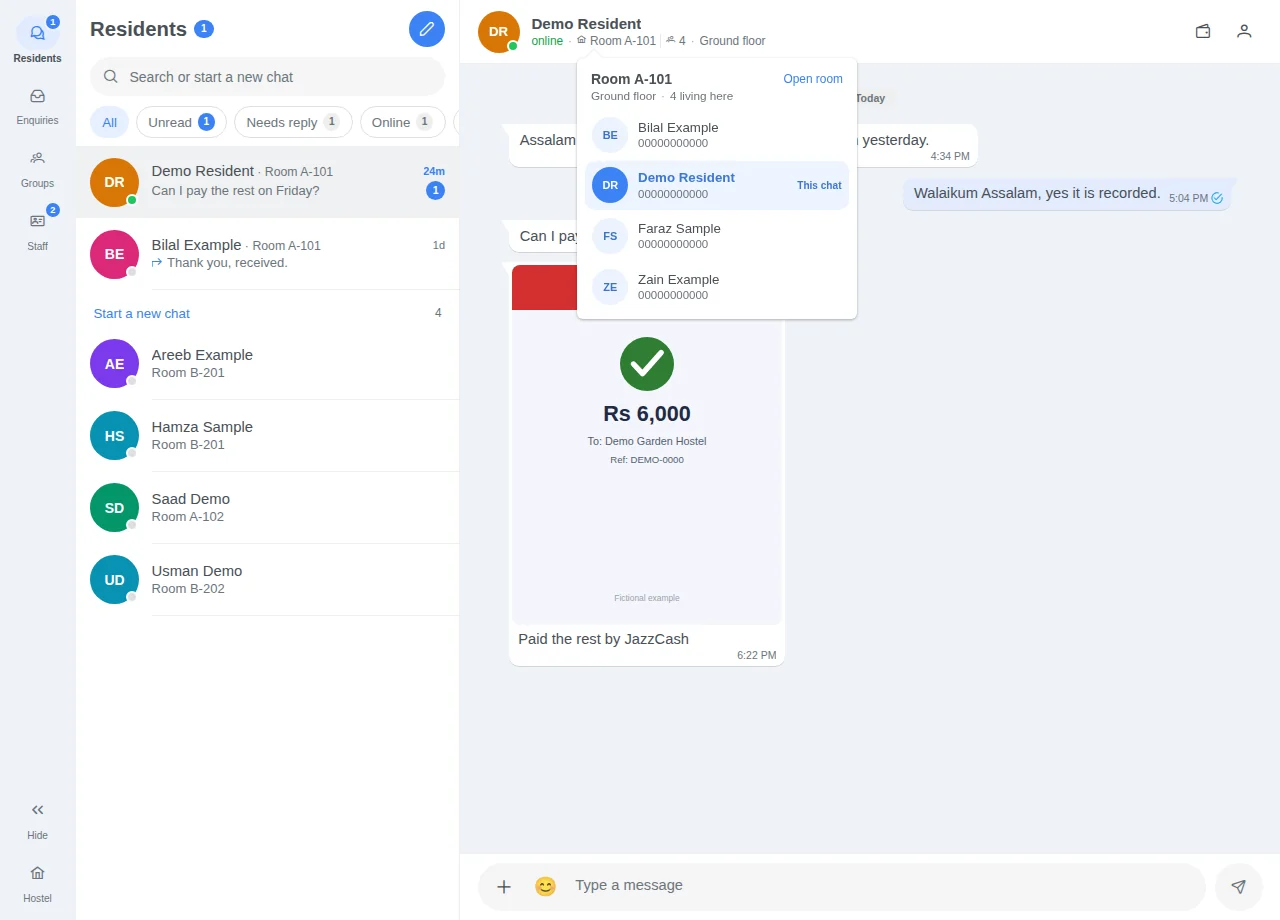
Filter the list and see who it is · Example with dummy data. Select the image to enlarge. -
Send a photo or screenshot
Press + beside the message box and choose Photo or screenshot, or paste or drag pictures in (up to 10, 10 MB each). They wait above the box; the caption goes with the first, and each is sent as its own message. Residents can send pictures to you the same way. Enquiries stay text only.
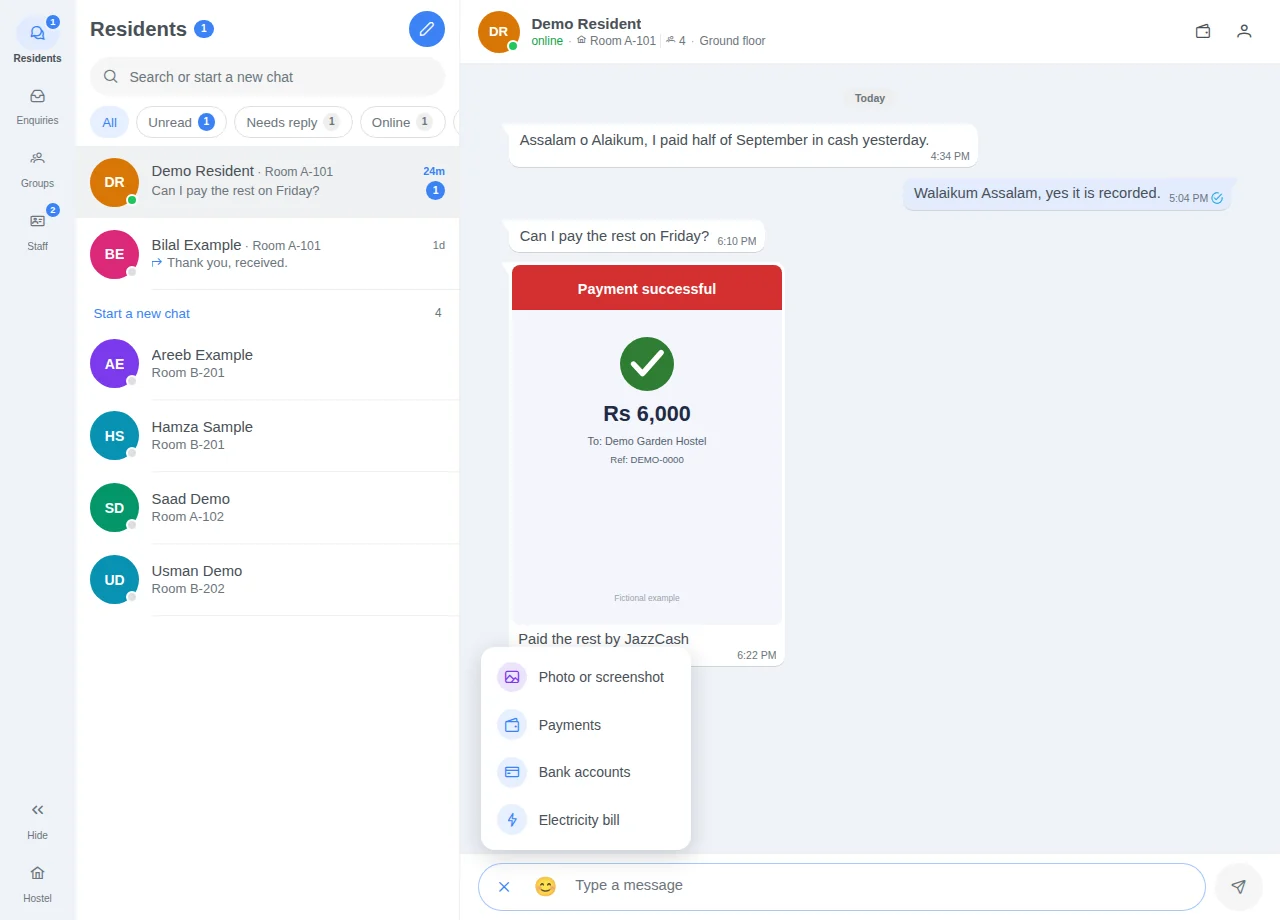
Send a photo or screenshot · Example with dummy data. Select the image to enlarge. -
Insert a payment, bank account or electricity bill
In a resident's conversation press + beside the message box and choose Payments, Bank accounts or Electricity bill. Payments lists every month (Paid, Part paid or Not paid) and the deposit: a paid month gives a receipt with its link, an unpaid one a reminder, and Everything still owed lists all dues with the total. Bank accounts lists the accounts shown to residents; Electricity bill gives their share of a month's bill. The text goes into the box and is sent only when you press send.
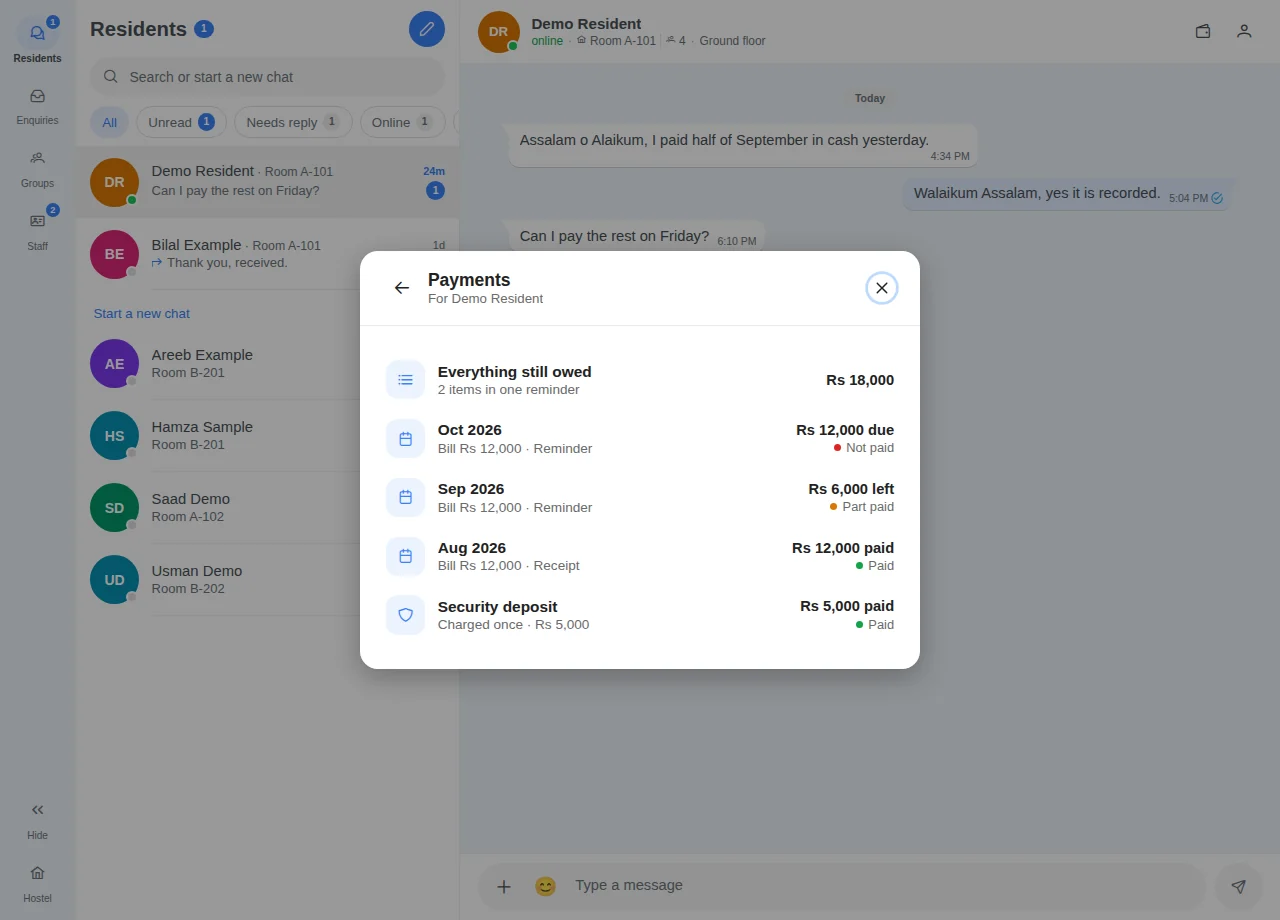
Insert a payment, bank account or electricity bill · Example with dummy data. Select the image to enlarge. -
Chat with a resident from any page
Press Chat at the top of any page: the panel opens on Residents, everyone living here with their room and floor, online first (By room groups them). Press the chat button on a row to open the conversation in the panel; the name opens their payments. + sends a photo or screenshot or inserts Payments, Bank accounts or an Electricity bill, the smiley adds an emoji, and a screenshot can be pasted in. Open in full chat carries the conversation and what you typed to the Chat page. Staff see Residents only.
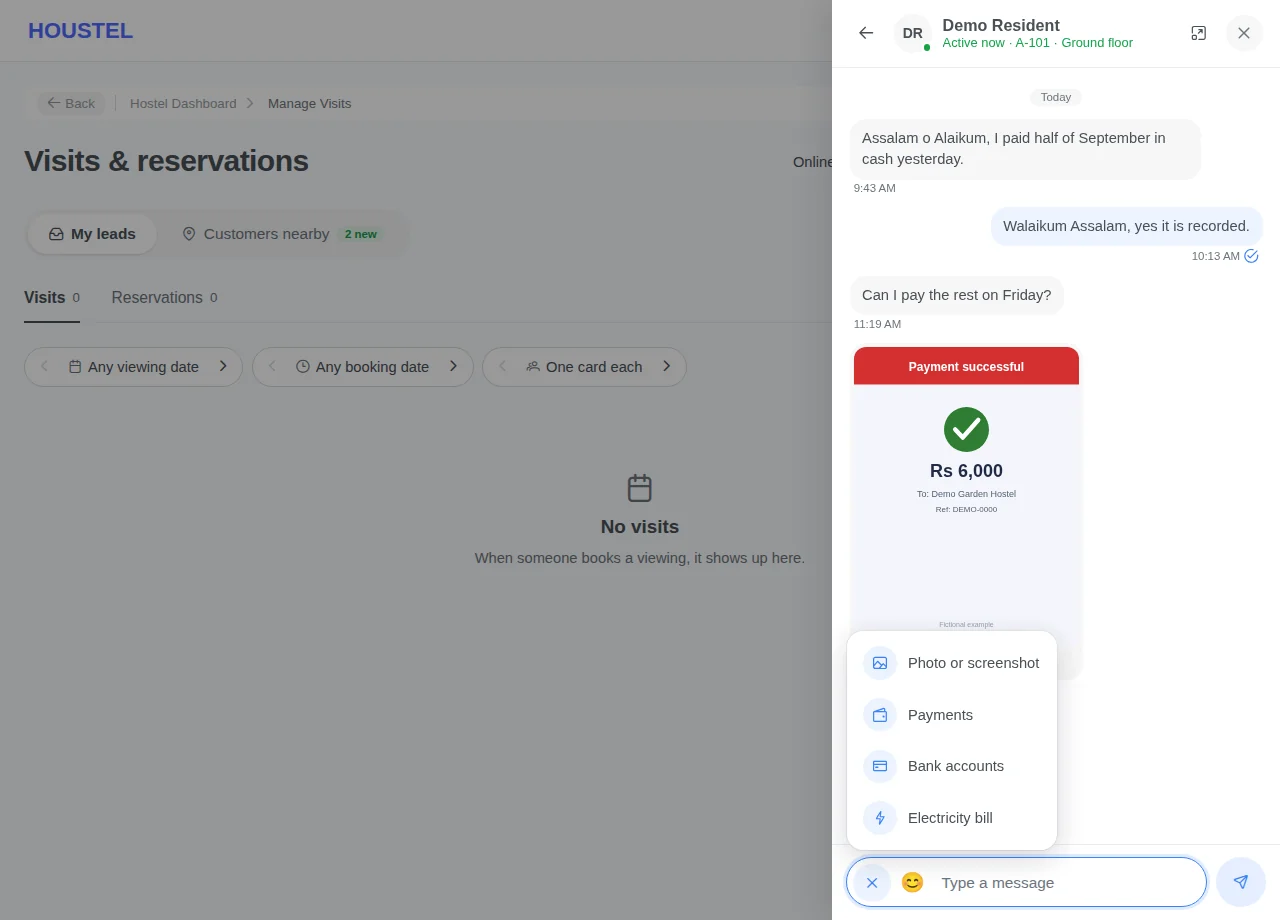
Chat with a resident from any page · Example with dummy data. Select the image to enlarge. -
Message your staff
Owner and Houstel.pk team: press Chat at the top of any page, then My Staff at the top of the panel. Groups come first, then everyone on your staff with Active now or when they were last active. Press a name to message them, or New group to make a group; in a group, Manage renames it, changes its people or deletes it. The number on Chat and My Staff counts messages you have not read; the smiley adds an emoji and + attaches a lead, a payment to collect, a resident or a complaint.
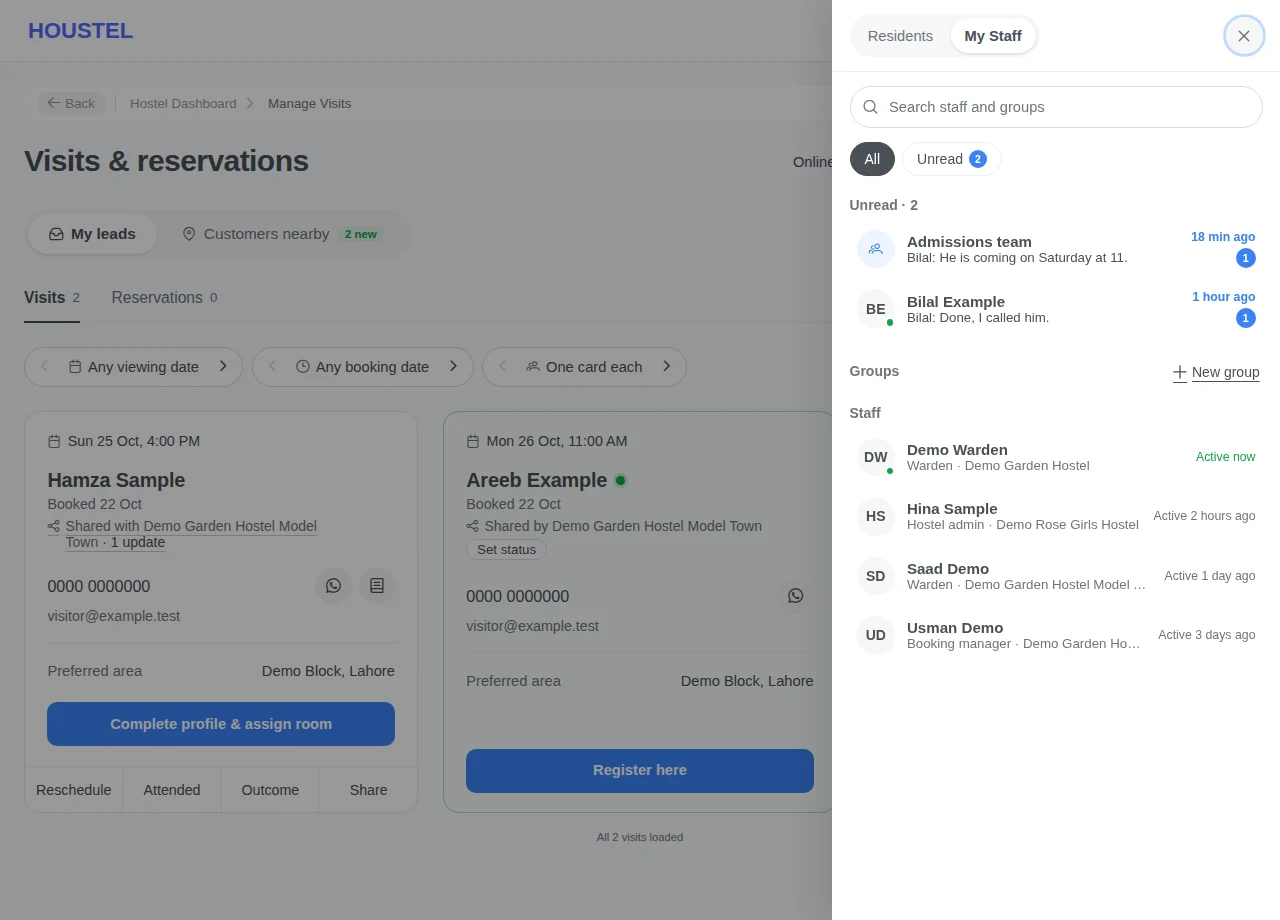
Message your staff · Example with dummy data. Select the image to enlarge. -
Pass a lead to your staff in chat
Press Share on a lead and choose the Staff chat tab, tick people or groups (up to 30), add a message and press Send. The chat shows the person's name, the kind of lead and its time, never their phone number or email. Open lead works for a reader at a branch the lead is on or shared with; others see Not shared with your branch. Staff get one alert per conversation until they read it, and answer from it.
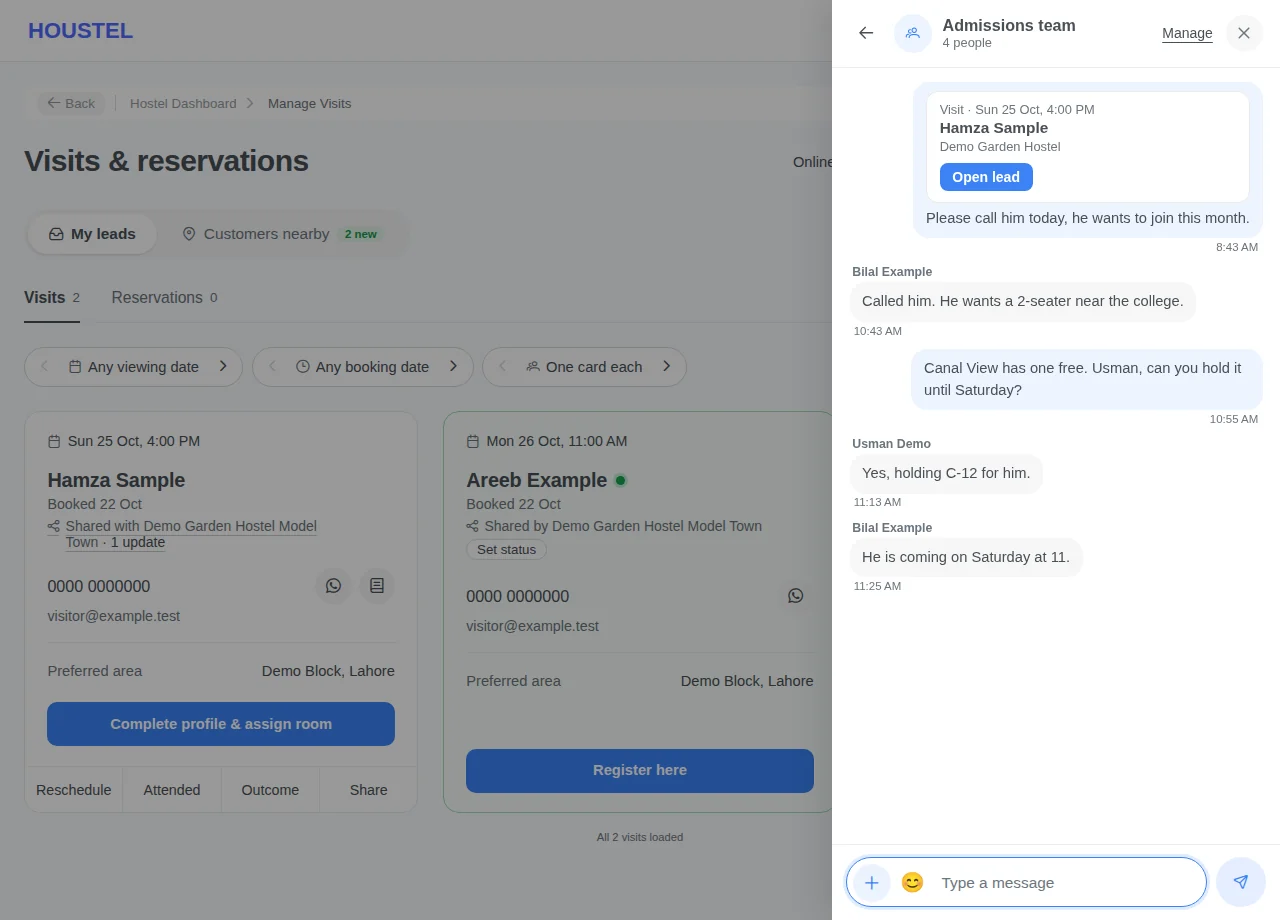
Pass a lead to your staff in chat · Example with dummy data. Select the image to enlarge. -
Use the Staff tab and attach work
Owner and Houstel.pk team: Staff, down the left of Chat → Customer Chat, lists the same groups and staff as My Staff under the Chat button, with Unread and Active now chips. In a conversation press + to attach a lead, a payment to collect, a resident or an open complaint to your next message. The card shows the name and a line or two, never contact details; its Open button works only for readers at that branch with that section's permission.
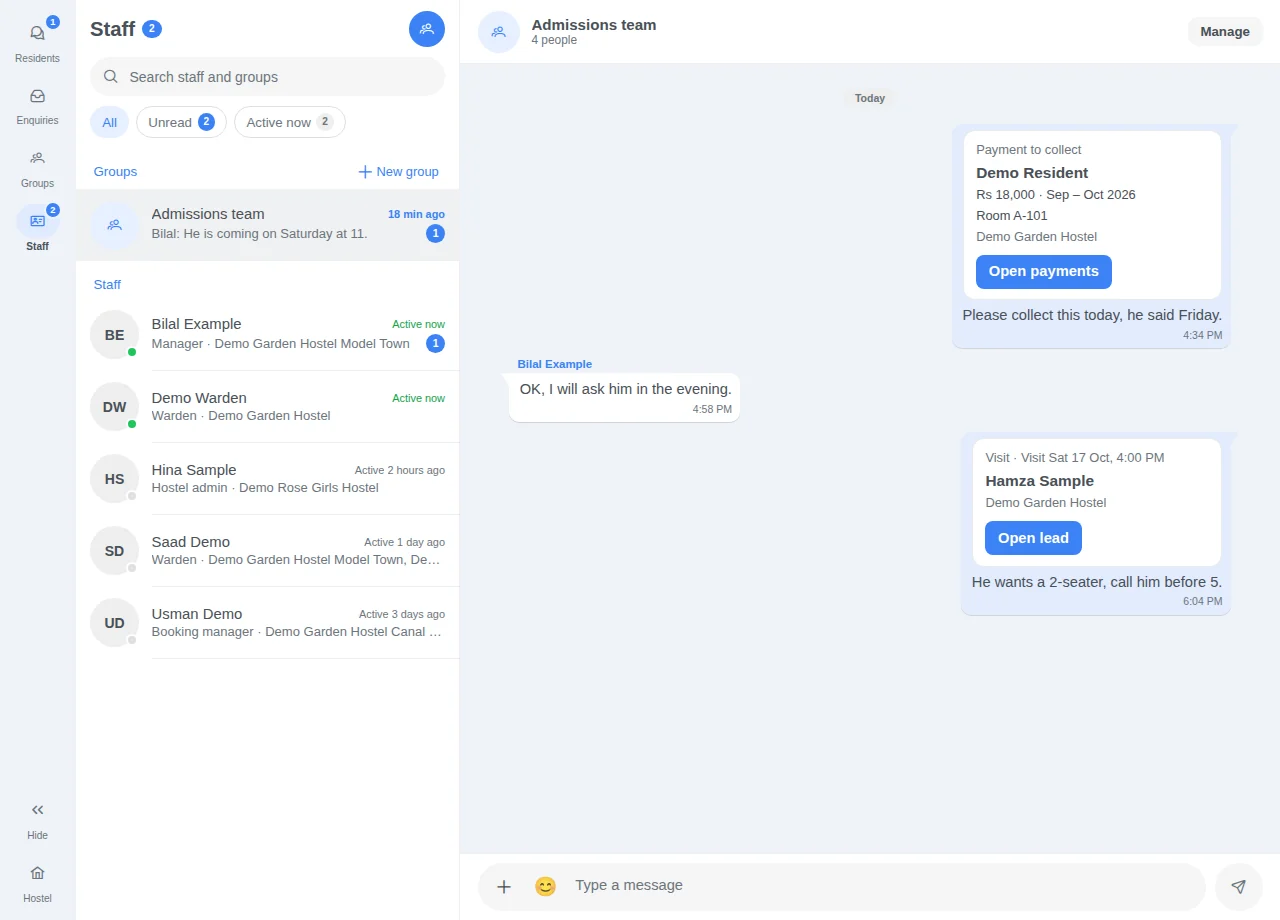
Use the Staff tab and attach work · Example with dummy data. Select the image to enlarge. -
Troubleshoot a missing message
Check the contact, recipient eligibility, staff alert choice, opt-out, delivery status and device/browser notification permission. Open the underlying feature directly if the alert link is old.
Before you finish, and when something goes wrong
- Delivery is not guaranteed: network, provider and device settings can delay or block a notification. Permissions and hostel membership can also prevent access to an old alert. Never publish notification payloads or private links in the guide.
- A staff member receives only the operational alerts they are eligible for. Switching alerts off does not remove their feature access, and personal account/security messages can still arrive.
- For SMS, check the enabled service, available balance or allowance, recipient list and confirmation before sending. A provider status does not guarantee a person has read the message.
- If a notification points to a deleted record or a branch you no longer work in, open the feature through the menu and ask the owner about access; do not attempt to bypass it.
- Staff chat is only for the owner's staff. Staff see only conversations they are in and cannot start chats or see the staff list; someone taken out of a group, removed from your hostels or switched off no longer sees it. To reopen a conversation, staff open its alert again.
- Insert only writes into the message box; nothing is sent until you press send. Payments and Electricity bill need the Payments permission, and Bank accounts shows only accounts with Show to residents switched on. Insert is not offered in an enquiry or a closed conversation. A payment card in staff chat keeps the amount owed when it was sent; check the payments page for the current figure.
- Pictures: JPG, PNG, WebP or GIF up to 10 MB, stored resized without the phone's details such as location. Not in enquiries, on either side. The Houstel phone app shows a picture as “📷 Photo”.
- A notice notifies residents once, when it goes up: a scheduled notice at its time, a draft not until posted, and an edit never again. Email reaches only living residents with an email address who have not turned emails off, uses the branch's monthly email allowance and goes to nobody if too few are left; staff need the Emails to residents permission to choose it.
- The number beside Help Desk → Notice Board counts live notices plus facility tiles not set to Working, and is amber while a tile says something is not working. It is a reminder, not an alert, and does not add to Help Desk's number.
If a save times out, check the record before repeating it. If access is denied, ask the owner to review your hostel assignment and permissions. Never share your login to work around an access restriction.
Related help
There are four channels, and using the right one for the right job is most of the skill. Use them all for everything and your residents stop reading any of them. Staff chat, for talking to your own staff, is a fifth that residents never see.
Which channel for what
| Channel | Use it for | Reaches |
|---|---|---|
| Chat | Back-and-forth with one resident: a complaint, a request, a question, a receipt or a payment reminder. | That one person, inside their account. |
| Notice board | Announcements to everybody: water off tomorrow, mess timings changing, Eid holidays. | Every resident, told in the app, by email, both or not at all — your choice. |
| WhatsApp and email | Things that must not be missed: payment reminders, monthly statements, receipts. | The resident's phone or inbox, outside the app. |
| Staff chat | Talking to your own staff, one to one or in groups, and passing them a lead, a payment to collect, a resident or a complaint. | Your staff at any of your branches, inside their dashboard. |
| Alerts to you and your staff | Telling you something needs attention: a new enquiry, a request, an approval. | Your dashboard and phone, and your staff's for the sections they can open. |
Chat with residents
Chat → Customer Chat is a conversation with one resident, kept in one thread rather than scattered across your personal WhatsApp. Three reasons that is better than your own number:
- Your staff can answer without you handing out your personal number.
- The thread stays with the resident's record, so “I told you about the leak in March” is checkable.
- When somebody leaves, the conversation stays in the hostel's history rather than in one person's phone.
The page is laid out like WhatsApp. Down the left (along the bottom on a phone) are the sections: Residents, Enquiries, Groups and, for you, Staff, with Hide to fold the list away and Hostel to go back. Next to them is the list, with a search box and filters.
Start a chat with anyone living here
- Open Chat → Customer Chat Residents lists your conversations first. Under them, Start a new chat lists everyone living in the hostel you have not written to yet, by name, with their room.
- Find the person Type a name, room or phone number in the search box. It looks through both lists. The pen button at the top (New chat) opens the same people in a window.
- Press their name Their conversation opens, empty if you have never written. It is kept once you send the first message.
- Only residents living in the hostel now are listed. A resident who has checked out keeps their conversation for your records, but it is closed to new messages.
- Enquiries holds people who wrote from your public page and have not booked. They start those conversations; you answer them. Before writing they sign in with Google, a code sent to their email, or a code sent to their WhatsApp, so every enquiry comes from a confirmed email address or number; you see only their name. Someone who reserved a room online stays here until you confirm the reservation.
- A conversation you have opened before opens at once, and so does one you rest the pointer on: its messages are fetched ahead. Resting on one does not mark it read; opening it does.
When someone new writes, and when you answer
- The first message from someone new reaches you straight away: in your bell and the bell of every staff member who can open Residents, by email to the same people, and on WhatsApp to you. One WhatsApp per new enquiry, however many messages follow.
- Their later messages arrive as a notification on your phone or browser, and in the bell if the conversation waits unread.
- When you answer and they have not read it five minutes later, they are told: in their bell, and by email if they have one and are not using Houstel at that moment. Someone who signed up with only a mobile number gets the bell until they add an email (the chat offers it). Once until they read it, not once per message. The alert names your hostel and the name you show customers, never a phone number.
Filter the list
The chips under the search box narrow the list, as WhatsApp's do:
- Unread: conversations with messages you have not read.
- Needs reply: conversations whose last message is theirs, so they are waiting for you.
- Online: residents who have the app open now, including those you have not written to.
- Floor: one floor at a time; press its × to see every floor again.
In Staff the chips are Unread and Active now. A number on a chip counts what it would show.
Who you are talking to
The top of a resident's conversation shows their name, when they were last online, and their room and floor.
- Their name opens their payments. The wallet button opens payments too, and the person button opens their profile.
- Their room: rest the pointer on it (tap it on a phone) to see everyone living in that room. Press a name to open that person's conversation. Clicking the room itself opens the room's page; on a phone, use Open room in the list.
- Each opens only for someone allowed to see that page; for others the name is plain text.
Send a photo or a screenshot
- Press + beside the message box Choose Photo or screenshot and pick one or more pictures (up to 10). You can also paste a screenshot into the message box, or drag pictures onto the conversation.
- Add a caption if you like The pictures wait above the box, each with an × to take it out. What you type goes with the first picture.
- Send Each picture goes as its own message. Press a picture in the conversation to see it full size.
- Residents can send you photos and screenshots the same way from their own account, for example a screenshot of a payment.
- Photos, screenshots (JPG, PNG, WebP, GIF) up to 10 MB each. They are stored smaller, without the details a phone adds to a photo, such as where it was taken.
- Pictures cannot be sent in an enquiry, by either side: the rule against swapping phone numbers there would mean nothing if a picture of one could be sent. They are for residents living here.
- In the Houstel phone app a picture shows as “📷 Photo”; open the chat on the website to see it.
Put a payment, a bank account or an electricity bill in a message
In a resident's conversation, the + beside the message box can also write the message for you. Nothing is sent until you press send, so you can change it first.
- Press + beside the message box Choose Payments, Bank accounts or Electricity bill.
- Payments Every month of their stay with its bill and whether it is Paid, Part paid or Not paid, then the security deposit or admission fee. A month with money in gives a receipt with its receipt link; a month with nothing paid gives a reminder of what is due. When more than one thing is owed, Everything still owed puts them all in one reminder with the total.
- Bank accounts The accounts your residents see on their Pay screen, with the title, number and IBAN. Pick one, or All accounts when you have more than one.
- Electricity bill Their share of a month's bill, with how many units the room used, the rate, the room's total and how many residents it was split between, and what is still to pay.
- Read it over and send The words go into the message box. Insert something else and it is added to the same message, with one greeting at the top and your hostel's name once at the end.
Payments and Electricity bill need the Payments permission; staff without it see them greyed out. Bank accounts lists only accounts with Show to residents switched on under Payments → Bank Accounts. An account hidden from residents never appears here; if all of yours are hidden, the list says so. The receipt link is the same one the Payments page shares and opens without signing in. If it cannot be made, the message says how and when the money was paid instead. The + is not shown in an enquiry or in a closed conversation.
Chat from any page
The Chat button at the top of every page opens a panel on the right (the whole screen on a phone), so you can answer a resident without leaving what you are doing. The number on it counts the messages you have not read, from residents and staff together. You and the Houstel.pk team have Residents and My Staff at the top of the panel to switch between the two; staff see Residents only.
- Press Chat It opens on Residents: everyone living here, those online first, with their room and floor. Search finds a name, room or floor, and By room groups them room by room. When only your staff have written, it opens on My Staff instead.
- Press the chat button on their row Their conversation opens in the panel, empty if you have never written. Pressing the name opens their payments instead, here and at the top of the conversation.
- Write, attach and send The message box works as on the Chat page: + sends a photo or screenshot, or puts in Payments, Bank accounts or an Electricity bill; the smiley adds an emoji. You can also paste a screenshot into the box or drag a picture onto the conversation. Enter sends, Shift+Enter starts a new line.
- Carry on in the Chat page if you like The expand button at the top (Open in full chat) opens the same conversation on the Chat page with what you have typed. The back arrow returns to the list.
Staff chat
Staff chat is for you and your staff, apart from the chat with residents. My Staff at the top of the panel the Chat button opens, and the Staff tab in Chat → Customer Chat (down the left, or along the bottom on a phone), are shown to the hostel owner and the Houstel.pk team only; staff do not have them. A number on them counts the messages you have not read. Both open the same conversations.
- Open My Staff Press Chat at the top of any page, then My Staff at the top of the panel (the whole screen on a phone): your groups, then everyone on the staff of all your branches, with their role, branch, and Active now or when they were last active, such as Active 2 hours ago. People active now come first.
- Message one person Press their name, type, and press Enter or the send button. Shift+Enter starts a new line. The smiley adds an emoji, and + attaches a lead, a payment to collect, a resident or an open complaint, as in the Staff tab below.
- Make a group Press New group, type its name, tick the people and press Make group. You are always in your groups. In a group, Manage renames it, adds or takes out people, or deletes it with its messages.
- Share a lead in a chat Press Share on a lead, choose the Staff chat tab, tick people or groups (up to 30), add a message if you like, and press Send. The chat shows the person's name, the kind of lead and its time, never their phone number or email. Open lead takes a reader to it at a branch they work at that the lead is on, or shared with; anyone else sees Not shared with your branch.
- Or use the Staff tab in Chat Chat → Customer Chat → Staff lists the same groups and people beside your resident conversations; New group makes a group there too. In a conversation, the + beside the message box attaches one thing to your next message: a lead (visits, reservations, Facebook and nearby leads), a payment to collect (who owes and how much, from Pending Payments), a resident, or an open complaint. It shows above the box until you send; the × takes it off. You can send it with or without a message.
What you attach shows as a card: what it is, the name, and a line or two, such as the amount and months owed and the room. Never a phone number or email, and never who wrote a complaint; complaints about staff are not offered at all. The card's button (Open payments, Open resident, Open complaint or Open lead) takes a reader there only at a branch they work at and with that section's permission; anyone else sees that they cannot open it. The amount on a payment card is what was owed when you sent it; the payments page is always the current figure.
How your staff reply
- When you write, each person in the conversation gets one alert in their bell, and on their phone or browser if they allow notifications, until they read it, not one per message. The alert opens the conversation, and they answer there. To find it again later, they open the alert again.
- Staff see only the conversations they are in. They cannot see the staff list, start a chat or make groups.
- Someone you take out of a group no longer sees it. A staff member who is removed from your hostels, or switched off, drops out of the list.
- An open conversation shows new messages within a few seconds. For anything urgent, call.
The notice board
Help Desk → Notice Board. Post it once and every resident sees it in their account. This is the right place for anything that applies to the whole building.
Choosing how residents are told
Under Notify residents in the notice form, pick one:
- In the app: a bell on each resident's dashboard, and a phone or browser notification where they allowed notifications.
- Email: an email to each living resident who has an email address and has not turned emails off.
- App and email: both.
- Don't notify: the notice goes on the board quietly. Residents see it when they open their dashboard.
Before you post, the form says how many residents are living in the branch today, and how many of them each choice reaches, for example “130 currently living residents will be notified in the app, and 42 of them by email too”. Your choice is remembered for your next notice.
- Only residents living in the branch when the notice goes up are notified. A scheduled notice notifies them when it goes up, not when you save it. A draft notifies nobody until you post it.
- Residents are notified once. Editing the notice later does not notify them again; the form shows how and when they were told, and each notice on the board says “Notified in the app”, “Notified by email” and so on.
- The email comes out of your branch's monthly email allowance and appears in Emails → All Emails, with the residents it could not reach and why. If not enough emails are left this month, the form warns you; the email then goes to nobody and you get an alert. The notice, and any app notification, still go.
- Staff can choose Email only with the Emails to residents permission. Without it, In the app and Don't notify are their choices.
The number beside Notice Board
In the sidebar, Help Desk → Notice Board shows a small number: the notices residents can see right now, plus the facility tiles not set to Working. It turns amber while a tile tells residents something is not working, so a “Water: Not working” you forgot to switch back stays in view. Rest the pointer on the number to see what it counts. It is not an alert and does not add to the number on Help Desk.
Notices that get read:
- Short. Two or three lines.
- Specific. “Water supply off Thursday 9am–2pm” beats “maintenance work planned”.
- Posted in advance, not the morning of.
- Written in the language your residents actually read.
WhatsApp and email
These leave the platform and land on somebody's phone, so they are used sparingly and on purpose. Payment reminders, monthly statements and receipts are the main uses.
Every WhatsApp message costs real money and, more importantly, attention. A hostel that messages its residents about everything trains them to ignore the message that actually mattered. The system is deliberately quiet so that when something does arrive, it is read.
Things worth knowing
- Residents can opt out. Somebody who replies STOP, or uses the unsubscribe link in an email, stops receiving them until they opt back in. That is their right and it is honoured everywhere.
- A resident with no phone number or email gets nothing. If somebody says they never receive anything, check their profile first. That is the answer nine times out of ten.
- Automatic reminders and statements need a paid plan. They go out under your hostel's name, so a lapsed account stops sending rather than continuing to write to your residents.
Alerts for you
The bell in the top bar is your queue of things needing attention. New enquiries and reservations, room-change and check-out requests, payments to confirm, support messages, approval decisions, subscription reminders, and each morning who is leaving that day.
Every alert takes you straight to the thing it is about, so you do not have to go and find it. With more than one hostel, the bell lists all of them with each hostel's name, and opening an alert switches you to the hostel it is about. Important ones can also reach you on WhatsApp, so a new enquiry gets to you when you are not at the desk. That matters more than it sounds: enquiries go to whoever answers first.
Red numbers in the sidebar
A red number beside Payments, Leads, Help Desk or Residents counts what is waiting there: new enquiries, payments to confirm, open tickets and complaints, room changes due. It goes once you open that page, or open the bell, and comes back when something new arrives. The list on the page keeps everything, so opening it never loses anything. The numbers are remembered on each device, so your phone and your computer keep their own. Chat's number is different: it goes when you read the messages.
Your staff get them too
Each staff member is told about what arrives in the sections their permissions let them open, in their own bell, on their phone and, for the ones that need action, by email. A warden who handles visits hears about a new visit; one without Payments never hears about a payment. WhatsApp alerts stay with you. So do subscription and billing reminders, bank account changes, your daily, weekly and monthly reports, and complaints about staff.
You can turn alerts off for one person without changing what they can open. Alerts for your staff explains what each section sends and what still reaches someone whose alerts are off.
Requests from residents
Residents → Customer Requests collects what your residents ask for through their own accounts: a room change, a check-out, a question about a payment. Each is something you approve or decline, with the date it was asked.
That is worth more than the same conversation on the stairs: you get the notice in writing, dated, and the resident can see where their request stands instead of asking you again tomorrow.
Getting this right
- Keep phone numbers correct Every channel except chat depends on them.
- Use the notice board for “everybody”, chat for “one person” Broadcasting a message meant for one resident is how a private matter becomes a public one.
- Do not chase the same thing on four channels One reminder, one follow-up. More reads as noise, and noise gets muted.
In short
- Chat for one resident, notice board for everybody, WhatsApp and email for what cannot be missed.
- Keep hostel conversations in chat, not on your personal number, so your staff can answer and the history stays.
- WhatsApp is used sparingly on purpose, so that a message that arrives gets read.
- Residents can opt out, and a resident with no number receives nothing, so check the profile first.
- Your alerts link straight to the thing that needs attention; keep the important ones on your phone.
- Your staff get the alerts for the sections they can open. WhatsApp alerts stay with you.
- In a resident's chat, + sends a photo or screenshot, or writes a receipt, a payment reminder, your bank details or their electricity bill into the message for you to send. Residents can send you pictures too; enquiries stay text only.
- The chips Unread, Needs reply, Online and Floor narrow the list; the name at the top opens their payments and the room shows who else lives there.
- The Chat button at the top of every page holds Residents and, for you, My Staff: chat with a resident there, photos and inserts included, without leaving the page.
- Staff chat is for you and your staff. Only you and the Houstel.pk team have My Staff and the Staff tab in Chat; staff answer from the alert.
Common questions
Will residents get a WhatsApp message every time I change something?
No. WhatsApp is used sparingly and only for things that genuinely matter. It costs real money per message and people stop reading a channel that is noisy.
A resident says they never got the message.
Check whether they have a phone number and email on their profile, and whether they have opted out. Someone who replied STOP to a WhatsApp message will not receive further ones until they opt back in.
Can I message my staff inside Houstel.pk?
Yes. Press Chat at the top of any page and then My Staff, or open the Staff tab in Chat, to see all your staff, who is active now, and to message one person or a group you make. Staff do not have My Staff or the tab; they get an alert and answer from it.
Can I chat with a resident without leaving the page I am on?
Yes. Press Chat at the top of any page, then the chat button on the resident's row. The conversation opens in the panel, with + for a photo or screenshot, payments, bank accounts or an electricity bill, and the smiley for emoji. The expand button opens it on the Chat page.
Can residents and I send photos or screenshots in chat?
Yes, in a resident's chat. Press + beside the message box and choose Photo or screenshot, or paste a screenshot into the box. Residents can send pictures to you the same way, for example a payment screenshot. Enquiry chats stay text only.
Can I send a resident their receipt, a payment reminder or our bank details in chat?
Yes. In their conversation press + beside the message box and choose Payments, Bank accounts or Electricity bill. The message is written into the box for you; read it over and press send.
Still stuck?
Tell us the screen name, what you tried and what happened. Remove personal details, passwords and private links from any screenshot.