All guide chapters
Start here
Everyday running
- Residents
- Rent and payments
- Dues and reminders
- Deposits and advances
- Expenses and profit
- Mess and meals
- Reports and dashboard
- Laundry and food for residents
- Importing residents safely
- Room changes, checkout and resident requests
- Payment approvals
- Billing periods, installments and rent reviews
- Room electricity and resident charges
- Utility connections and bills
- Inventory and room assets
- Bank accounts and wallets
Filling your beds
Your team and residents
Creating your Houstel.pk account
Signing up takes two short steps and about a minute. You need a name, an email address, a phone number and the name of your hostel.
Step by step
Where to go: Register or Sign in; after signing in, Recents under Dashboard in the sidebar
Who can use it: The hostel owner, or staff with access to this feature. Some actions need additional permission.
-
Create your own login
On the registration screen choose I own or run a hostel if it asks, then enter your own name, email, mobile number with WhatsApp and a password, or continue with Google. Complete the verification requested and keep any one-time code private.
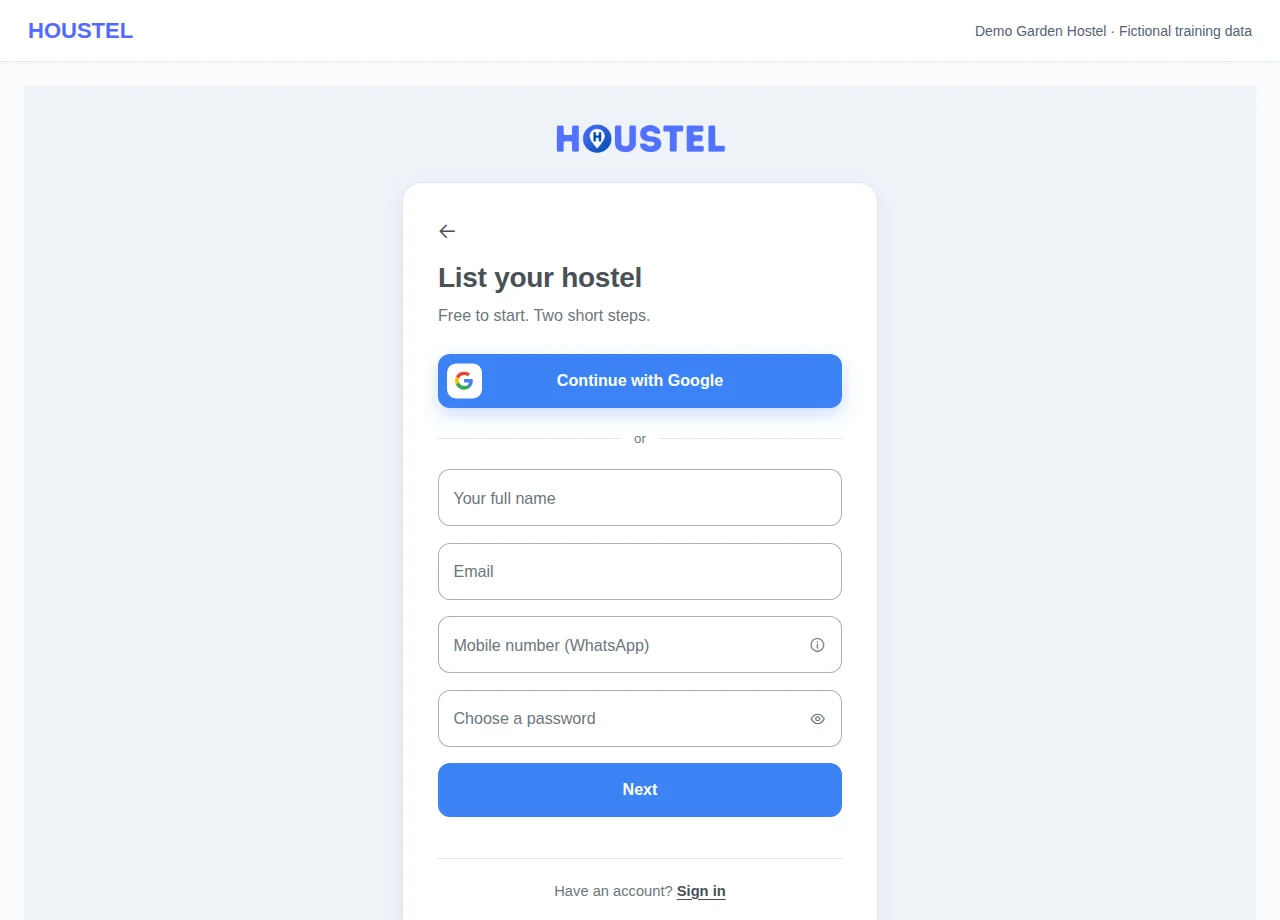
Create your own login · Example with dummy data. Select the image to enlarge. -
Recover access safely
Use the sign-in or recovery flow for an existing account instead of creating another hostel account. Sign in with your email and password, or with your mobile number: a code on WhatsApp, then a second code by email. Verify the destination before entering a code.
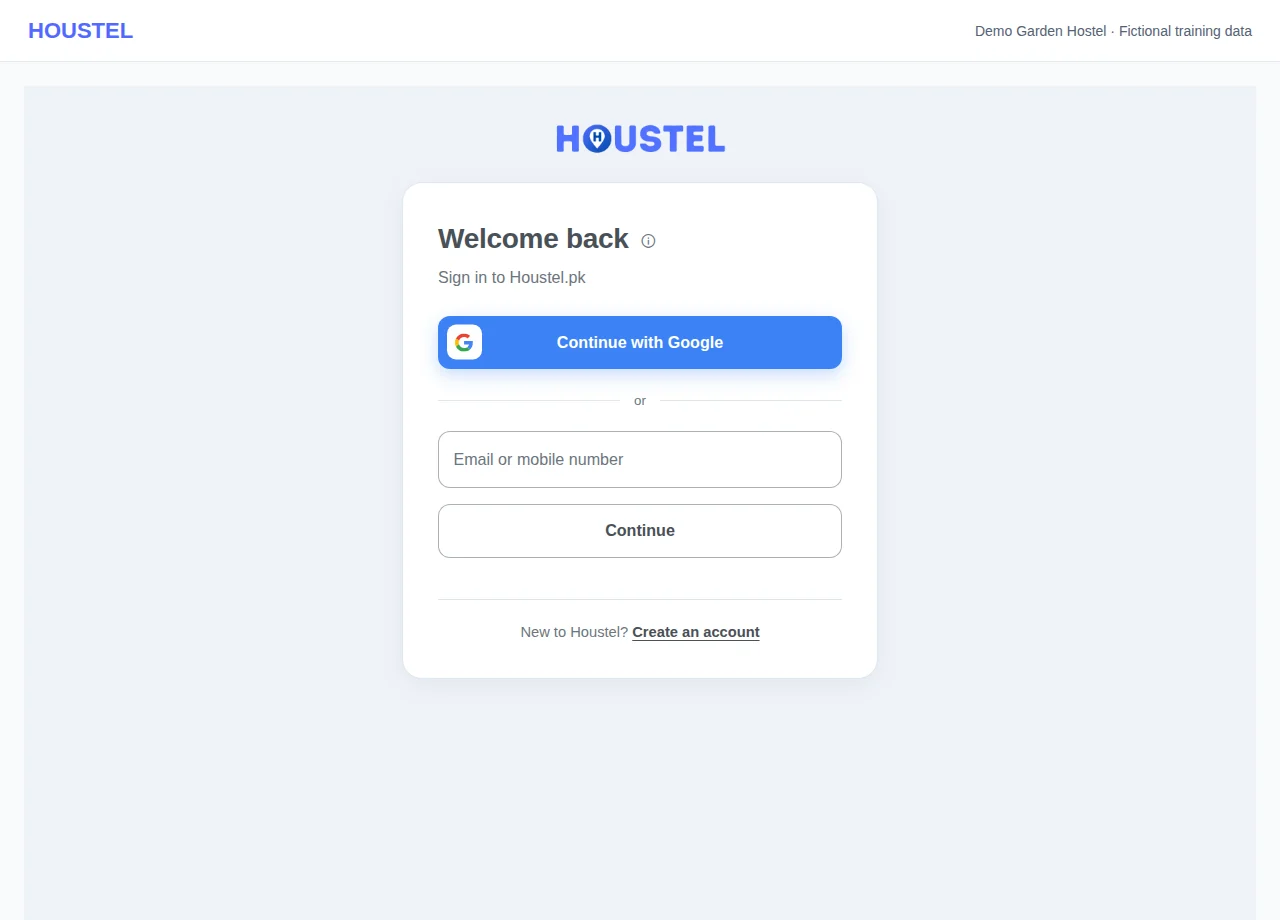
Recover access safely · Example with dummy data. Select the image to enlarge. -
Jump back to the pages you use
After signing in, look at Recents under Dashboard in the sidebar. The first two rows are the pages you were on last, not counting the page you are on now. The rows after them are the pages you have opened most in the last 30 days, and no page is listed twice. The grey line under each name says where the page lives in the menu, or Main menu for a page opened straight from the sidebar. Select a row to open that page, or select Recents to fold the list away.
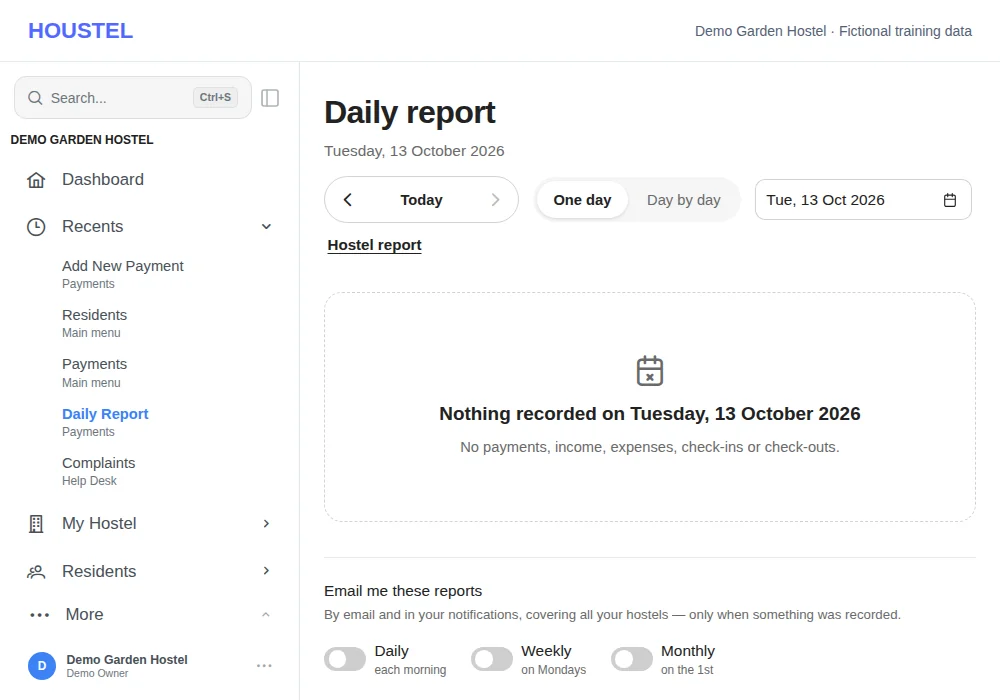
Jump back to the pages you use · Example with dummy data. Select the image to enlarge.
Before you finish, and when something goes wrong
- Do not publish registration invitations or sign-in links. Ask support if you no longer control the registered contact.
- Recents is personal and starts empty: it appears after you have opened a few pages, and its most opened pages catch up when the dashboard is opened or reloaded. It lists only pages your own access and the hostel's enabled features allow, and being listed does not grant access to a page.
If a save times out, check the record before repeating it. If access is denied, ask the owner to review your hostel assignment and permissions. Never share your login to work around an access restriction.
Related help
Your account is yours, not your hostel's. One login can hold several hostels, and later you will give your warden and manager their own logins rather than sharing this one. Start from the sign-up page. If you reach sign-up some other way, it first asks which one you are: choose I own or run a hostel. (I'm looking for a hostel is for customers.)
Signing up
- Your details Your full name, an email address you actually check, your mobile number, and a password. Use the number that has WhatsApp on it: new enquiries and visit requests reach you there, and you can sign in with it.
- Your hostel The name of your hostel, roughly how many rooms it has, and roughly how many beds. These are only to get you started; you correct them properly later and nothing depends on the numbers you type here.
- Verify your email We send a link to the address you gave. Click it, and your account is live.
You can also sign up with a Google account instead of setting a password. If you do, you will still be asked for a phone number, because a hostel account without a working phone number is of no use to the people trying to book a bed.
Password resets, approval notices and billing all go to this address. If it is an account three people share, sooner or later one of them will change the password and lock you out of your own hostel.
Signing in afterwards
Go to the dashboard. There is one box for your email or your mobile number:
- Email: type it, press Continue, then your password.
- Mobile number: we send a 6-digit code on WhatsApp, then a second code to your email. Two codes, so a lost phone alone cannot open your hostel.
- Google: Continue with Google at the top, if your account uses a Gmail address.
Your staff sign in the same way, with the email or number you gave them. Save the page to your phone's home screen and it opens like an app.
If you have more than one hostel, you land on a list and pick one. Everything you then see, from rooms and residents to rent and reports, belongs to the hostel you picked, and you switch hostels from the top of the sidebar.
Getting back to the pages you use
Right under Dashboard in the sidebar is a group called Recents. It holds up to five pages, picked from what you yourself open, so the screens you keep going back to are one click away instead of two or three inside a menu.
- The first two are the pages you were on last, the newest on top. The page you are on now is not repeated there, so they are the two before it, and they change as you move around.
- The rest are the pages you open most, counted over the last 30 days. A page has to be opened at least twice to count.
- No page appears twice. If one of your last two pages is also one you open a lot, it shows once, at the top, and the next most opened page takes the free place.
- Every name has a second line, in small grey type, saying where that page lives, so you also learn where to find it: the menu it is in (Payments under Daily Report), or Main menu for a page you open straight from the sidebar, such as Residents. A page the sidebar does not list shows the page you reach it from.
The list is yours alone. Each member of staff sees their own, built from their own visits and only from pages their access allows, and nobody else sees yours. If you run several branches, your visits in all of them are counted together, but a page only appears in a branch where that feature is switched on. Dashboard itself is never in the list, because it sits directly above it. Pages that belong to one resident, one room or one booking are not listed either; use the search box at the top of the sidebar for those. Being in the list does not give anyone access to a page: it only saves the clicks.
A new account has nothing to show yet, so the group only appears once you have opened a few pages. The two latest pages follow you straight away. The most opened pages are refreshed when you open or reload the dashboard, so a page you have only just started using can take a few minutes and a reload to appear. Select Recents to fold the list away or open it again; that choice is remembered on the device you made it on. On a phone the group is inside the menu. When the sidebar is narrowed to icons, point at the clock icon to see the same list.
If you cannot get in
| What is happening | What to do |
|---|---|
| Forgot your password | Use “Forgot password” on the sign-in page. The reset link goes to your registered email. |
| The verification email never arrived | Check spam and promotions, then use the resend option. If it still does not come, the address probably has a typo. Message support and we will fix it. |
| “Email already registered” | You already have an account. Sign in instead, or reset the password. |
| It signs you out on its own | Usually a browser clearing its data, or the “private” window. Sign in on a normal window and let the browser remember you. |
Keeping the account safe
Your account holds your residents' details and your money records, so treat it the way you treat the keys to the building.
- Do not share your password with staff. Give them their own login instead, so you can decide what each of them sees and remove it the day they leave.
- Turn on the extra sign-in code from your profile if more than one person uses your computer.
- If you think somebody has your password, change it. Everything they recorded stays; only the login changes.
Your profile
Under My Profile you can change your name, phone number, photo and password. Your phone number matters more than it looks, because it is where sign-in codes and urgent alerts go, so update it the same day you change your SIM.
In short
- Two steps: your details, then your hostel's name and rough size. About a minute.
- Use your own email and your WhatsApp number. Both are used to reach you.
- Verify the email before anything else; nothing else works properly until you do.
- One login can hold several hostels; staff get their own logins, never yours.
- Recents, under Dashboard in the sidebar, keeps your last two pages and the ones you open most a click away.
Common questions
I signed up but never got the verification email.
Check your spam or promotions folder first, then use the resend option on the verification screen. If it still does not arrive, the email address may have a typo. Contact support and we can correct it.
Can two people use the same owner account?
They can, but it is better not to. Add each person as staff instead, so you can see who recorded which payment and switch someone off when they leave.
What is Recents in the dashboard sidebar?
A short list under Dashboard of up to five pages: the two you were on last, then the pages you have opened most in the last 30 days, with no page shown twice. Under each name is where the page lives in the menu, or Main menu for a page opened straight from the sidebar. It is built from your own visits only, each member of staff has their own, and selecting its name folds it away.
Still stuck?
Tell us the screen name, what you tried and what happened. Remove personal details, passwords and private links from any screenshot.