All guide chapters
Start here
Everyday running
- Residents
- Rent and payments
- Dues and reminders
- Deposits and advances
- Expenses and profit
- Mess and meals
- Reports and dashboard
- Laundry and food for residents
- Importing residents safely
- Room changes, checkout and resident requests
- Payment approvals
- Billing periods, installments and rent reviews
- Room electricity and resident charges
- Utility connections and bills
- Inventory and room assets
- Bank accounts and wallets
Filling your beds
Your team and residents
Your public page, themes and announcements on Houstel.pk
Choose your listing’s appearance, share its link, and publish a time-limited announcement without exposing private resident information.
Step by step
Where to go: My Hostel → hostel details; Branding & Identity for your logo
Who can use it: The hostel owner, or staff with access to this feature. Some actions need additional permission.
-
Check what visitors will see
Open hostel details. Review your description, facilities, public contact details, social profiles and short-stay choice. Share the public hostel link or download or print its QR card. Never share a dashboard, receipt or sign-in link as the hostel’s advert. Under short stays, select the truthful availability and daily rate; room pricing may override the hostel’s general rate.
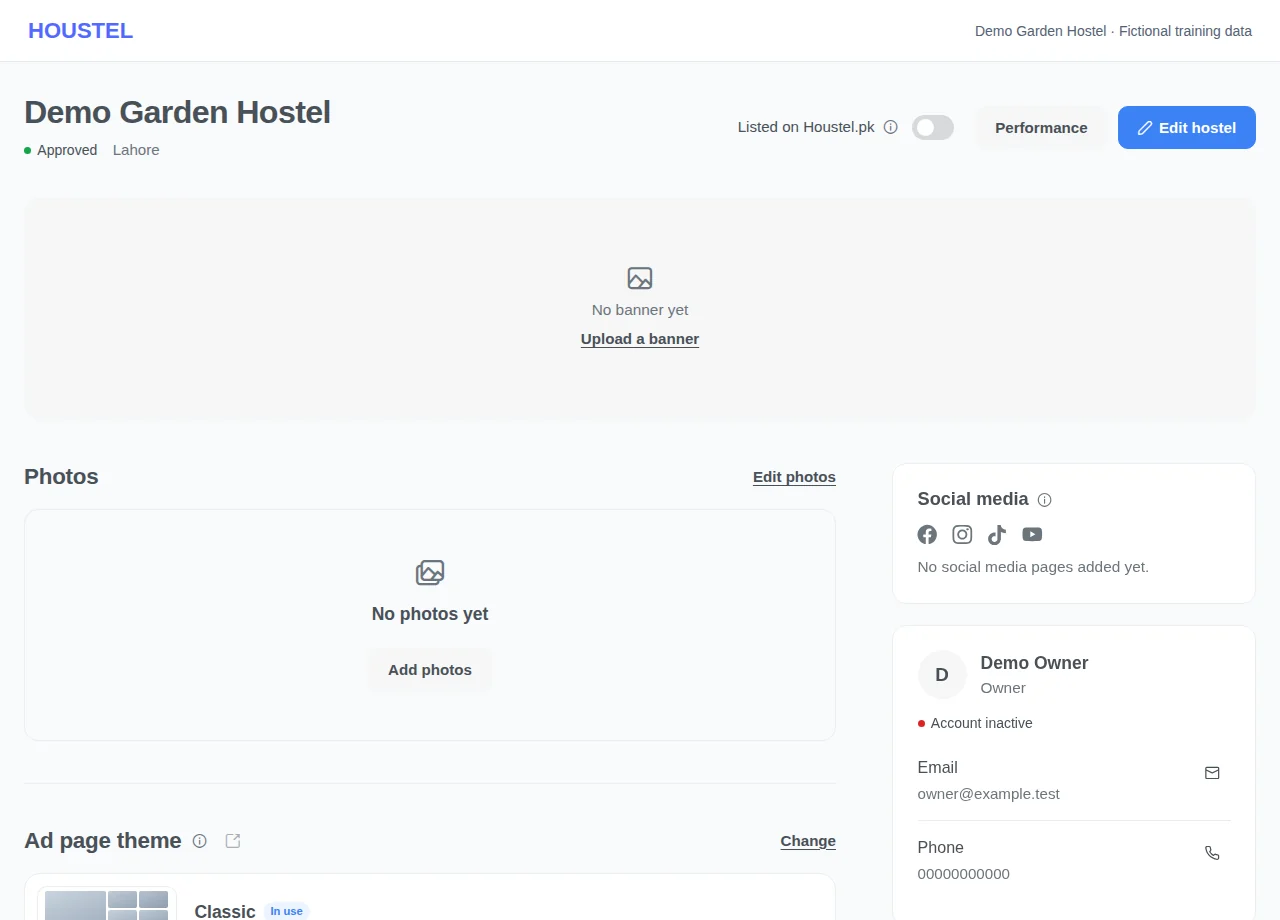
Check what visitors will see · Example with dummy data. Select the image to enlarge. -
Choose your appearance
Under Ad page theme, choose Change, then Change theme or a photo layout. Review the available preview and logo setting. Return to settings, Save, review which branches are selected, and confirm Yes, change it. Choosing an option in the picker alone does not publish it.
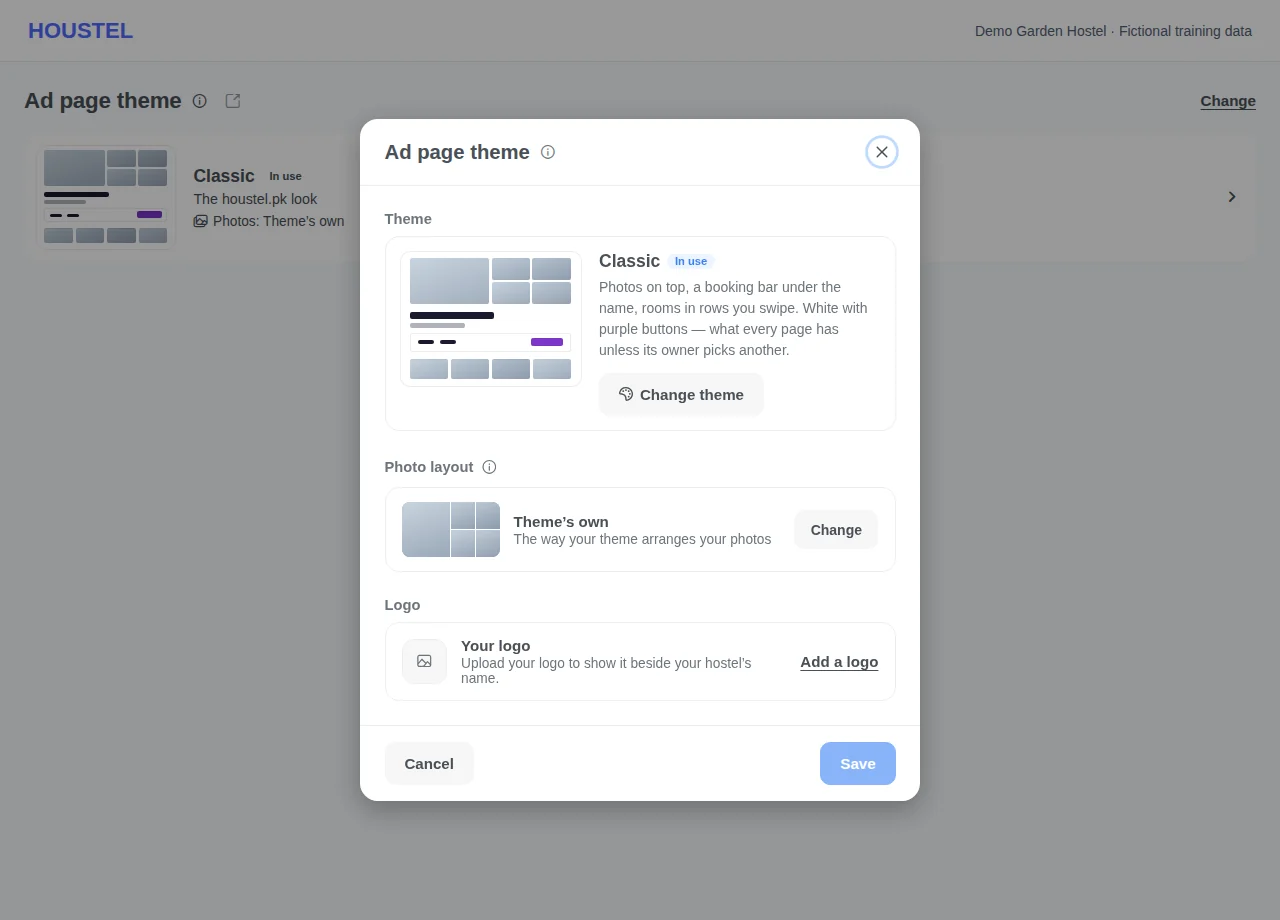
Choose your appearance · Example with dummy data. Select the image to enlarge. -
Publish an announcement
Under Announcement choose Add or Change. Write a short offer or update, choose its appearance and end time, and decide whether to include room and floor pages. Review the preview, Save, then Yes, show it. Check the public page after saving.
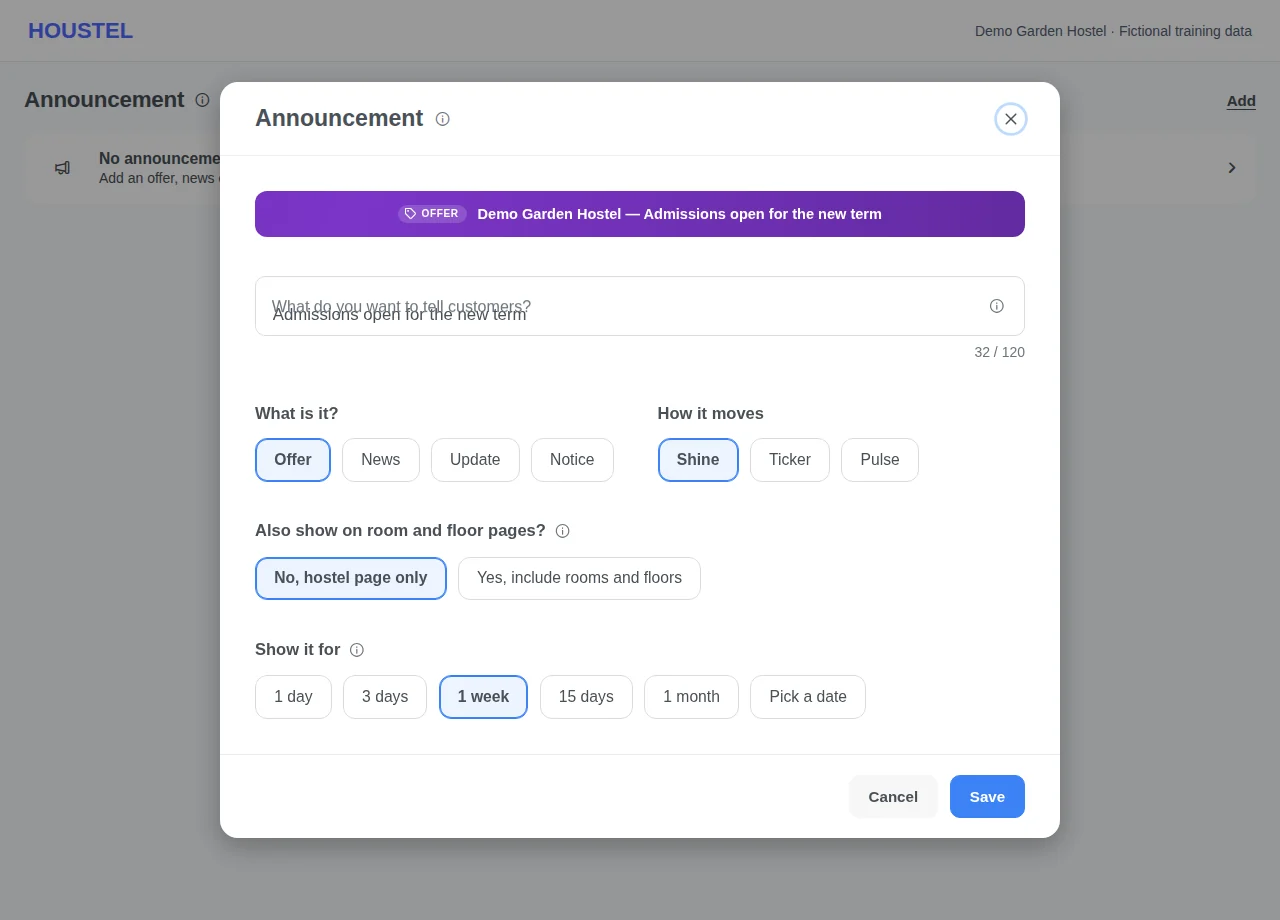
Publish an announcement · Example with dummy data. Select the image to enlarge.
Before you finish, and when something goes wrong
- Announcements are public. Do not enter resident names, room debts, identity documents, phone numbers, emails, links or social handles. Use the designated contact and social-profile sections for public contact information.
- An announcement ends automatically at its displayed end time. Edit it to extend it; removing it takes it off every page where it appears. Allow a few minutes for visitors to see a change.
- A theme does not approve or publish an incomplete hostel. A missing preview can mean the listing is not live yet. Follow the approval checklist.
- For short stays, choose whether you accept them and complete the daily-price fields shown. Check room-specific pricing before promising a visitor a rate.
- Branding on receipts and showing your logo on the public page are separate choices. Check logo readability and obtain permission for every photo or logo you publish.
If a save times out, check the record before repeating it. If access is denied, ask the owner to review your hostel assignment and permissions. Never share your login to work around an access restriction.
Related help
Still stuck?
Tell us the screen name, what you tried and what happened. Remove personal details, passwords and private links from any screenshot.