All guide chapters
Start here
Everyday running
- Residents
- Rent and payments
- Dues and reminders
- Deposits and advances
- Expenses and profit
- Mess and meals
- Reports and dashboard
- Laundry and food for residents
- Importing residents safely
- Room changes, checkout and resident requests
- Payment approvals
- Billing periods, installments and rent reviews
- Room electricity and resident charges
- Utility connections and bills
- Inventory and room assets
- Bank accounts and wallets
Filling your beds
Your team and residents
Hiring cooks, cleaners, guards and wardens
Post the job on Houstel.pk, look through people who have already put their name down for hostel work, and keep the salary of whoever you hire in the same place as the rest of your costs.
Step by step
Where to go: Hiring → Job Posts (Post a job), Find Workers, Applications and Hired Staff. Without an account: Houstel.pk → Hostel jobs → Post a job
Who can use it: The hostel owner, or staff with access to this feature. Some actions need additional permission. Anyone running a hostel can post from Houstel.pk without an account; until Houstel approves that hostel, only the hiring pages open.
-
No account yet? Post from Houstel.pk
On Houstel.pk open Hostel jobs and press Post a job. Six short steps: the job (kind, title, salary, room and meals), more about it (people needed 1, 2, 3 or more, hours, shift, who can apply, pay period, all already picked the way most jobs are), your hostel (name, city, area, boys or girls), Check your job (everything you chose with Change beside it, and a short job description Houstel’s AI writes from it, which you can edit or write again), your account (Continue with Google, which opens in its own window, with WhatsApp, or with email, each asking only for its own details), and a 6-digit code by WhatsApp or email. Nothing is posted and no account is made before the code or Google. The job then goes for checking like any other, and your dashboard opens Job Posts, Applications, Find Workers and Hired Staff only until Houstel approves your hostel; List my hostel adds its photos, address, rooms and rent.
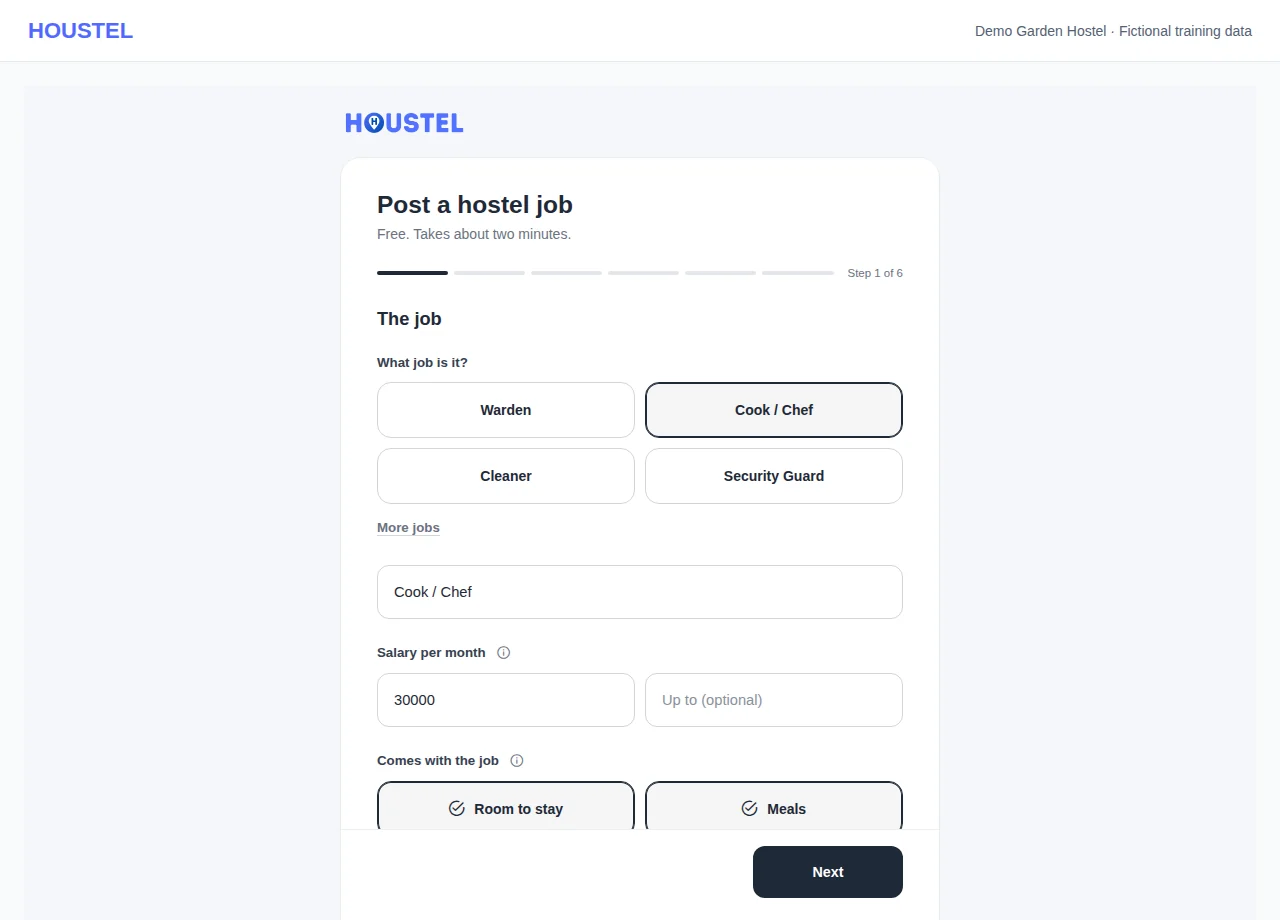
No account yet? Post from Houstel.pk · Example with dummy data. Select the image to enlarge. -
Open Job Posts
Your jobs are listed under Open, Live, Filled and All, each with its status (Draft, Awaiting review, Live, Sent back, Paused, Filled, Closed or Expired), the pay, how many people opened the ad and how many applied. Press Post a job to start a new one, or press a job to see its details.
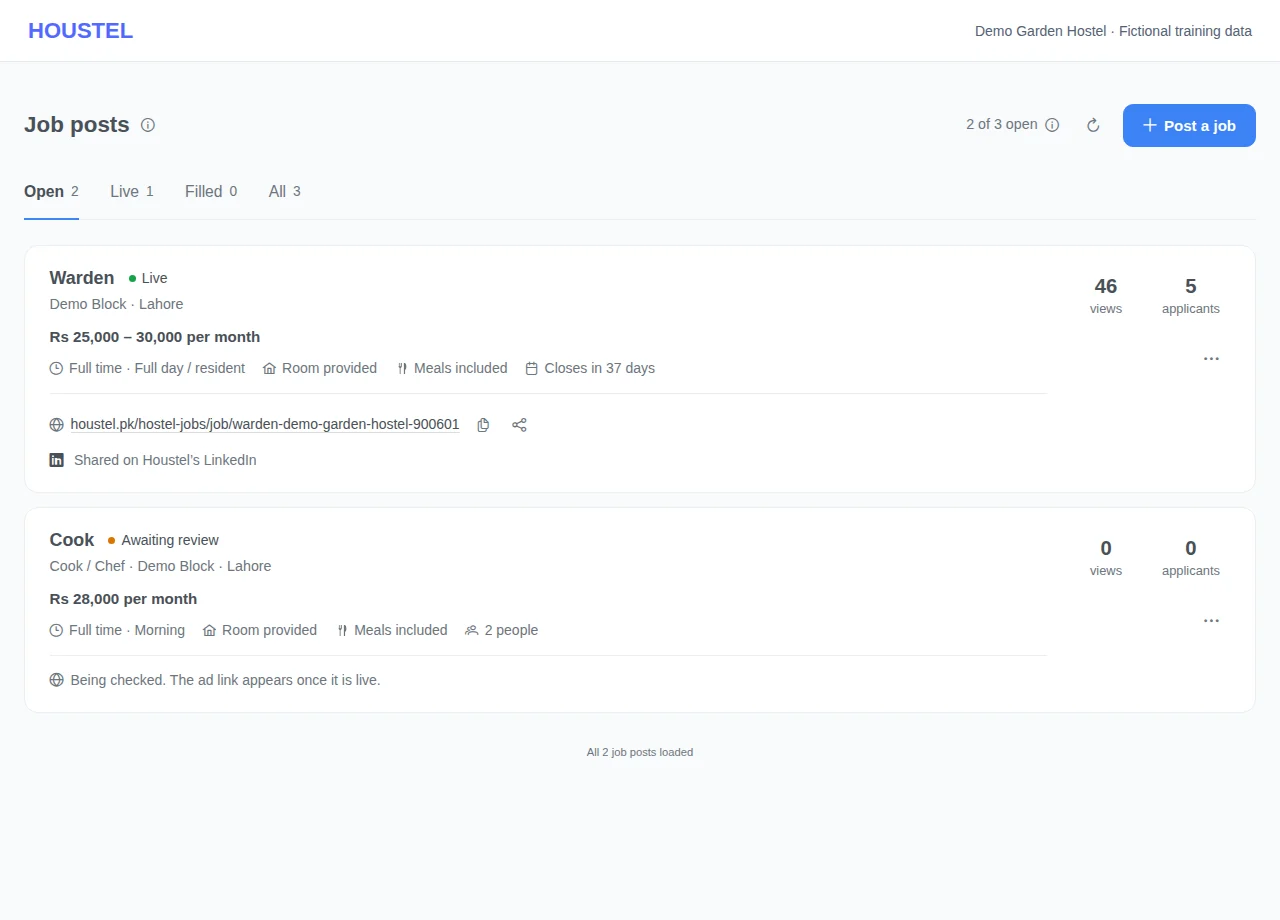
Open Job Posts · Example with dummy data. Select the image to enlarge. -
Say what the job is
Pick the kind of job from the four boxes; More jobs opens the full list. Picking one fills in the job title, which you can change. Add how many people you need, then choose the hours and the shift: the common choices show first, and More beside them shows the rest.
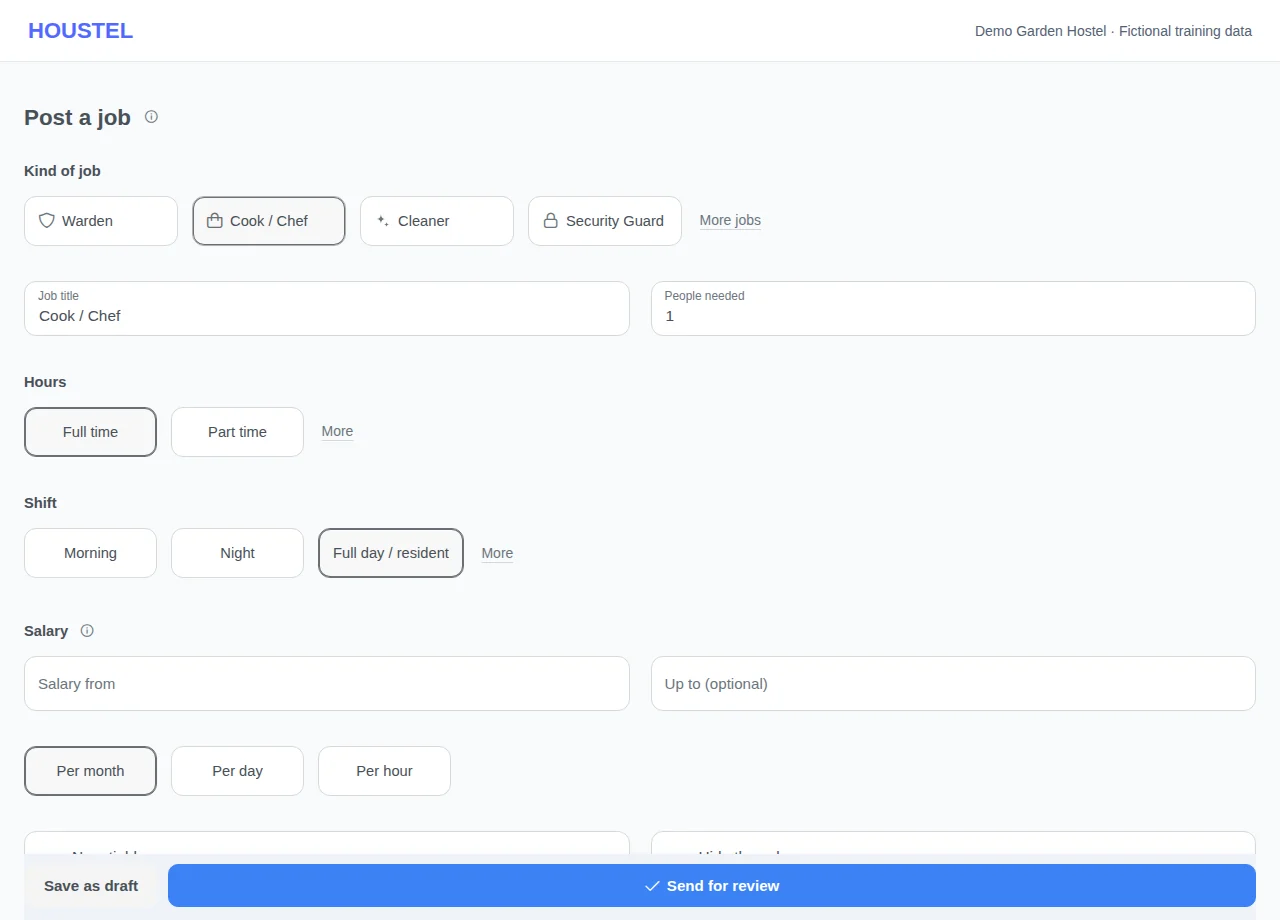
Say what the job is · Example with dummy data. Select the image to enlarge. -
Set the pay and what comes with it
Enter the salary and choose per month, per day or per hour. A salary is required even if you choose Hide the salary, because workers search by pay. Mark Room provided and Meals included when they apply. On a wide screen, the Your ad panel beside the form shows how the ad will read.
-
Choose who can apply and send it for review
Choose Anyone, Male only or Female only. The area, a description (Write it for me has Houstel’s AI write a short one from your choices), the experience, languages, duties, requirements and where the job shows are under More details: the area is your hostel’s own unless you type one, and the job shows on Houstel.pk unless you choose Signed-in workers only. Press Send for review, or Save as draft to finish later. Houstel checks every job before it goes live and emails you when it is live or if it is sent back; the reason appears at the top of the form when you open it.
-
Share the ad and look after it
A live job on Houstel.pk has its ad link on the card and in its details: copy it, or press share to send it to WhatsApp groups or Facebook. The details window shows everything workers see, when the job closes, views and applicants, with Edit and a ⋯ menu for Extend by 45 days, Pause or Resume, Close (say whether you hired someone), Reopen and Delete (only before anyone applies, and it asks first). Houstel may also share live public jobs on its LinkedIn page; you get a notification and the job shows Shared on Houstel’s LinkedIn.
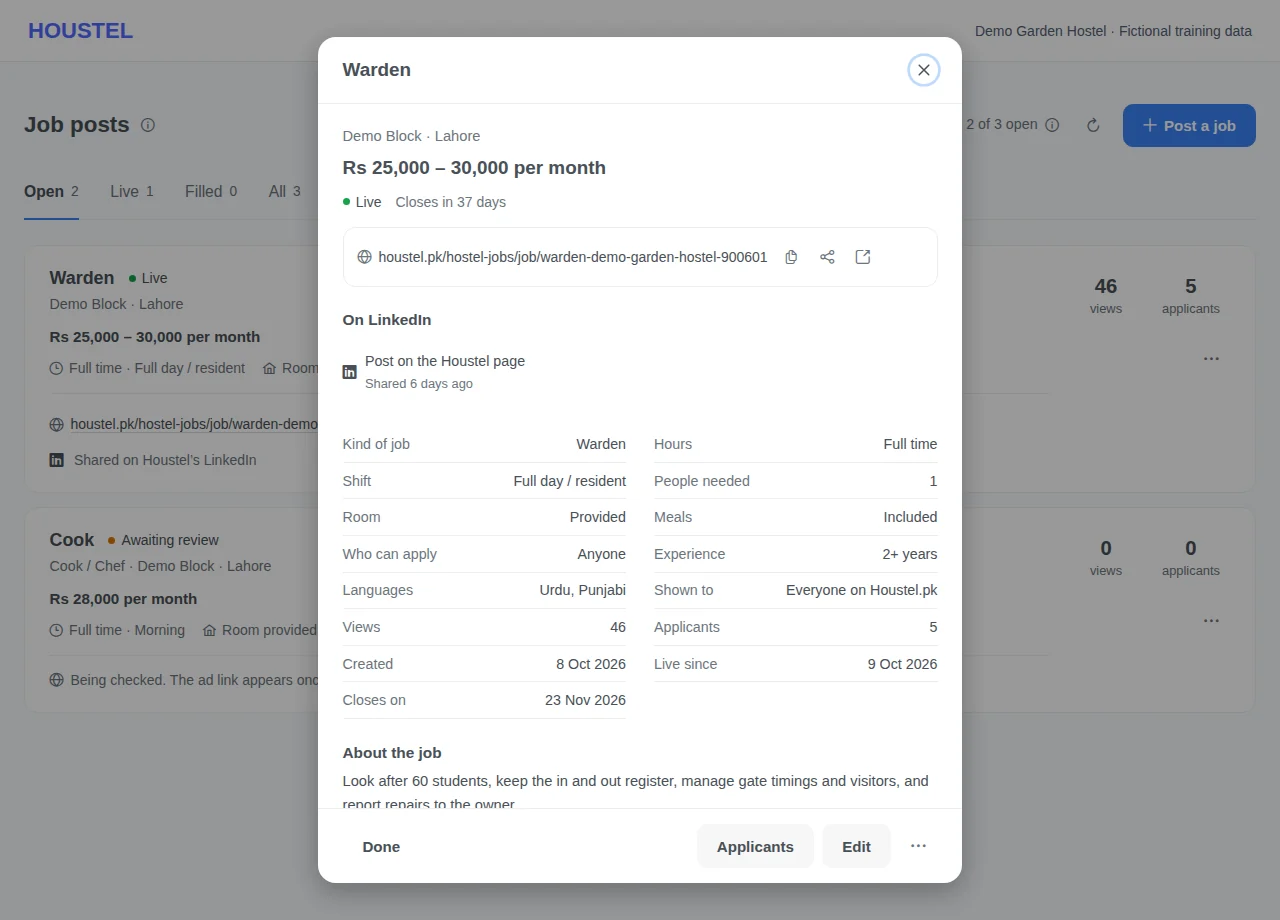
Share the ad and look after it · Example with dummy data. Select the image to enlarge. -
Track the employment
Review applications, verify the candidate and record the employment and salary details privately. Create dashboard staff access separately if the person needs it.
Before you finish, and when something goes wrong
- On the public Post a job page: an email or number that already has a Houstel account is told to sign in (the job you wrote stays on that device and your own Post a job form offers it); WhatsApp codes reach Pakistani mobile numbers only; after several codes, wait or continue with Google; a job left a day before its code is typed has to be sent again.
- If Send for review shows a message, nothing new is published: fix what it names and press it again. If it says you already have the most open job posts allowed, close a filled job first.
- Changing the title, kind of job, pay, room, meals, who can apply or the description of a live job sends it back for a quick check before the change appears.
- If Houstel closes one of your job posts, for example because it asks workers for money, you get a notification and the reason is shown on the post.
- A link to a job that has closed opens a page saying so, with similar open jobs. Jobs set to Signed-in workers only have no public link and are never shared on LinkedIn.
- Do not publish applicant contact details or identity documents. Confirm whether salaries already appear as expenses before entering them again.
If a save times out, check the record before repeating it. If access is denied, ask the owner to review your hostel assignment and permissions. Never share your login to work around an access restriction.
Related help
Finding a reliable cook or a night guard is usually done through word of mouth, and word of mouth runs out. The hiring section gives you a second channel: a job post that appears on Houstel.pk, and a list of people who have already registered looking for hostel work.
Posting a job
Hiring → Job Posts → Post a job. It is one page: pick the kind of job from the four boxes (More jobs has the full list), check the title it fills in, then set the hours, the pay, whether a room and meals come with it, and who can apply. Questions with more answers show the common ones first; press More beside them for the rest. Posting is free.
The area, a description, experience, languages, duties, requirements and where the ad shows are under More details. Most jobs can leave them: the area is your hostel's own, and the ad shows on Houstel.pk. Over the description, Write it for me has Houstel's AI write a short one from what you chose: about your hostel, the job, and what you need. Change anything before you send it.
Under Pictures or a PDF you can add up to five files, 10 MB each: a poster, the room a live-in worker would get, or the duties written out. Workers see them with the ad on Houstel.pk and in their Houstel app, and can open or save them. They are checked with the job, so adding one to a live job sends it for a quick check again; removing one does not. Leave phone numbers off them: workers apply through Houstel.
Press Send for review when it is ready, or Save as draft to finish later. Houstel reads every job before it goes live, usually within a few hours, and emails you when it is live. If it is sent back, the reason is shown at the top of the form: change what it asks and send it again. A live job appears on the public hostel jobs board, where people looking for this kind of work already are, unless you chose Signed-in workers only.
The posts that get good applicants say the boring things plainly:
- The actual pay. “Salary negotiable” gets a fraction of the replies a number gets.
- The hours, and whether it is live-in.
- Whether food and a room are included. For hostel work this is often worth more than a few thousand rupees of salary, and it is what makes your post competitive.
- The area. People take the job that is near them.
Posting a job before your hostel is on Houstel
You do not need to list your hostel first. On Houstel.pk, open Hostel jobs and press Post a job (on the sign-up page it is Only hiring staff? Post a job). It takes six short steps:
- The job: the kind of job, the title, the salary, and whether a room and meals come with it.
- More about the job: people needed (1, 2, 3 or more than 3), hours, shift, who can apply and how the salary is paid. Each is already picked the way most jobs are, so change only what is different. You can also add pictures or a PDF here. They are sent once your account is made; if they could not be, add them from the job's Edit.
- Your hostel: its name, city, area, and whether it is a boys or girls hostel. Only the name and area show on the job.
- Check your job: everything you chose, with Change beside each part, and a job description Houstel's AI writes from it: about your hostel, the job, and what you need. Edit it, or press Write again.
- Your account: Continue with Google, Continue with WhatsApp (your name, WhatsApp number and email) or Continue with email (your name, email, a password and your mobile number). Google opens in its own window, which closes by itself when you are done; then you are asked only for your mobile number. If your browser blocks the window, Google opens in the same one, and your job is kept.
- The code (WhatsApp and email): type the six digits. Nothing is posted and no account is made until you do, or until Google confirms who you are.
Then the job goes to Houstel for checking, exactly like any other job, and you are signed in. Houstel may call you to make sure the hostel is real before it publishes the job. You get an email when it is live, or the reason if it is sent back.
Until Houstel approves your hostel, your dashboard opens Job Posts, Applications, Find Workers and Hired Staff only. Press List my hostel to add its photos, address, rooms and rent. Once Houstel has checked those and approved the hostel, the rest of the dashboard opens and the hostel can appear on Houstel.pk.
The email already has a Houstel account: press Sign in. The job you wrote stays on that phone or computer, and your own Post a job form offers it with Use it. The number is already on an account: sign in, or use another number. No code: check spam, press Send the code again after a minute, or switch between email and WhatsApp. WhatsApp codes reach Pakistani mobile numbers only. Too many codes: wait and try later, or continue with Google. The Google account is a resident's or worker's: use another Google account or your email. A job left more than a day before the code is typed has to be sent again.
Your job posts and the ad link
Hiring → Job Posts lists your jobs under Open, Live, Filled and All. Each one shows its status, the pay, what comes with it and two numbers: how many people opened the ad and how many applied. Press the applicants number to go straight to them.
A live job on Houstel.pk has its ad link on the card. Copy it, or press share to send it to WhatsApp groups, Facebook or anywhere people looking for work will see it. Whoever opens it can read the job and press Apply. While a job is being checked, sent back, paused or closed, the card says why there is no link instead. A job set to Signed-in workers only never gets a public link.
Press a job to open its details: everything workers see, plus when it went live, when it closes, its views and applicants. Edit is there, and the ⋯ menu has the rest: Extend by 45 days, Pause and Resume, Close (you say whether you hired someone), Reopen, which sends it to be checked again, and Delete for a job nobody has applied to yet. Delete asks first and cannot be undone.
Houstel may also post live jobs that are on Houstel.pk on its own LinkedIn page, to reach more people. When it does, you get a notification and the job shows Shared on Houstel’s LinkedIn. People who come from LinkedIn apply on Houstel like everyone else, so they arrive under Applications once Houstel has checked them. Jobs set to Signed-in workers only are never shared. When a shared job closes, the Houstel team is told to take a LinkedIn job listing down, and an old link opens a page saying the job has closed, with similar open jobs.
Houstel also posts live jobs that are on Houstel.pk on its own Instagram, Facebook, YouTube, TikTok and Threads pages: a short video, or a few lines with a link to the job’s page. Each job goes out once, and again about every two weeks while it stays open, up to three times; once a week a post lists all open jobs together. A post shows the job, your hostel’s name, the pay as your ad shows it (a hidden salary stays hidden), whether a room and meals come with it and the hours — and your hostel’s photos only when your hostel is listed on Houstel.pk. It never shows a phone number or who may apply. People apply on Houstel as usual. A job that closes, is paused or is set to Signed-in workers only before its post is due is not posted.
Looking through candidates
Hiring → Find Workers lists people who have registered for hostel work, from cooks and cleaners to guards and wardens, with what they do and where they are. It opens on your hostel's city, shown as a chip such as In Lahore above the list: press its × to look in every city. Filters opens the rest as boxes: kind of work, city, men or women, experience, the pay they want, whether they need a bed, only ID checked, and the order. Press the bookmark on a worker to keep them under Saved. You can look through them without posting anything.
It also lists people who applied for a hostel job, at any hostel, before Houstel has checked them. They are marked Not checked yet and show only what they picked: the work, experience, city and pay. Their own words and photo appear once Houstel has checked them.
To contact somebody you found here, press Ask for their number. You can name the job it is for, which gets it approved faster. The request goes to Houstel, which looks at it and shares the person's number with you, usually the same day. For someone not checked yet, Houstel checks them first. If they added a CV, it comes with the number. Requests work the same way as they do for resident enquiries: unlimited on an active plan, and a small allowance without one. Read the profile before spending an unlock.
Applications
Everyone who applies to your post arrives under Hiring → Applications once Houstel has checked their profile. An application comes with the person's phone number, WhatsApp and, if they added one, their CV as pictures or a PDF to open or save. You do not need to request contact or use an unlock for them. If they withdraw the application, their number goes with it. Tabs show Open, Shortlisted, Hired, Not selected and All, with how many in each; Filters narrows the list to one job or to the ones you have not opened yet. Open an application to call or WhatsApp them, and press one of the Move them to boxes (Shortlisted, Interviewing, Offered, Hired, Not selected). They get an email each time; Not selected asks for a short reason. Your note on an application is seen only by your hostel. Work through them the way you work through resident enquiries: quickly, and reply to everyone. Good staff have other options, and a hostel that takes four days to respond is usually a hostel that loses them to one that took four hours.
After you hire somebody
Add them under Hiring → Hired Staff with Add staff: name, role, the kind of work, the day they started and their salary (a month, a day or an hour); the CNIC, a pay day, hours and notes are under More details. From there you keep their details and their salary, and the salary you record lands in your expenses for that month on its own. You do not enter it twice, and your profit figure already accounts for wages.
The top of the page shows the month: how many people work for you, the monthly wages, what you have paid this month and what is still to pay. Each person shows whether this month is paid. Press Pay beside them to save a salary, advance, bonus or deduction (a deduction adds nothing to your expenses), and open a person to see their payments. When someone leaves, choose They left from the ⋯ menu: they move to the Left tab and off your wages.
You are not asked to start again. Salary entries you have already made are recognised rather than duplicated, so moving your staff into this section does not double your wage bill.
Hired staff and dashboard access are different things
Hiring somebody here does not give them a login. If your new warden needs to use the dashboard, add them separately under Hostel Staff and choose what they can see. Keeping the two apart is deliberate: a cook is on your payroll and has no business in your payments screen.
Practical notes
- Keep a post up while you are still interviewing. Taking it down early is the most common reason owners end up with one candidate and no choice.
- Re-post seasonally. The people looking for work in July are not the people who were looking in March.
- Record salaries every month, not in a lump at year end. That is what makes staff cost visible in your monthly profit.
In short
- Posting a hostel job is free. Houstel checks it before it goes live on the public jobs board, and emails you either way.
- You can post a job before your hostel is on Houstel. Until the hostel is approved, only the hiring pages open.
- A live job has an ad link you can copy or share. Houstel may share it on its LinkedIn page too, and tells you when it does. It posts it on its other social pages too.
- State the real salary, the hours, and whether food and a room are included.
- Applicants to your own job come with their number and CV once Houstel has checked them.
- You can browse workers without posting. For anyone else, press Ask for their number and Houstel shares it; requests follow the same allowance as leads.
- Salaries recorded for hired staff flow into your expenses automatically.
- Hiring someone does not give them a dashboard login. Add that separately if they need it.
Common questions
Is posting a job free?
Yes, posting is free. People who apply to your job come with their phone number and CV once Houstel has checked them. For workers you find yourself, contact requests follow the same allowance rules as other leads.
Can I add pictures or a PDF to a job?
Yes, up to five: a poster, the room that comes with the job, or the duties written out. Workers see them with the ad on Houstel.pk and in their app. Adding one to a live job sends it for a quick check again.
Can I post a job before my hostel is on Houstel?
Yes. Press Post a job on the Houstel.pk jobs page: the job, your hostel’s name, city and area, a check of everything with a job description written for you, then Google, WhatsApp or email. Houstel checks the job before it goes live. Until your hostel is approved, only the hiring pages of your dashboard open.
Do salaries show up in my expenses?
Yes. A salary recorded for hired staff lands in your expenses for that month, so your profit figure already accounts for wages.
Will Houstel share my job on LinkedIn?
It may, for live jobs that are on Houstel.pk, to reach more people. You get a notification when it does, and applicants still apply on Houstel. Jobs set to Signed-in workers only are never shared.
Still stuck?
Tell us the screen name, what you tried and what happened. Remove personal details, passwords and private links from any screenshot.