All guide chapters
Start here
Everyday running
- Residents
- Rent and payments
- Dues and reminders
- Deposits and advances
- Expenses and profit
- Mess and meals
- Reports and dashboard
- Laundry and food for residents
- Importing residents safely
- Room changes, checkout and resident requests
- Payment approvals
- Billing periods, installments and rent reviews
- Room electricity and resident charges
- Utility connections and bills
- Inventory and room assets
- Bank accounts and wallets
Filling your beds
Your team and residents
Account security and privacy on Houstel.pk
Protect owner and staff access, lock the dashboard with a PIN or fingerprint, review signed-in devices, and report suspicious activity without sharing secrets.
Step by step
Where to go: Profile → User Profile → Login & security (two-step sign-in, App lock); My Devices; Hostel Staff; Lock now in the top bar
Who can use it: The hostel owner, or staff with access to this feature. Some actions need additional permission.
-
Use individual accounts
Give each staff member a separate login and the minimum access needed for their job. Verify the contact details used for recovery. Never share passwords, one-time codes or sign-in links.
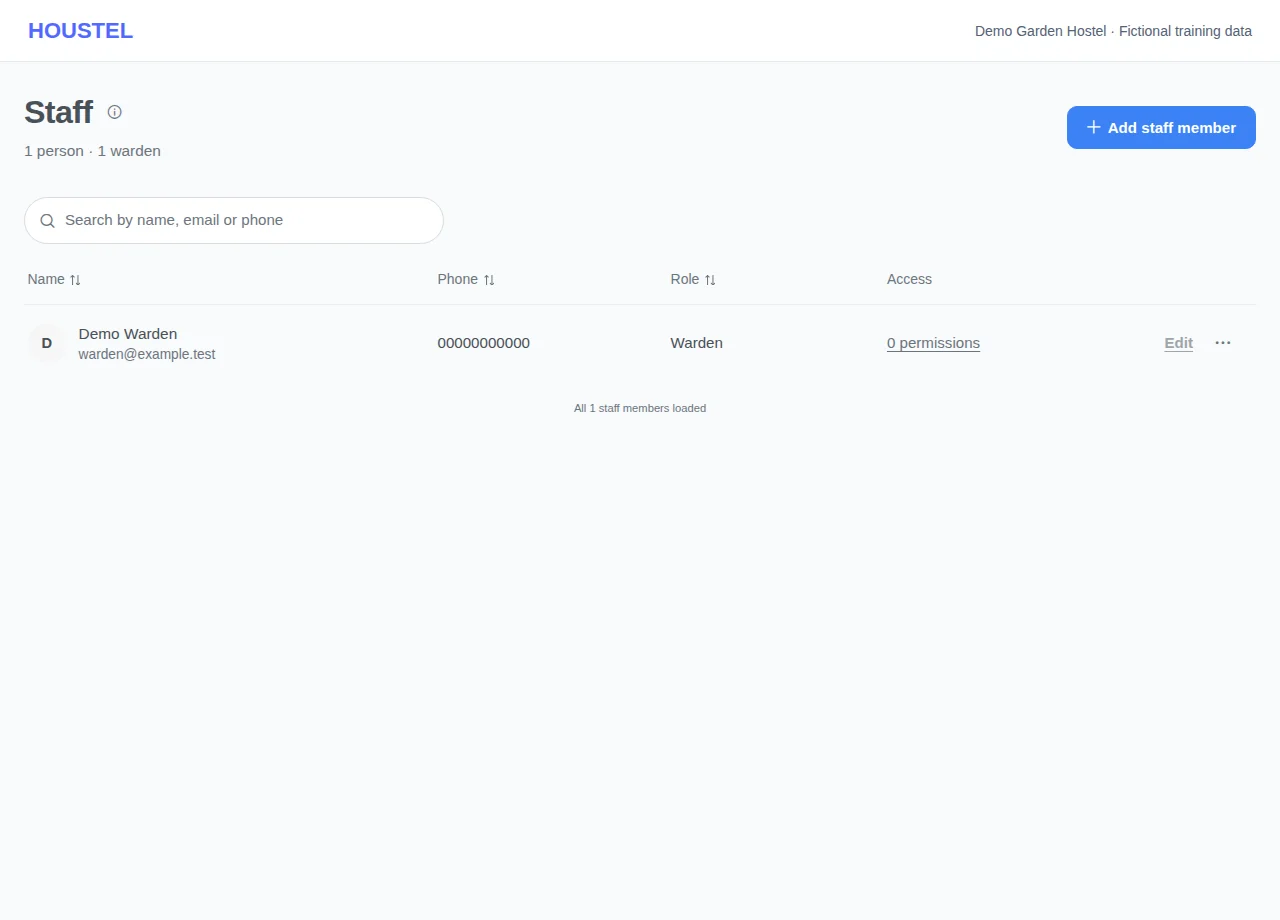
Use individual accounts · Example with dummy data. Select the image to enlarge. -
Check your two-step sign-in settings
Open User Profile → Login & security. The Two-step sign-in row shows whether extra checks use email, WhatsApp, or both. An email check follows an email-and-password sign-in; a WhatsApp check follows Google sign-in. The shared switch changes both channel preferences and saves straight away after a successful response. Success appears on screen; changing the switch sends no separate email or bell alert. The initial code for a WhatsApp sign-in is still required, and your role may require an extra email check on that sign-in. Keep an accessible email address and WhatsApp number on the account.
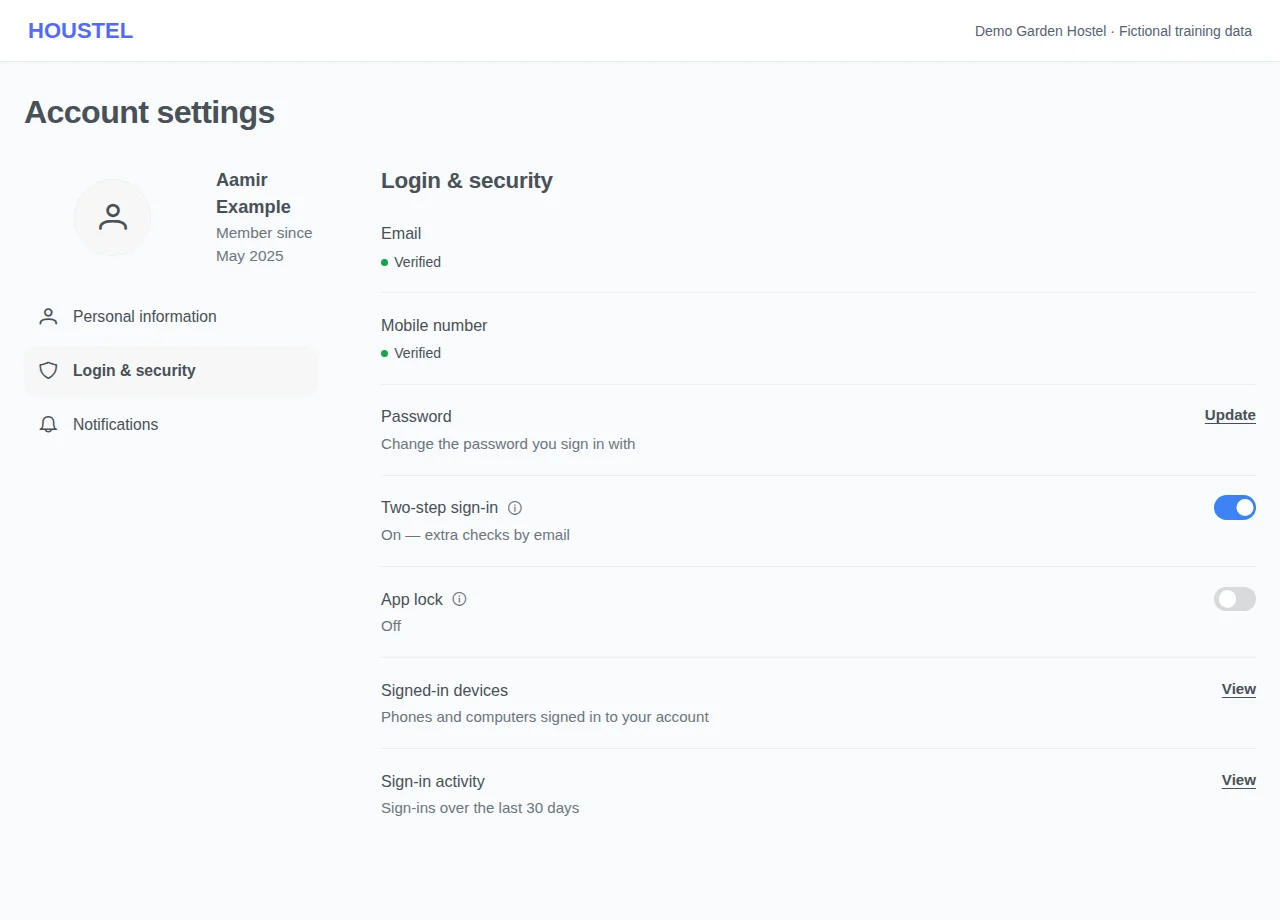
Check your two-step sign-in settings · Example with dummy data. Select the image to enlarge. -
Turn on app lock if others use your phone or computer
App lock is off until you turn it on. When it is on, Houstel asks for your PIN, or your fingerprint, when you come back to the dashboard after a while, so a staff member or relative picking up your phone or sitting at your reception computer cannot open it. In Login & security, switch App lock on and choose where we send a code: email or WhatsApp. Enter the 6-digit code, then choose a 4-digit PIN and enter it again. Easy PINs such as 1234, 1111 or a year are refused. Choose Lock after: Right away, 1, 5, 15 or 30 minutes (1 minute is preselected). On a phone or computer with a fingerprint, face or screen lock you can also tick fingerprint unlock and then tap Set up fingerprint. A bell alert and an email tell you app lock was turned on, with the device it was done on.
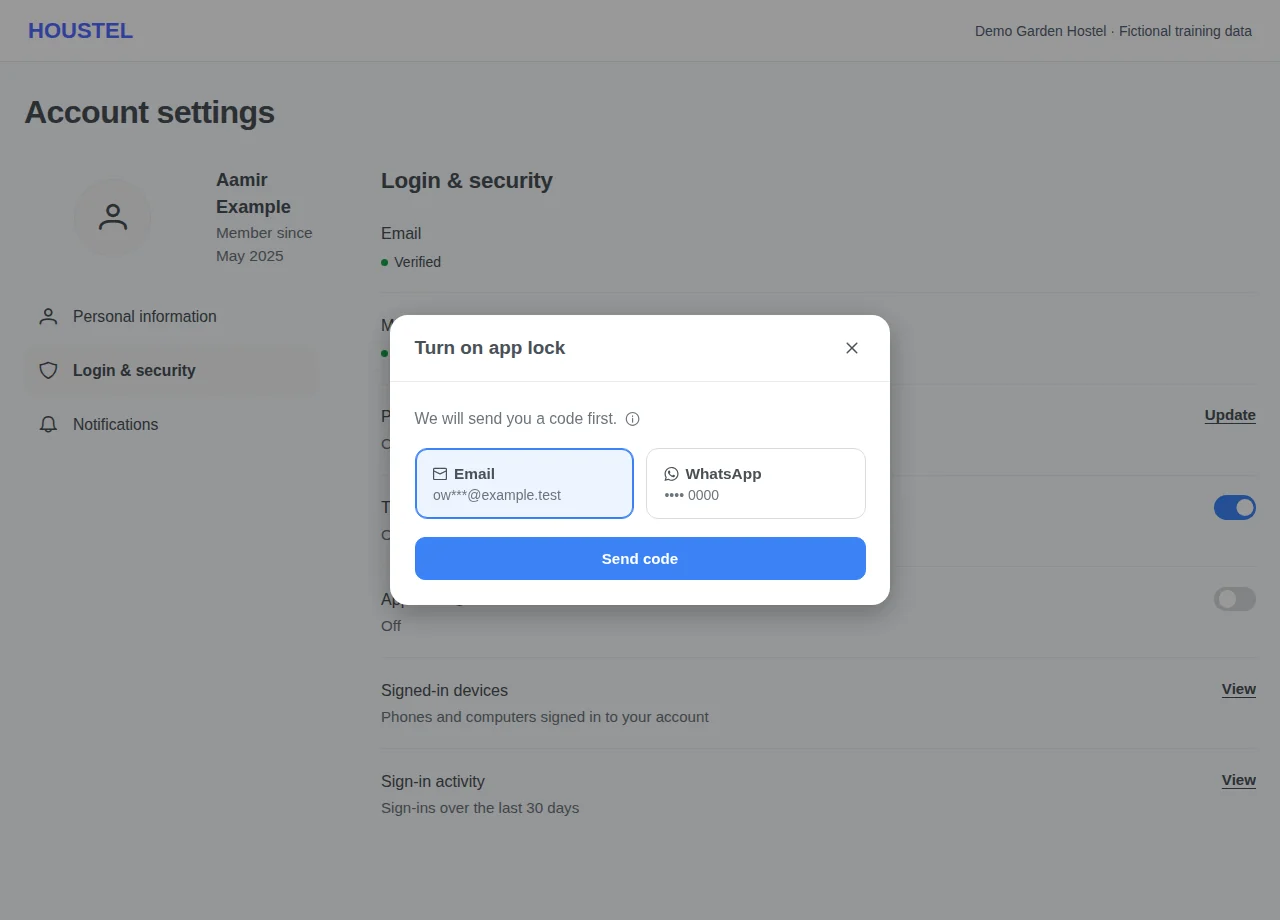
Turn on app lock if others use your phone or computer · Example with dummy data. Select the image to enlarge. -
Unlock, and what makes it lock
Houstel locks when nobody has used it for your Lock after time, and when you come back after closing it, switching apps or locking your phone for longer than that. Right away locks every time you leave the app or tab, and after one minute untouched on screen. Lock now in the top bar locks it at once, for example when you step away from a reception computer. The lock covers every page; enter your PIN (phones show a keypad) or use your fingerprint and you are back on the same page, with a half-filled form still there. Locking or unlocking in one tab does the same in your other tabs of that browser, and your other signed-in phones and computers ask for the PIN too. You need internet to unlock, because Houstel checks the PIN.
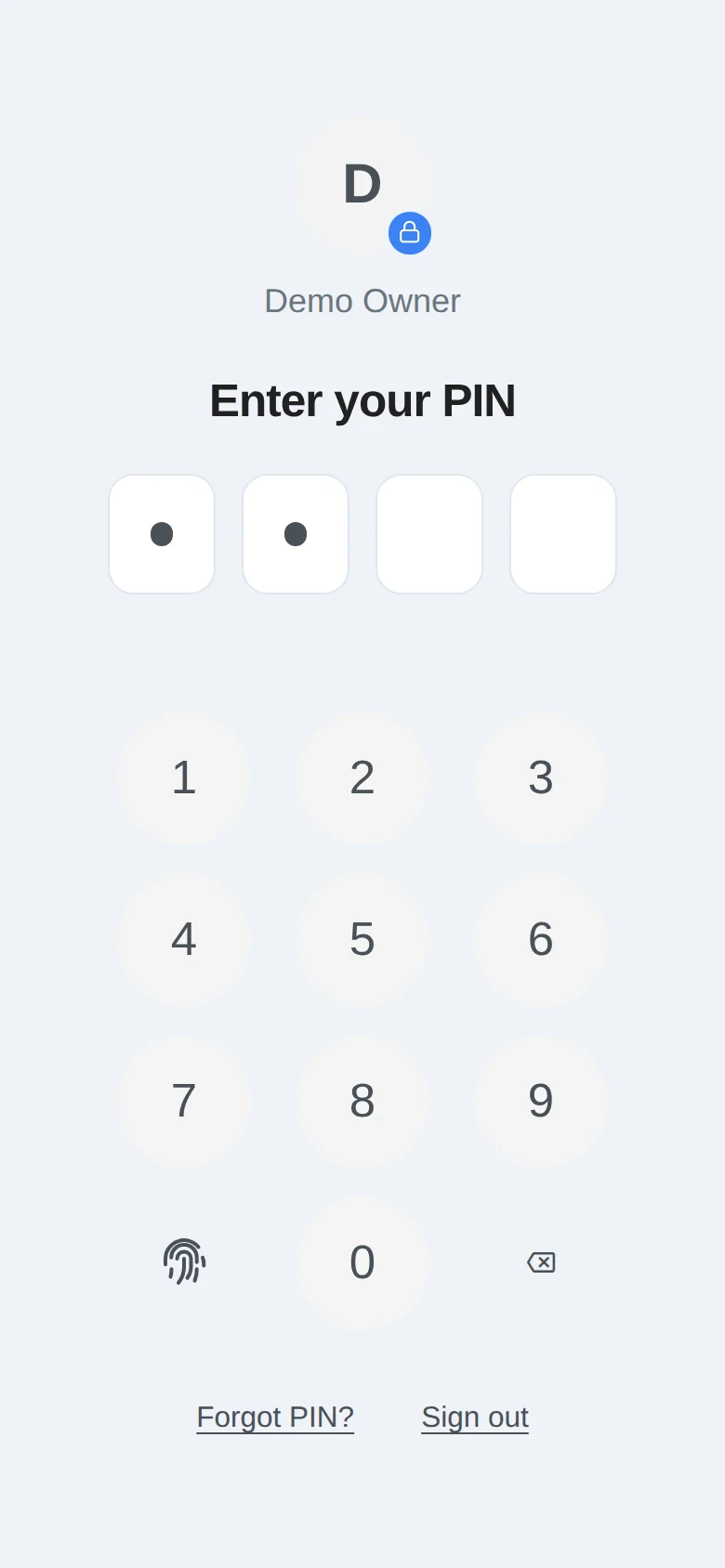
Unlock, and what makes it lock · Example with dummy data. Select the image to enlarge. -
Change or turn off app lock
With app lock on, Login & security shows Lock after, PIN and Fingerprint. Changing Lock after asks for your PIN. Changing the PIN, or switching App lock off, needs a new code by email or WhatsApp; you get a bell alert and email for both. Fingerprint unlock is set up separately on each phone or computer (Set up); Manage lists those devices and Remove takes one away. Your PIN keeps working everywhere.
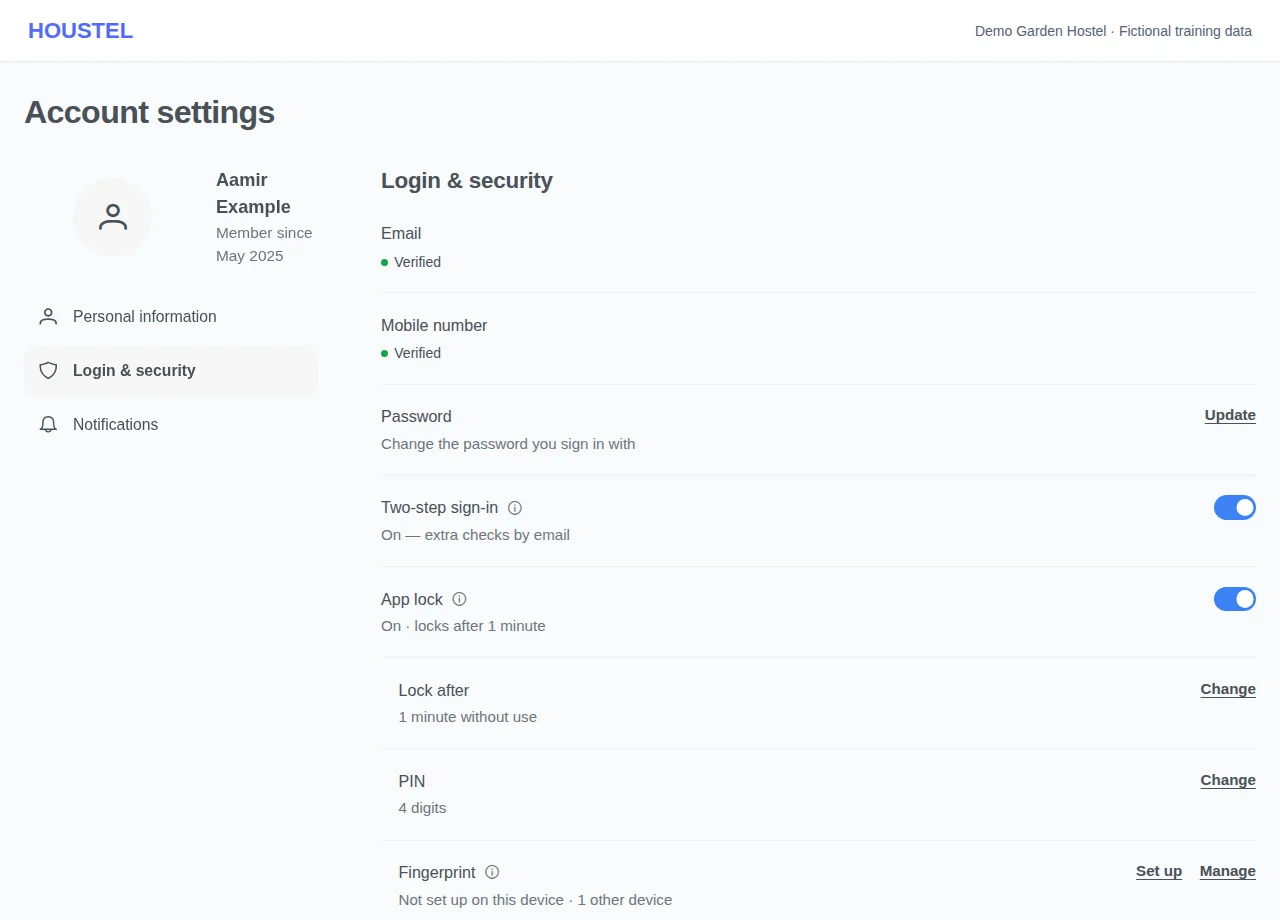
Change or turn off app lock · Example with dummy data. Select the image to enlarge. -
Review signed-in devices
Open My Devices and check the sessions shown. Sign out a device you no longer use or do not recognise. Confirm whether an action affects the current device before proceeding. Signing out a device also removes its fingerprint unlock.
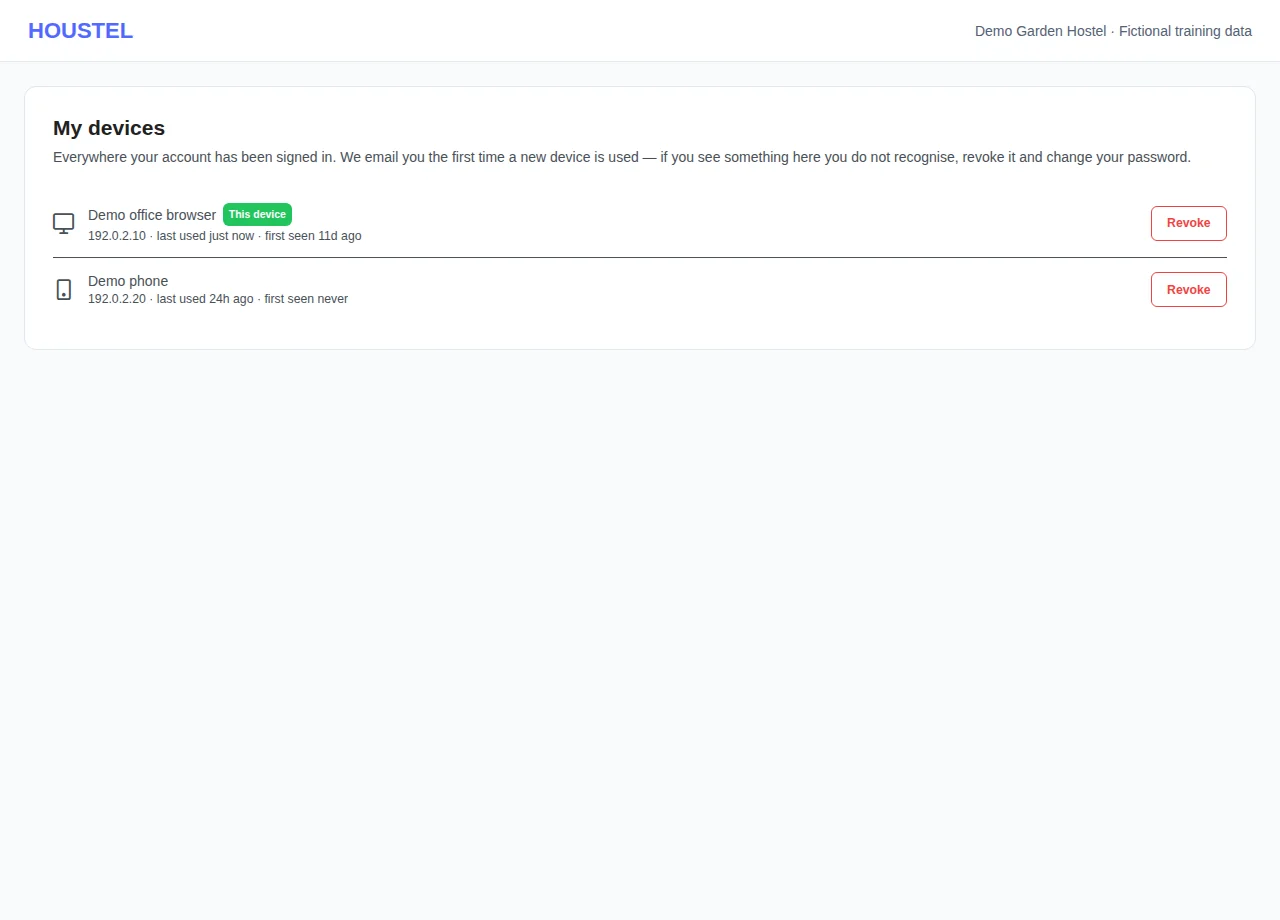
Review signed-in devices · Example with dummy data. Select the image to enlarge. -
Respond to a problem
If an account or device may be compromised, revoke unfamiliar sessions, change the password through the account or recovery flow, and contact support privately. Review recent payments, staff access and public listing changes.
Before you finish, and when something goes wrong
- If a setting fails to save, read the error and reload the profile to check the saved state before trying again. Switching two-step sign-in does not sign out existing devices or verify edited contact details. To change or verify your own email, phone or WhatsApp number, use its Edit or Verify action and enter the code sent to the new value; with app lock on, it also asks for your PIN. Contact Support privately if you cannot access that address or number.
- Notification preferences are separate from sign-in protection. Turning email or WhatsApp notifications off does not turn off required sign-in codes, password resets or payment receipts. An email address blocked by a bounce or spam complaint stays blocked when you change notification preferences.
- Removing a staff member’s hostel assignment and signing an account out are different actions. Review all assigned branches when someone leaves.
- Check the domain before signing in. Houstel support does not need your password or one-time code. Do not install remote-control software because of an unsolicited message.
- Receipts, complaint tracking, registration invitations and password links can reveal private information or give access. Share them only with the intended person; never use them as public examples.
- For a suspected vulnerability, report a short description and a redacted screenshot privately through support. Do not test other hostels, expose personal data or post bypass instructions publicly.
- On a shared computer, sign out and remove locally downloaded resident files when finished. Keep exports in restricted storage and follow your organisation’s retention policy.
- Forgot your app lock PIN: on the lock screen choose Forgot PIN?, sign out, and sign in again with your password (and any sign-in code). A fresh sign-in opens without the PIN. Then change the PIN in Login & security with a code. Nobody at Houstel can see or reset your PIN.
- After 5 wrong PINs, or 5 fingerprint attempts that do not check out, that device is signed out and you get a bell alert and an email. Your other devices stay signed in. If it was not you, sign out unknown devices in My Devices and change your password.
- If an app lock code does not arrive, wait a minute and send a new one, or choose the other channel. A code works for 10 minutes, only on the device that asked for it and only for the change it was asked for. Up to 6 codes can be sent in a day.
- Fingerprint unlock uses the device's own fingerprint, face or screen lock, so anyone who knows that phone's screen lock can use it too. It belongs to one browser on one device: clearing that browser's data or reinstalling the web app removes it there, so set it up again. Some older browsers cannot set it up; your PIN still works.
- App lock protects the Houstel dashboard in a browser and the installed web app. It does not lock the Houstel Android app yet, and it does not hide phone notifications, WhatsApp messages or emails, which can still show on the phone's own lock screen. Keep your phone's screen lock on as well.
- App lock is for your own account. Each staff member turns it on for their own login; turning it on does not lock your staff's accounts.
If a save times out, check the record before repeating it. If access is denied, ask the owner to review your hostel assignment and permissions. Never share your login to work around an access restriction.
Related help
Still stuck?
Tell us the screen name, what you tried and what happened. Remove personal details, passwords and private links from any screenshot.