All guide chapters
Start here
Everyday running
- Residents
- Rent and payments
- Dues and reminders
- Deposits and advances
- Expenses and profit
- Mess and meals
- Reports and dashboard
- Laundry and food for residents
- Importing residents safely
- Room changes, checkout and resident requests
- Payment approvals
- Billing periods, installments and rent reviews
- Room electricity and resident charges
- Utility connections and bills
- Inventory and room assets
- Bank accounts and wallets
Filling your beds
Your team and residents
Expenses, other income and profit
Rent in, costs out, what is left. Record your bills as you pay them and the profit figure on your dashboard is real rather than a guess at the end of the month.
Step by step
Where to go: Payments → Expenses; Monthly balances
Who can use it: The hostel owner, or staff with access to this feature. Some actions need additional permission.
-
Record the real expense
Open Expenses, choose the category, amount, date and payment details, then keep the supporting receipt privately.
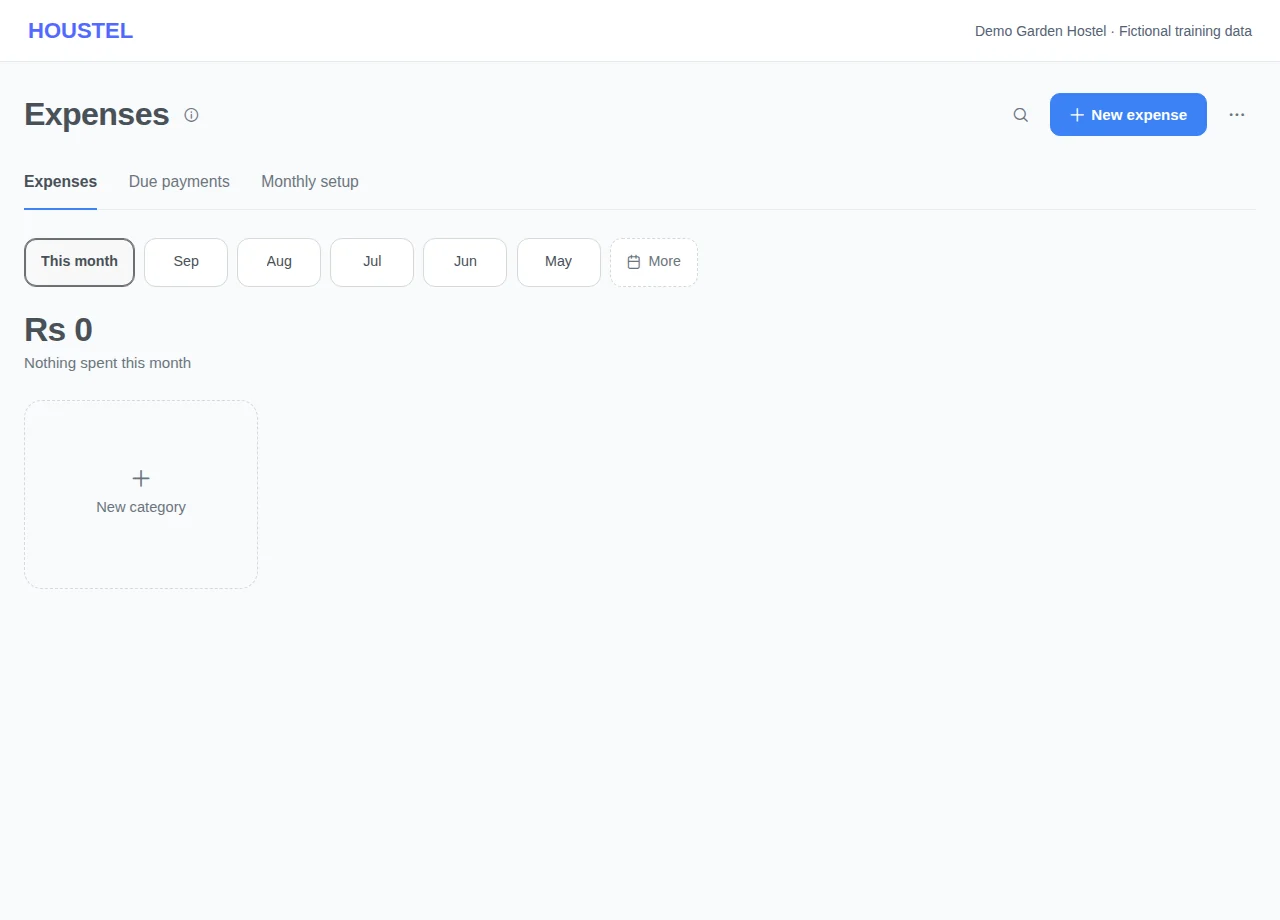
Record the real expense · Example with dummy data. Select the image to enlarge. -
Compare the same period
Review income, expenses and monthly balances for the same month. Check whether a bill, salary or asset purchase already has an expense entry.
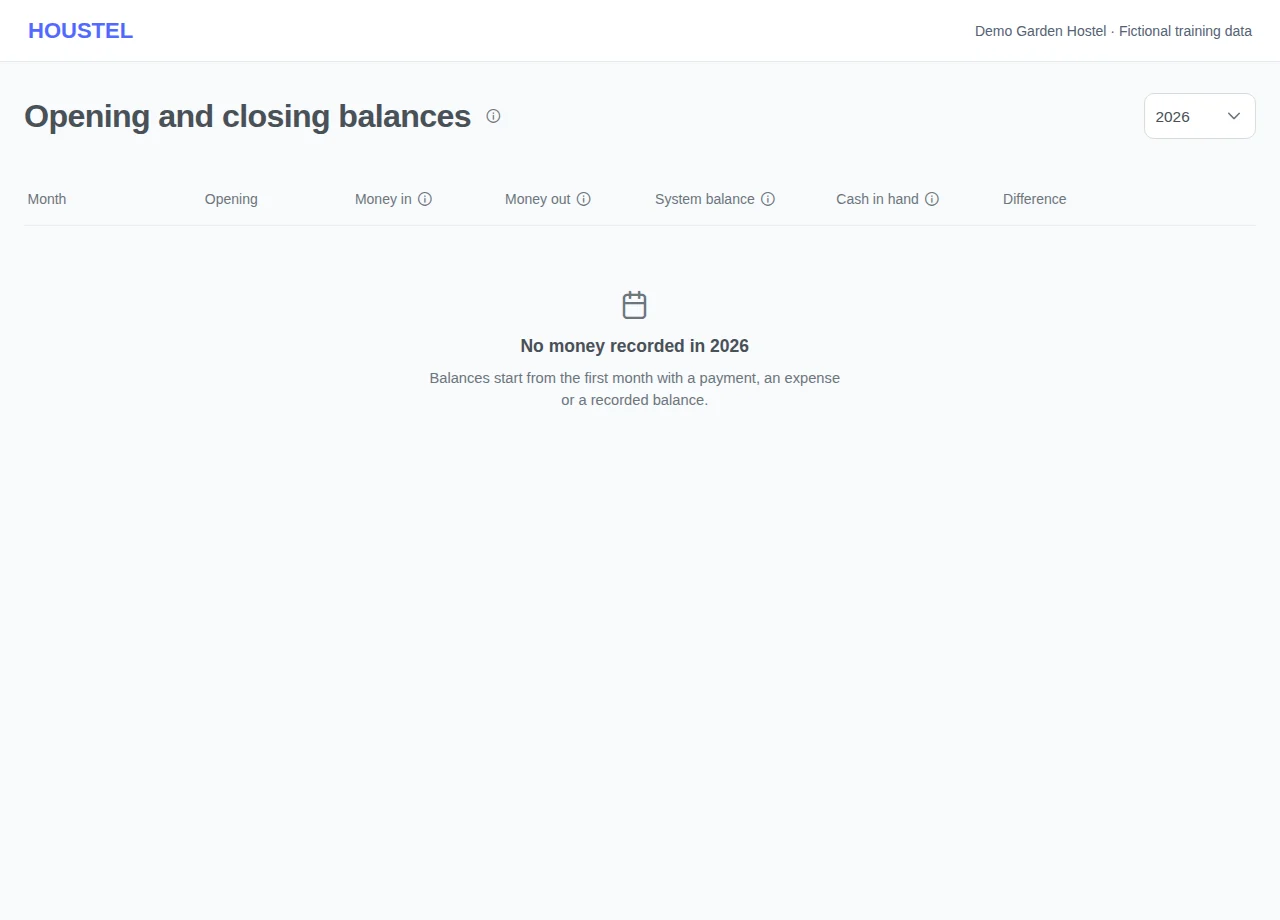
Compare the same period · Example with dummy data. Select the image to enlarge. -
Track unpaid and repeated expenses
Use Due payments to distinguish an outstanding expense from money already paid. Use Monthly setup for repeated costs, then check what has actually been recorded for the month before entering another expense. Confirm category and payment dates before exporting totals.
Before you finish, and when something goes wrong
- Do not record a bill payment twice. Deposits, uncollected rent and scheduled commitments should not be mistaken for earned cash.
If a save times out, check the record before repeating it. If access is denied, ask the owner to review your hostel assignment and permissions. Never share your login to work around an access restriction.
Related help
Most hostel owners can tell you what came in this month. Far fewer can tell you what went out, which is why a hostel can be busy and still not making money. Recording expenses takes a minute a day and turns your dashboard's profit figure from a guess into a fact.
Recording an expense
Payments → Expenses. Enter what you paid, what it was for, and when. Attach a photo of the bill if you have one. It stays with the entry, which is worth a great deal the day somebody asks what the Rs 40,000 in June was.
The categories cover what a hostel actually spends money on:
- Utilities. Electricity, gas, water, internet.
- Food. mess groceries, the cook's supplies.
- Staff. Salaries for your cook, cleaner, guard and warden.
- Building. Rent if you do not own it, repairs, paint, plumbing, furniture.
- Running costs. Cleaning supplies, gas cylinders, water tanker, security.
- Your own categories. Add anything the built-in list does not cover.
You can hide the built-in categories your hostel never touches, so the list you see is yours rather than a menu of everything. A category you have already used cannot be removed, because hiding it would make old months unreadable.
Staff salaries
If you hire through the hiring section, a salary you record for a hired staff member lands in your expenses for that month on its own. You do not enter it twice, and your profit already accounts for wages.
Income that is not rent
Shop rent, parking charges from outsiders, a hall let out for a function, a vending machine. Record these as other income.
It counts towards your profit, but it stays on its own line everywhere, so you can always see how much of a strong month was actually rent and how much was everything else. That distinction matters: rent tells you whether the hostel is working, other income tells you whether the building is.
Reading the profit figure
Your dashboard works it out simply, and it is worth knowing exactly what is in it:
| Counts as income | Does not |
|---|---|
| Rent collected | Security deposits, money you are holding |
| Mess, electricity and other charges | Advances, until the month they pay for arrives |
| Other income: shop, parking, events | Anything you have refunded |
Expenses come off that, and what is left is your profit for the month. You get the figure for the current month and for all time, so you can see whether the trend is going the right way.
Cash and bank, side by side
Money in and out is tracked separately for cash and bank. That gives you a genuinely useful check: at the end of the day, what the screen says your cash position is should match the drawer. When it does not, you know that same evening rather than three weeks later.
Three habits that make this work
- Record the expense when you pay it Not at the end of the month. Nobody remembers the Rs 1,200 plumber on the 9th.
- Photograph the bill as you enter it The phone is already in your hand.
- Look at the month's total on the last day Two minutes, once a month, and you will spot the utility bill that has quietly doubled.
In short
- Record expenses the day you pay them, with a photo of the bill.
- Non-rent income from a shop, parking or events goes under other income and stays on its own line.
- Deposits, advances and refunds are correctly excluded from income, so your profit figure is real.
- Salaries for hired staff flow into expenses on their own, so do not enter them twice.
- Cash and bank are tracked separately so you can check the drawer against the screen daily.
Common questions
Where does income that is not rent go: shop rent, parking, events?
Under other income. It counts towards your profit but stays on its own line, so you can always see how much of a good month was rent and how much was everything else.
Can I keep a photo of the bill?
Yes. Attach the receipt when you record the expense, and it stays with that entry, which is useful the day someone asks what the Rs 40,000 in June was for.
Still stuck?
Tell us the screen name, what you tried and what happened. Remove personal details, passwords and private links from any screenshot.